
Home ▸ Arduino ▸ Sensors Interfacing ▸
Updated On: May 15, 2026
AHT20 Arduino Tutorial: I2C Wiring, Serial Monitor & SSD1306 OLED Display
The AHT20 is a calibrated digital temperature and humidity sensor that communicates over I2C — the same two wires your OLED, LCD, and other sensors already share. Connect VCC, GND, SDA, and SCL, call aht.getEvent(), and you have accurate environmental data without any manual offset correction or calibration step.
In this tutorial you will learn how to wire the AHT20 to Arduino Uno, Nano, and Mega, install the Adafruit AHTX0 library, and read temperature and humidity on the Serial Monitor. You will then build a standalone environmental display by connecting a 0.96″ SSD1306 OLED to the same I2C bus — no extra wires, no GPIO conflict — so readings update live on screen without a computer attached. A full troubleshooting section covers sensor not detected, wrong readings, and blank OLED.
For a refresher on I2C before you start, the Arduino I2C Tutorial covers bus scanning, pull-ups, and multi-device wiring. For more on the SSD1306 OLED itself, see the SSD1306 Arduino OLED Tutorial.
Working with other temperature and humidity sensors on Arduino? Check out these related guides:
- SHT21 Temperature & Humidity Sensor with Arduino
- DHT11 & DHT22 Temperature & Humidity with Arduino
- SHT3X Temperature & Humidity Sensor with Arduino
- BME280 Environmental Sensor with Arduino
- BMP180 Pressure & Temperature Sensor with Arduino
- DS18B20 Temperature Sensor with Arduino
Browse the full Arduino Sensor Interfacing tutorial collection for more.
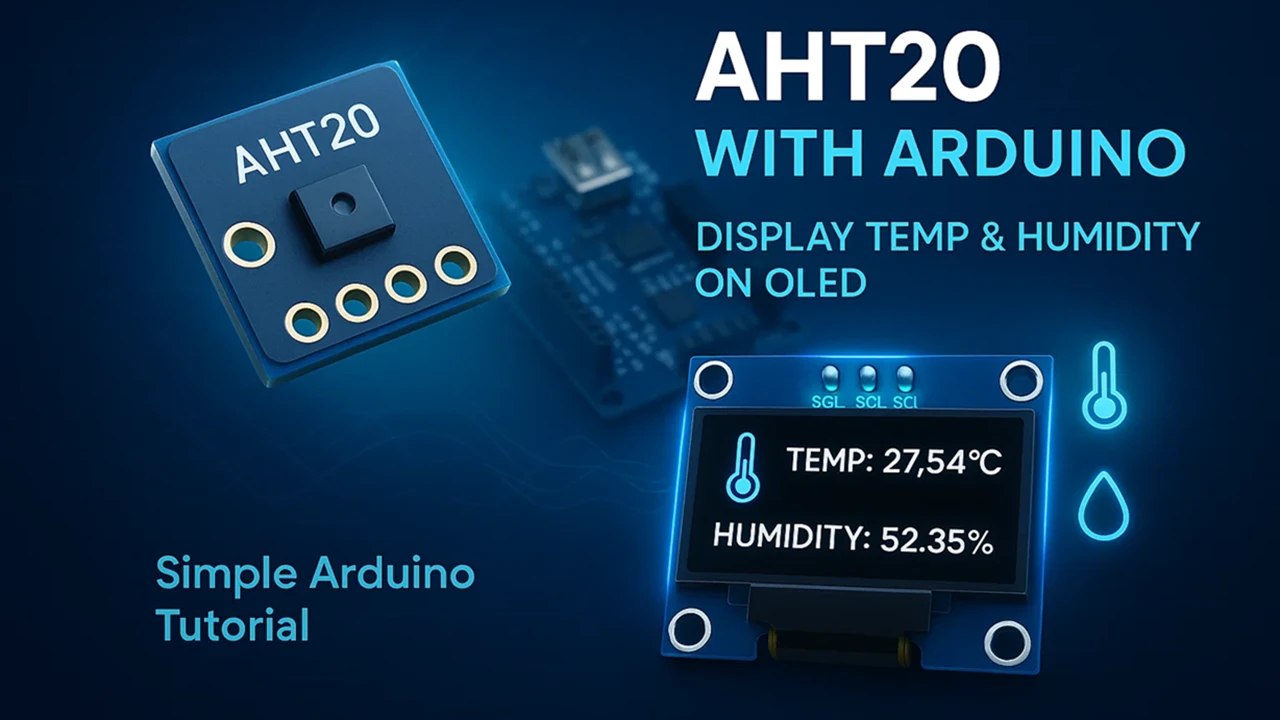
AHT20 Sensor Overview
The AHT20 is a modern digital sensor designed to measure both temperature and humidity with high accuracy and stability. It is widely used in various electronic and IoT projects because it provides reliable readings, communicates easily through the I²C interface, and requires very little setup.
Let’s take a closer look at what this sensor is, its key specifications, and where you can use it.
What is AHT20 Sensor?
The AHT20 sensor is a digital temperature and humidity sensor developed by ASAIR. It works on the I²C communication protocol, making it compatible with most microcontrollers like Arduino, ESP32, STM32, and others.
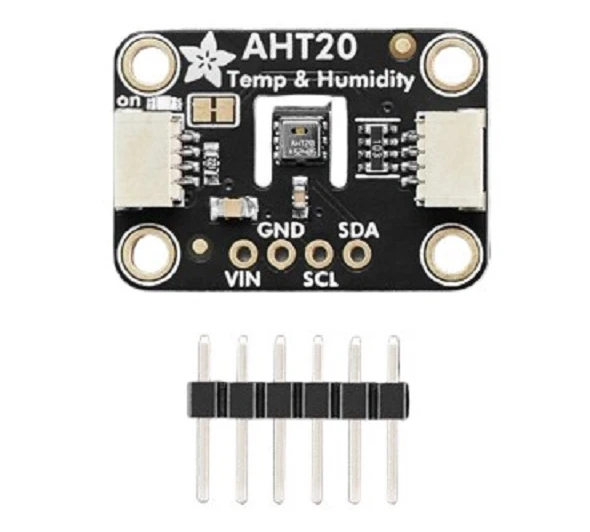
This sensor contains a calibrated capacitive humidity sensor and a thermistor integrated into a compact module. The onboard 14-bit ADC (Analog-to-Digital Converter) ensures precise and stable measurements with minimal drift over time.
AHT20 is the successor of the popular AHT10 sensor, offering better accuracy, improved response time, and more consistent readings across different temperature ranges. It operates on 3.3V to 5V, which means it can be directly powered by an Arduino board without level shifting.
AHT20 Key Specifications
Here are the main features and technical specifications of the AHT20 sensor:
- Operating Voltage: 2.0V to 5.5V (compatible with 3.3V and 5V logic)
- Interface: I²C (default address 0x38)
- Humidity Range: 0% to 100% RH
- Temperature Range: -40°C to +85°C
- Humidity Accuracy: ±2% RH (typical)
- Temperature Accuracy: ±0.3°C (typical)
- Response Time: Less than 10 seconds
- Compact Size: Easy to integrate into small projects
- Fully Calibrated: No external components required
- Low Power Consumption: Suitable for battery-powered applications
These specifications make the AHT20 a strong choice for projects that require precise and reliable environmental monitoring.
AHT20 vs SHT21 / DHT22 — Quick Comparison
The AHT20 sits in an interesting position among temperature and humidity sensors — it is more accurate than the DHT series, communicates over standard I2C, and costs only slightly more than a DHT22. Here is how it compares to the two sensors readers most commonly evaluate alongside it:
| DHT22 | SHT21 | AHT20 | |
|---|---|---|---|
| Temperature accuracy | ±0.5°C | ±0.3°C | ±0.3°C |
| Humidity accuracy | ±2–5% RH | ±2% RH | ±2% RH |
| Interface | Single-wire (proprietary) | I2C (standard) | I2C (standard) |
| Min sampling interval | 2 seconds | No restriction | No restriction |
| Supply voltage | 3.3V – 5V | 2.1V – 3.6V | 2.0V – 5.5V |
| Library | Adafruit DHT | SHT2x (Rob Tillaart) | Adafruit AHTX0 |
| Fixed I2C address | — | 0x40 | 0x38 |
The AHT20 matches the SHT21 on accuracy and beats the DHT22 on both accuracy and interface. The practical advantage over the SHT21 is the wider supply voltage range — the AHT20 accepts 2.0V to 5.5V so it connects directly to a 5V Arduino without a level shifter, whereas the SHT21 chip runs at a maximum of 3.6V (though most breakout modules include regulation). The DHT22 remains a valid choice only for projects where I2C is unavailable or the one-wire protocol is intentionally preferred.
If you are choosing between these three, the AHT20 is the straightforward pick for any new project that has I2C available.
AHT20 I2C Address — 0x38
The AHT20 has a fixed I2C address of 0x38. It cannot be changed as there is no ADDR pin on the module. This means you can have only one AHT20 on a single I2C bus.
Before uploading your full sketch, confirm the sensor is detected by running the I2C scanner below. Open the Serial Monitor at 9600 baud and you should see 0x38 listed as a found device.
#include <Wire.h>

void setup() {
  Wire.begin();
  Serial.begin(9600);
  Serial.println("Scanning I2C bus...");

  for (byte address = 1; address < 127; address++) {
    Wire.beginTransmission(address);
    if (Wire.endTransmission() == 0) {
      Serial.print("Device found at 0x");
      if (address < 16) Serial.print("0");
      Serial.println(address, HEX);
    }
  }
  Serial.println("Scan complete.");
}

void loop() {}
Expected output with AHT20 connected:
Scanning I2C bus...
Device found at 0x38
Scan complete.If you also have an SSD1306 OLED on the same bus, you will see a second address (0x3C or 0x3D) alongside 0x38. There is no conflict: 0x38 is always the AHT20, and the OLED address depends on its hardware configuration. Both can share SDA and SCL without any issue.
If 0x38 does not appear, check SDA and SCL wiring first. Then confirm the sensor is receiving power. The AHT20 draws very little current, so a breadboard connection with a loose wire can appear powered (status LED on) while the I2C lines are floating.
AHT20 Arduino Wiring & Pinout
Let’s start by taking a look at the pinout of the AHT20 sensor to understand its available connections and functions. Once we are familiar with the pins, we’ll move on to the wiring part, where we’ll see how to properly connect the AHT20 to an Arduino board for data communication.
AHT20 Pin Configuration
The AHT20 sensor comes with a simple 4-pin interface, which makes it very easy to connect with an Arduino. Since it communicates over the I2C protocol, only two pins are used for data transfer — SDA and SCL. The remaining two pins are for power supply.
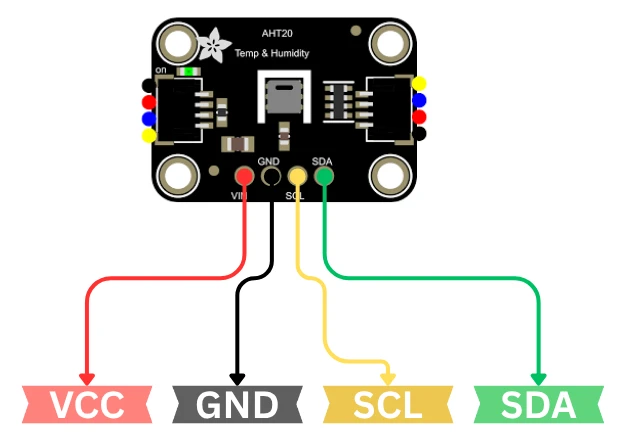
Most AHT20 breakout boards expose a small set of pins. Here are the common pins and their meaning:
| Pin Name | Description |
|---|---|
| VCC / VIN | Power supply. Accepts 3.3V to 5V. |
| GND | Ground connection. |
| SDA | I²C data line. |
| SCL | I²C clock line. |
| SDO / ADDR (optional) | I²C address select on some modules (often not present). |
| INT / DRDY (rare) | Interrupt / Data Ready pin on some variants. |
Note:
The AHT20’s default I²C address is 0x38. Many breakout modules include onboard pull-up resistors on SDA and SCL. If yours does not, add 4.7kΩ pull-ups to VCC.
Wiring Diagram — AHT20 to Arduino Uno
The circuit diagram for connecting the AHT20 sensor to Arduino is very straightforward. The image below shows how to connect the AHT20 sensor with Arduino UNO.

Below is a typical connection setup using the Arduino UNO:
| AHT20 Pin | Arduino UNO Pin |
|---|---|
| VCC | 3.3V or 5V |
| GND | GND |
| SDA | A4 |
| SCL | A5 |
If you use an Arduino Nano / Pro Mini (5V) the SDA and SCL pins are the same (A4, A5).
If you use an Arduino Leonardo / Micro or ESP32, use the board’s dedicated SDA and SCL pins. Check your board pinout.
If the module lacks pull-ups, connect two 4.7 kΩ resistors:
- one between SDA and VCC
- one between SCL and VCC
Install Adafruit AHTX0 Library
Once the AHT20 sensor is connected properly to the Arduino, we can begin reading temperature and humidity values. In this section, we’ll go step by step, from installing the required libraries to uploading the code and viewing the output on the Serial Monitor.
To make the AHT20 sensor work smoothly with Arduino, we’ll use an existing library. This library handles all the communication with the sensor and simplifies the code.
You can install it directly from the Arduino Library Manager:
- Open Arduino IDE.
- Go to Sketch → Include Library → Manage Libraries.
- In the search bar, type AHT20.
- Install the library named “Adafruit AHTX0” by Adafruit.
This library supports both AHT10 and AHT20 sensors, so it works perfectly for our project.

Also, make sure you have the Adafruit BusIO library installed, as it’s a dependency for AHTX0.
AHT20 Arduino Code — Serial Monitor Output
Once the libraries are installed, you can use the following Arduino sketch to read data from the AHT20 sensor and print it on the Serial Monitor.
#include <Wire.h>
#include <Adafruit_AHTX0.h>

Adafruit_AHTX0 aht;  // Create AHT20 object

void setup() {
  Serial.begin(9600);
  Serial.println("AHT20 Sensor Test");

  if (!aht.begin()) {
    Serial.println("Could not find AHT20 sensor. Check wiring!");
    while (1);
  }
  Serial.println("AHT20 sensor found successfully!");
}

void loop() {
  sensors_event_t humidity, temperature;
  aht.getEvent(&humidity, &temperature); // Get new readings

  Serial.print("Temperature: ");
  Serial.print(temperature.temperature);
  Serial.println(" °C");

  Serial.print("Humidity: ");
  Serial.print(humidity.relative_humidity);
  Serial.println(" %");

  Serial.println("-------------------------");
  delay(2000); // Wait 2 seconds between readings
}Code Explained
- The code starts by including the Wire and Adafruit_AHTX0 libraries.
- We create an
ahtobject to communicate with the sensor. - In the
setup(), we initialize the serial monitor and the sensor. If the sensor is not found, it displays an error. - In the
loop(), we usegetEvent()to read both temperature and humidity values, and then print them on the serial console.
The delay of 2 seconds gives enough time to read the output clearly.
Output — Serial Monitor at 9600 Baud
Once the code is uploaded successfully, open the Serial Monitor from the Arduino IDE (Tools → Serial Monitor) and set the baud rate to 9600.

You’ll notice the values update every 2 seconds. The readings may vary slightly depending on the room temperature and humidity.
This confirms your AHT20 sensor is working perfectly, and your Arduino can successfully read and display environmental data.
AHT20 with SSD1306 OLED — Standalone Display
After verifying that the AHT20 sensor works correctly on the Serial Monitor, the next step is to make the output more visual. In this section, we’ll display the temperature and humidity readings on a 0.96″ OLED display based on the SSD1306 driver.
This compact OLED is perfect for small projects because it uses minimal power and communicates through the same I²C interface as the AHT20. That means both the OLED and the sensor can share the same SDA and SCL lines on your Arduino.
If you want to get more information about how to interafce the 0.96″ Oled display with Arduino, check out this guide: Interface 0.96″ SSD1306 Oled with Arduino.
Wiring Diagram — AHT20 + SSD1306 to Arduino Uno
The 0.96″ SSD1306 OLED has four pins: VCC, GND, SCL, and SDA. Since it also uses the I²C protocol, the wiring is very similar to the AHT20 sensor.
You can connect both devices on the same I²C bus as shown below:
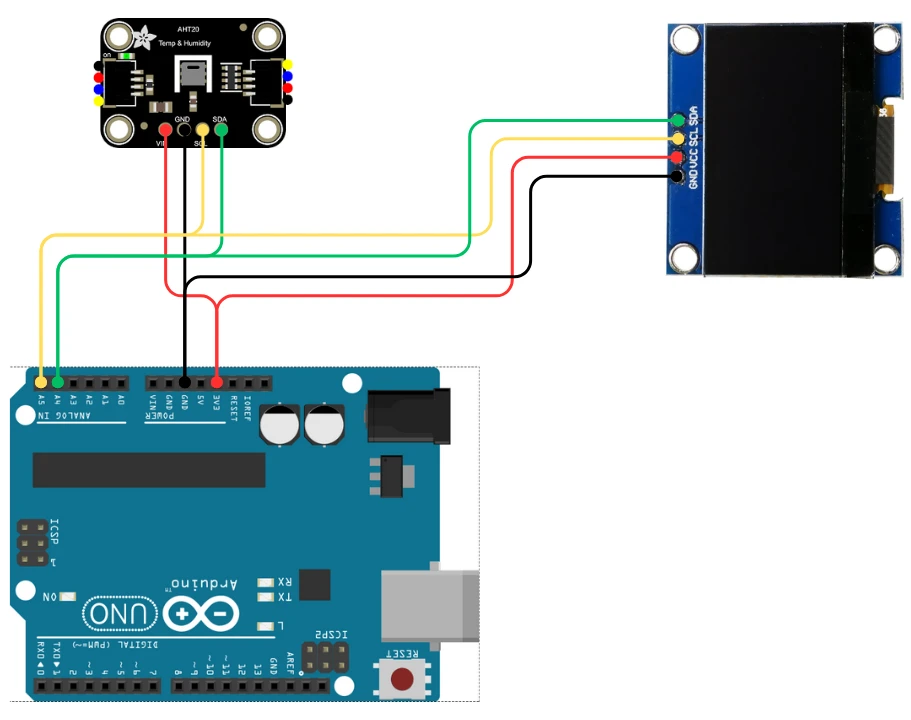
Both modules will work together without interference because:
- The AHT20 uses I²C address 0x38
- The OLED typically uses I²C address 0x3C
This means you can easily read sensor data and print it on the OLED display.
Install Adafruit SSD1306 and GFX Libraries
Once the hardware connection is done, the next step is to prepare your Arduino IDE so that it can communicate with the SSD1306 OLED display. We’ll use two official libraries from Adafruit that make working with the OLED display very simple — the Adafruit SSD1306 library and the Adafruit GFX library.
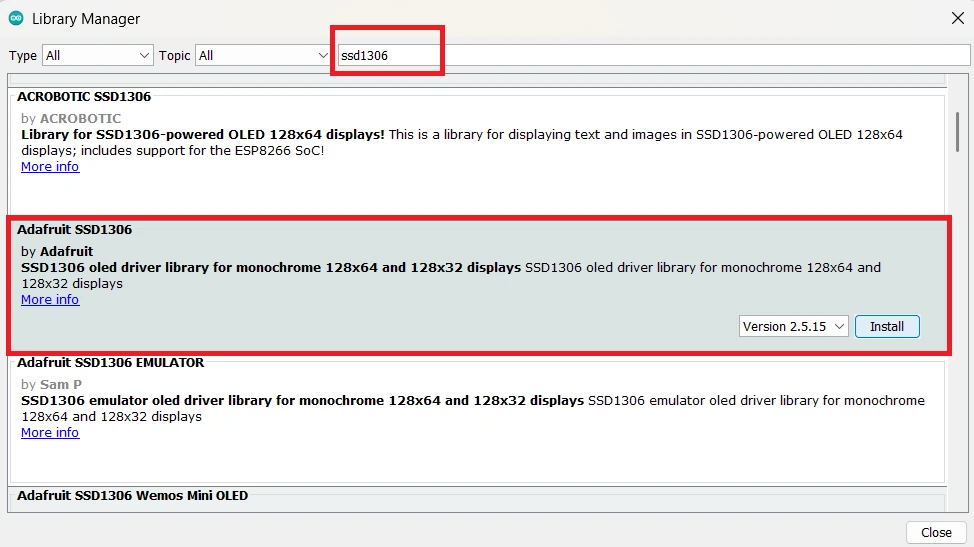
- Go to the Sketch menu → Include Library → Manage Libraries…
- In the Library Manager, type “SSD1306” in the search bar.
- Find Adafruit SSD1306 by Adafruit and click Install.
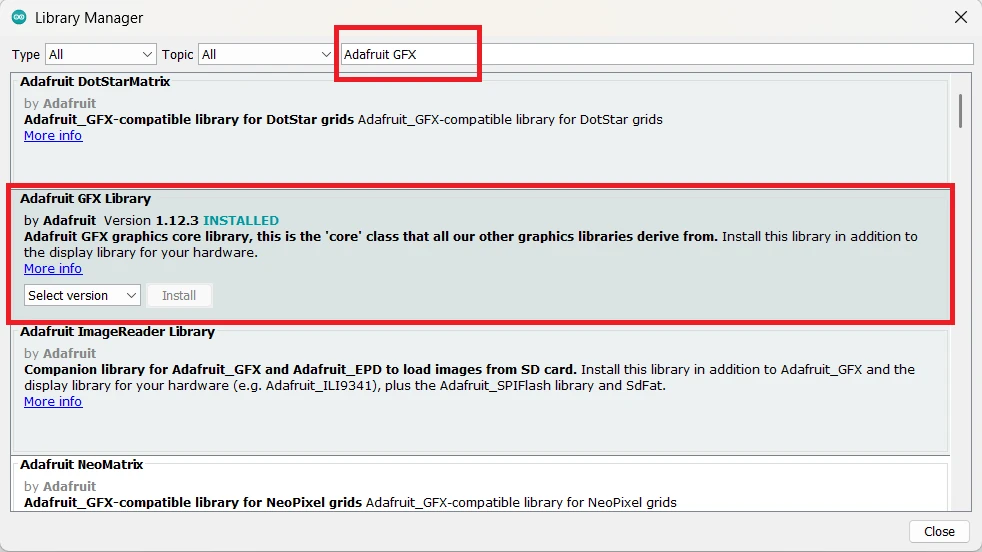
- Next, search for “Adafruit GFX” and install Adafruit GFX Library as well.
Complete Code — AHT20 + SSD1306 OLED
Make sure you have installed the following libraries before running the code:
- Adafruit AHTX0 (for AHT20 sensor)
- Adafruit SSD1306 (for OLED display)
- Adafruit GFX (a graphics library required by SSD1306)
Now upload this code:
#include <Wire.h>
#include <Adafruit_GFX.h>
#include <Adafruit_SSD1306.h>
#include <Adafruit_AHTX0.h>

#define SCREEN_WIDTH 128
#define SCREEN_HEIGHT 64
Adafruit_SSD1306 display(SCREEN_WIDTH, SCREEN_HEIGHT, &Wire, -1);
Adafruit_AHTX0 aht;

void setup() {
  Serial.begin(9600);
  if (!aht.begin()) {
    Serial.println("Could not find AHT20 sensor. Check wiring!");
    while (1);
  }

  if (!display.begin(SSD1306_SWITCHCAPVCC, 0x3C)) {
    Serial.println("SSD1306 initialization failed!");
    while (1);
  }

  display.clearDisplay();
  display.setTextSize(1);
  display.setTextColor(SSD1306_WHITE);
  display.setCursor(0, 0);
  display.println("AHT20 Sensor Ready");
  display.display();
  delay(1000);
}

void loop() {
  sensors_event_t humidity, temperature;
  aht.getEvent(&humidity, &temperature);

  display.clearDisplay();
  display.setTextSize(1);
  display.setTextColor(SSD1306_WHITE);

  display.setCursor(0, 10);
  display.print("Temp: ");
  display.print(temperature.temperature);
  display.println(" C");

  display.setCursor(0, 30);
  display.print("Humidity: ");
  display.print(humidity.relative_humidity);
  display.println(" %");

  display.display();
  delay(2000);
}Code Explanation
- The SSD1306 and AHTX0 libraries handle OLED and sensor communication through I²C.
- The display.begin() function initializes the OLED at address 0x3C.
- Inside the
loop(), we read temperature and humidity usinggetEvent()and print them on the OLED screen. - The display is refreshed every 2 seconds to show updated readings.
Tip: You can adjust the text size using the function display.setTextSize(). Right now its set to 1, if you want to increase the size, set it to 2 or 3.
Output — Temperature and Humidity on OLED
Once the code is uploaded successfully, you can see the Temperature and Humidity data on the Oled display. This is shown in the image below.
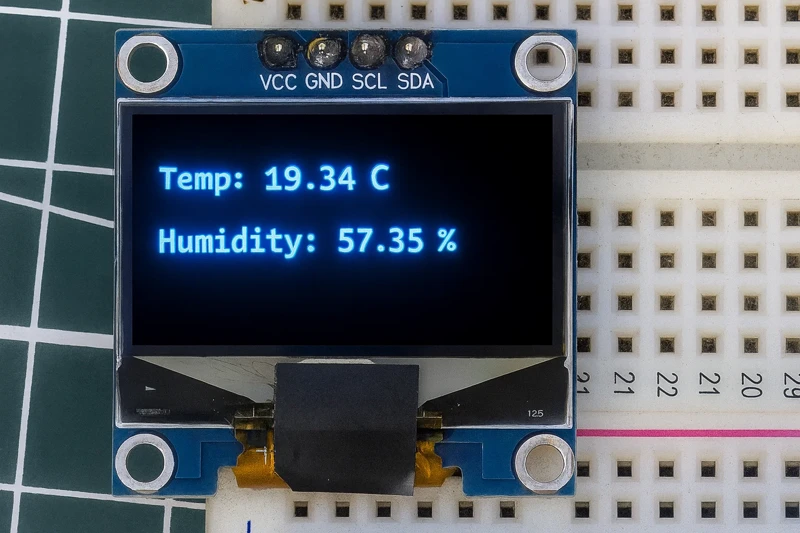
The values on the Oled display will update every 2 seconds. You can test the sensor by placing your finger on it, you should observe a sharp rise/fall in the Temperature and Humidity values.
Troubleshooting AHT20 with Arduino
Even though the AHT20 and OLED SSD1306 are easy to use, you might occasionally face some issues when testing the circuit. This section covers the most common problems and how to fix them quickly.
“Could Not Find AHT20” — Sensor Not Detected
If your Arduino serial monitor shows an error like “Could not find AHT20 sensor”, it usually means the sensor isn’t detected on the I²C bus. Try the following checks:
- Check Wiring:
Make sure the SDA and SCL pins of the AHT20 are connected to the correct I²C pins on your Arduino.- On Arduino UNO/Nano: SDA = A4, SCL = A5
- On Arduino Mega: SDA = 20, SCL = 21
- On ESP32: SDA = 21, SCL = 22
- Run an I²C Scanner:
Upload a simple I²C scanner sketch to see if the AHT20 address (0x38) appears. If not, recheck the wiring or try another sensor. - Power Supply:
The sensor works between 2.0V and 5.5V, but make sure it is getting stable power. If you are using a breadboard, ensure the power lines are properly connected. - Pull-Up Resistors:
Some AHT20 modules don’t include onboard pull-ups on SDA and SCL. If yours doesn’t, add two 4.7kΩ resistors from each line (SDA, SCL) to VCC.
Wrong or Unstable Temperature / Humidity Readings
If the sensor is detected but the readings seem off, here’s what you can check:
- Allow Warm-Up Time:
Give the sensor a few seconds after power-up before taking the first reading. It helps stabilize the internal elements. - Avoid Touching the Sensor:
Touching the sensing area or blowing directly on it can affect the readings. Handle it carefully to prevent heat and moisture interference. - Ventilation and Airflow:
Ensure the sensor is exposed to open air. Enclosed spaces or poor airflow can cause inaccurate humidity levels. - Add a Small Delay:
Avoid reading the sensor too frequently. A delay of 2 seconds between readings gives better accuracy and prevents data overlap. - Calibrate by Comparison:
Compare readings with another known good sensor to verify accuracy. Small variations (±2% RH, ±0.3°C) are normal.
OLED Blank or Showing Garbage Characters
If the OLED screen remains blank or shows garbage data, follow these troubleshooting steps:
- Check I²C Address:
The SSD1306 OLED commonly uses 0x3C or 0x3D. If you’re not sure, run the I²C scanner and update the address in your code:display.begin(SSD1306_SWITCHCAPVCC, 0x3C); - Power Supply:
Ensure the OLED’s VCC is connected to 3.3V or 5V (depending on your module). Also check GND connection. - Library Installation:
Make sure both Adafruit SSD1306 and Adafruit GFX libraries are correctly installed. Without the GFX library, the display won’t work. - Initialization Sequence:
Confirm that the display is initialized before printing any data. You should calldisplay.begin()in the setup section. - Contrast and Refresh Issues:
If the screen is too dim, you can try adjusting brightness usingdisplay.ssd1306_command(SSD1306_SETCONTRAST);.
Also ensure you clear the display before writing new text usingdisplay.clearDisplay();. - Loose Wires:
Double-check the SDA and SCL connections. Poor contact or loose jumper wires are common reasons for a blank OLED screen.
AHT20 Arduino — Frequently Asked Questions
Conclusion
The AHT20 delivers accurate, calibrated temperature and humidity data over a standard I2C interface with no manual calibration and no proprietary protocol to decode. Two wires, the Adafruit AHTX0 library, and three lines of code in loop() — that is the full overhead.
In this tutorial you wired the AHT20 to Arduino Uno over I2C (SDA to A4, SCL to A5), installed the Adafruit AHTX0 and BusIO libraries, and read live environmental data on the Serial Monitor at 9600 baud. You then added an SSD1306 OLED to the same two-wire bus — exploiting the address difference between 0x38 (AHT20) and 0x3C (OLED) so both devices share SDA and SCL with no conflict — and built a standalone display that updates every two seconds without a computer.
From here you can log readings to an SD card with timestamps from a DS3231 RTC for long-term environmental monitoring, push data to an IoT platform over Wi-Fi using an ESP8266, or replace the SSD1306 with an I2C LCD1602 for a two-line text display. For wider environmental sensing that also covers barometric pressure, the BME280 adds a third measurement on the same I2C bus. Download the full project above and explore the Arduino Sensor Interfacing collection for more sensors.
Download AHT20 Arduino Project Files
Complete Arduino project with two sketches: AHT20 Serial Monitor output using Adafruit AHTX0 (getEvent() at 9600 baud, updated every 2 seconds), and the full AHT20 + SSD1306 OLED standalone display code showing temperature on line 1 and humidity on line 2. Both devices share the same I2C bus (AHT20 at 0x38, OLED at 0x3C). Requires Adafruit AHTX0, SSD1306, and GFX libraries. Free to download — support the work if it helped you.
Browse More Arduino Sensors Tutorials
SHT21 Arduino Tutorial: I2C Wiring, SHT2x Library, Serial & LCD Output

SHT30 / SHT31 / SHT35 Arduino Tutorial: I2C Wiring, Code & LCD1602 Display
DS18B20 Arduino Tutorial: Single & Multiple Sensors, Serial & OLED Output
BMP180 Arduino Tutorial: I2C Wiring, Temperature, Pressure, Altitude & LCD1602
Arduino BME280 Tutorial: Wiring, Pinout, Code and LCD1602 Display Output

Subscribe
Login
0 Comments
Newest

