
Home ▸ Arduino ▸ Displays & Interfaces ▸
Updated On: May 4, 2026
Arduino SH1106 OLED Tutorial: I2C Wiring, Text, Bitmaps & Animations
The SH1106 is a 1.3-inch OLED that looks nearly identical to the 0.96-inch SSD1306 but has a slightly different internal memory layout — 132×64 pixels internally mapped to a 128×64 visible area. That difference means SSD1306 libraries produce shifted or misaligned output on the SH1106, and you need a dedicated library to use it correctly.
In this tutorial you’ll learn how to wire the SH1106 to an Arduino Uno over I2C, verify the connection with an I2C scanner, install the Adafruit SH110X and GFX libraries, display text and numbers, draw shapes, show custom bitmap images converted with Image2CPP, and create frame-based animations — including a Pac-Man chomping animation and a multi-frame cat eye animation. Every section includes a complete working sketch. The project files are available to download at the bottom of the page.
This is part of the Arduino Display Tutorials series. If you’re new to OLED displays, start with the SSD1306 Arduino OLED tutorial which covers the fundamentals. For color TFT displays over SPI, see ST7735 with Arduino and ILI9341 with Arduino and touch. For monochrome graphic LCDs with U8g2, the ST7920 series covers wiring, graphics, animations, and a full dashboard UI across four parts. For 7-segment displays, MAX7219 and TM1637 are also available.
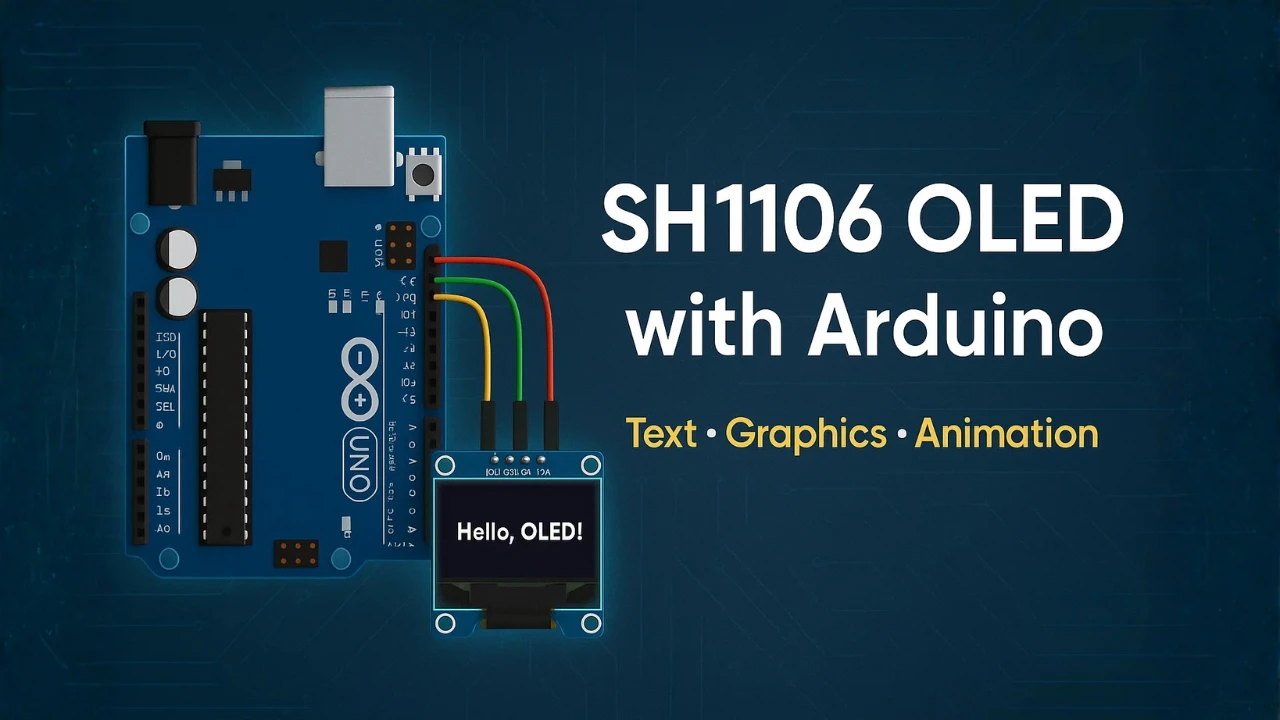
What is the SH1106 OLED and How Does It Differ from SSD1306?
The SH1106 OLED display is a compact 1.3-inch screen that uses I2C communication to connect with microcontrollers like Arduino, ESP32, and STM32. It’s a monochrome display, meaning it can show graphics and text in a single color, usually white, blue, or yellow, depending on the module version.
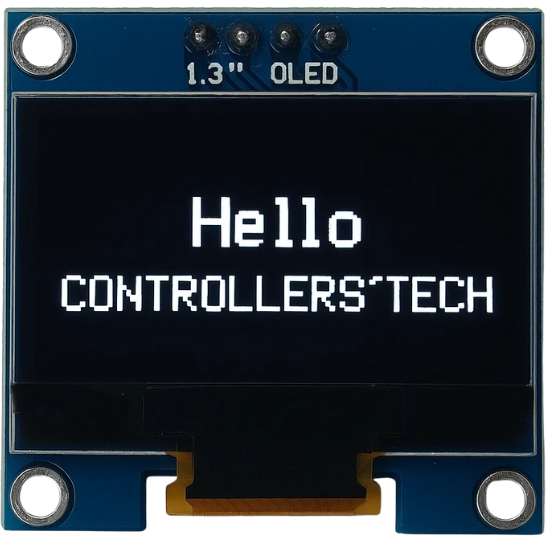
This display has a resolution of 128×64 pixels, offering a crisp and clear output that’s perfect for showing sensor data, menus, or small graphical animations. Its low power consumption and high contrast make it ideal for battery-powered projects and IoT devices.
SH1106 vs SSD1306: Key Differences
The SH1106 and SSD1306 displays look almost identical from the outside, but they differ internally in their driver IC and memory organization.
- The SSD1306 controller has a built-in 128×64 memory that directly matches the display’s pixel resolution.
- The SH1106, however, has 132×64 internal memory, meaning there are 4 extra columns of pixels that aren’t visible on the display.
Because of this small difference, SSD1306 libraries may not work perfectly with SH1106 modules. You might notice text shifting or graphics misalignment if you use the wrong library. That’s why it’s important to use a library specifically designed for the SH1106 controller.
Why Use SH1106 with Arduino?
The SH1106 OLED offers a slightly larger display area (1.3″) compared to the 0.96″ SSD1306, making it easier to read data and display graphics. It’s also widely available, inexpensive, and easy to interface using just two wires (SDA and SCL) via the I2C protocol.
Another reason to choose the SH1106 is its excellent contrast and sharpness, even under different lighting conditions. It doesn’t require a backlight like LCDs, which saves power and simplifies wiring.
With Arduino’s wide library support and straightforward coding environment, you can easily display text, sensor readings, custom logos, and animations on the SH1106 screen within minutes.
SH1106 Arduino Wiring, Pinout & Library Setup
Before we start coding, let’s take a look at how to connect the SH1106 OLED display with the Arduino board. The SH1106 uses the I2C communication protocol, which makes wiring very simple, only four pins are needed: VCC, GND, SDA, and SCL.
This section will explain the pinout of the SH1106 display, how to wire it correctly with Arduino, and how to verify that the connections are working properly.
SH1106 Pin Description and I2C Connection
The SH1106 I2C OLED module usually comes with four pins. The image below shows the pinout of SH1106 I2C Oled display.
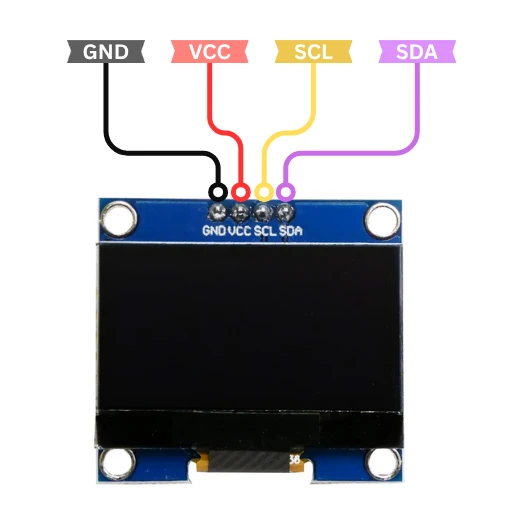
Here’s what each pin on the display does:
| Pin | Description | Connection to Arduino |
|---|---|---|
| GND | Ground | Connect to Arduino GND |
| VCC | Power Supply (3.3V or 5V) | Connect to 5V on Arduino Uno/Nano |
| SCL | Serial Clock Line | Connect to A5 on Arduino Uno/Nano (SCL pin) |
| SDA | Serial Data Line | Connect to A4 on Arduino Uno/Nano (SDA pin) |
Note:
Some SH1106 modules work only at 3.3V, while others can handle 5V. Check your display’s datasheet or product label before connecting it to avoid damage.
The I2C communication allows multiple devices to share the same two data lines (SDA and SCL). Each device is identified by a unique I2C address — for SH1106, this is usually 0x3C or 0x3D, depending on the module version.
Wiring SH1106 to Arduino Uno — Circuit Diagram
Let’s take the Arduino Uno as an example. You can connect the SH1106 display as follows:
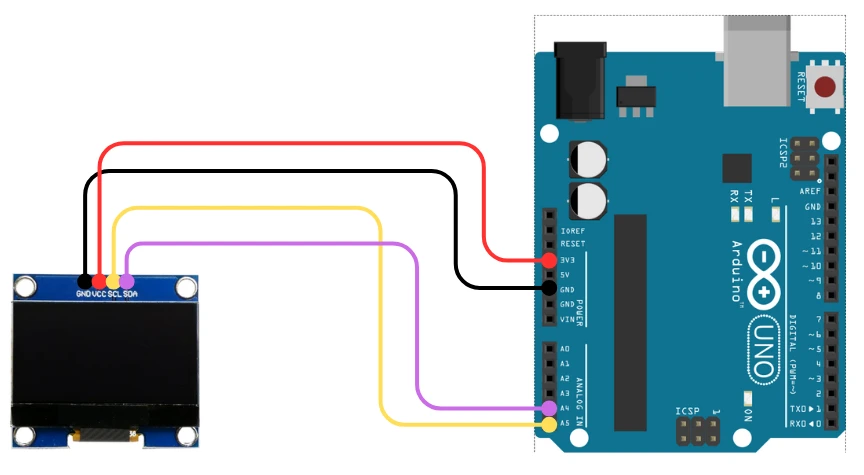
Here’s how to connect it:
| OLED Pin | Connects To | Description |
|---|---|---|
| VCC | 3.3V | Power supply for the display |
| GND | GND | Common ground |
| SDA | A4 (on Arduino Uno/Nano) | I2C Data line |
| SCL | A5 (on Arduino Uno/Nano) | I2C Clock line |
I2C Pins for Different Arduino Boards
If you are using a different Arduino board, here are the equivalent I2C pins:
| Board | SDA Pin | SCL Pin |
|---|---|---|
| Arduino Uno/Nano | A4 | A5 |
| Arduino Mega | 20 | 21 |
| Arduino Leonardo | 2 | 3 |
| Arduino Due | 20 | 21 |
| ESP32 | GPIO 21 | GPIO 22 |
Make sure the connections are firm and not reversed. Incorrect wiring may cause the display not to power up or communicate with Arduino.
Installing Adafruit SH110X and GFX Libraries
To control the SH1106 OLED display using Arduino, we need to install a suitable library that supports this controller. The SH1106 is very similar to the SSD1306, so it also works with the Adafruit GFX graphics library, but it requires its own display driver library for proper pixel mapping.
To make the SH1106 OLED work properly, we’ll use two main libraries:
- Adafruit GFX Library – This library provides basic graphics functions like drawing lines, circles, and displaying text. It acts as a universal graphics engine for many displays.
- Adafruit SH110X Library – This library specifically supports the SH1106 and SH1107 OLED driver chips. It handles the communication between Arduino and the SH1106 controller through I2C or SPI.
Together, these libraries make it easy to draw shapes, text, and even custom images on the OLED screen with very few lines of code.
You can install both libraries directly from the Arduino Library Manager. Follow these steps:
- Open Arduino IDE.
- Go to Sketch → Include Library → Manage Libraries…
- In the search box, type “Adafruit GFX” and install the Adafruit GFX Library.
- Next, search for “Adafruit SH110X” and install the Adafruit SH110X Library.
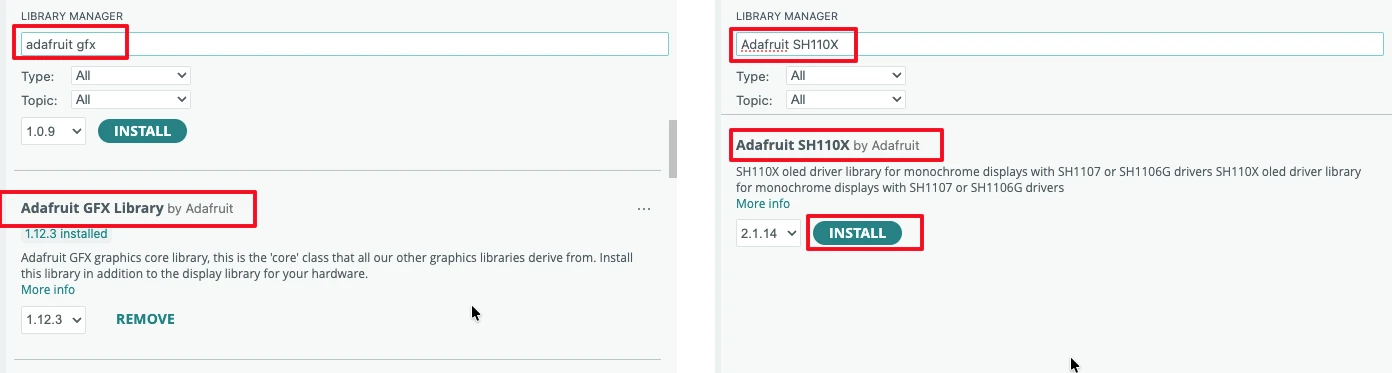
Once installed, Arduino will automatically link these libraries in your sketches. You’ll now have access to functions like display.display(), display.clearDisplay(), and text/graphics drawing routines.
If you prefer manual installation, you can also download both libraries as ZIP files from the Adafruit GitHub repositories and add them using Sketch → Include Library → Add .ZIP Library…
Initializing the Display: Basic Example Code
After installing the libraries, let’s test if the SH1106 display initializes correctly. Open a new Arduino sketch and paste the following code:
#include <Wire.h>
#include <Adafruit_GFX.h>
#include <Adafruit_SH110X.h>

#define SCREEN_WIDTH 128
#define SCREEN_HEIGHT 64
#define OLED_RESET -1 // Reset pin not used with I2C

Adafruit_SH1106G display(SCREEN_WIDTH, SCREEN_HEIGHT, &Wire, OLED_RESET);

void setup() {
  Serial.begin(9600);
  Serial.println("SH1106 OLED Test");

  if(!display.begin(0x3C, true)) { // Address 0x3C for most modules
    Serial.println("SH1106 allocation failed");
    for(;;);
  }

  display.display(); // Push buffer to the screen
}

void loop() {
}Explanation of the code:
- Includes required libraries for I²C and OLED display (
Wire,Adafruit_GFX,Adafruit_SH110X). - Defines screen width, height, and OLED reset pin (not used with I²C).
- Creates a display object for the SH1106 OLED module.
- In
setup():- Initializes serial communication.
- Initializes the OLED display at I²C address
0x3C. - Displays the initial buffer (usually the Adafruit logo).
- The
loop()function is empty (no continuous updates).
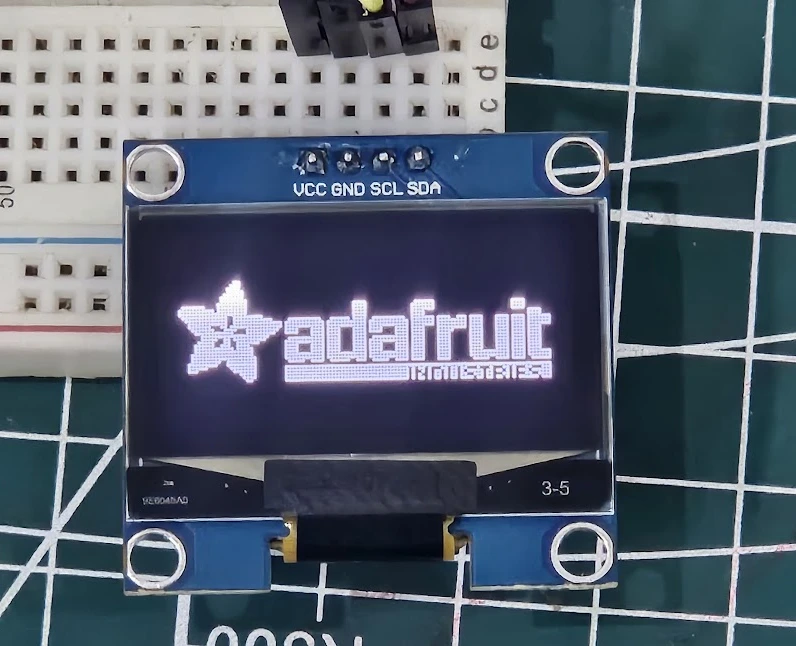
After uploading the code, the Adafruit logo will appear on the screen. This is shown in the image below.
Displaying Text, Numbers and Shapes on SH1106
In this section, we’ll go step by step — from showing simple text to drawing geometric shapes like lines, rectangles, and circles. We’ll also learn how to adjust display contrast and enable text scrolling for better visual effects.
Displaying Simple Text on SH1106
Displaying text on the SH1106 OLED is straightforward. The GFX library lets you choose text size, color, and cursor position. Here’s a simple example:
#include <Wire.h>
#include <Adafruit_GFX.h>
#include <Adafruit_SH110X.h>

#define SCREEN_WIDTH 128
#define SCREEN_HEIGHT 64
#define OLED_RESET -1 // Reset pin not used with I2C

Adafruit_SH1106G display(SCREEN_WIDTH, SCREEN_HEIGHT, &Wire, OLED_RESET);

void setup() {
  Serial.begin(9600);
  Serial.println("SH1106 OLED Test");

  if(!display.begin(0x3C, true)) { // Address 0x3C for most modules
    Serial.println("SH1106 allocation failed");
    for(;;);
  }
  display.clearDisplay();
  display.setTextSize(2);
  display.setTextColor(SH110X_WHITE);
  display.setCursor(0, 10);
  display.println("Hello from ControllersTech!");
  display.display();
}

void loop() {
}Explanation of the Code
- The code starts by including the required libraries for I2C and SH1106.
- We define the display resolution as 128×64 pixels, matching the module’s size.
- The
display.begin(0x3C, true)function initializes the OLED at address 0x3C. - Inside
setup(), we clear the display, set the text size and color, and print a sample message. - Finally,
display.display()updates the screen with the written content.
Output
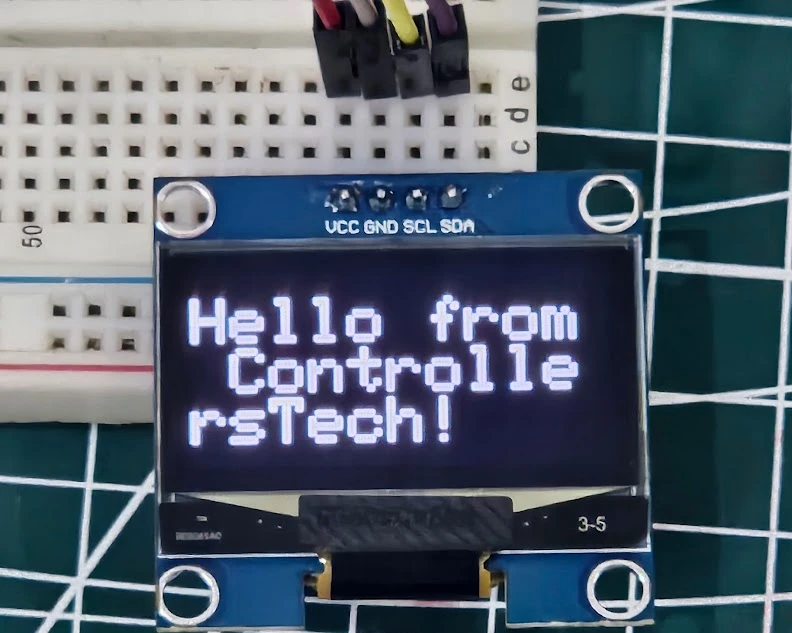
The image below shows the text “Hello from ControllersTech!” displaying on the OLED screen.
Drawing Lines, Rectangles and Circles
The Adafruit GFX library also provides easy functions to draw basic shapes — useful for creating UI elements, progress bars, or custom icons.
Here’s a sample code showing different shapes:
#include <Wire.h>
#include <Adafruit_GFX.h>
#include <Adafruit_SH110X.h>

#define SCREEN_WIDTH 128
#define SCREEN_HEIGHT 64
#define OLED_RESET -1

Adafruit_SH1106G display(SCREEN_WIDTH, SCREEN_HEIGHT, &Wire, OLED_RESET);

void setup() {
  display.begin(0x3C, true);
  display.clearDisplay();

  // Draw a line
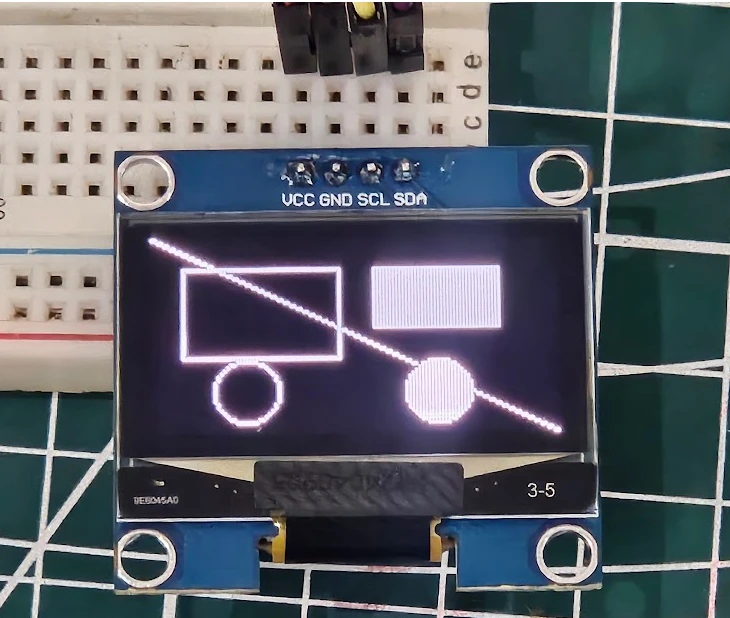
  display.drawLine(0, 0, 127, 63, SH110X_WHITE);

  // Draw rectangle outline
  display.drawRect(10, 10, 50, 30, SH110X_WHITE);

  // Draw filled rectangle
  display.fillRect(70, 10, 40, 20, SH110X_WHITE);

  // Draw circle outline
  display.drawCircle(30, 50, 10, SH110X_WHITE);

  // Draw filled circle
  display.fillCircle(90, 50, 10, SH110X_WHITE);

  display.display();
}

void loop() {
}Explanation of the code:
drawLine(x0, y0, x1, y1, color)draws a straight line between two points.drawRect(x, y, w, h, color)andfillRect()create empty or filled rectangles.drawCircle(x, y, r, color)andfillCircle()create circular shapes.
These commands make it easy to design custom layouts, highlight areas, or create animated graphics.
Output
The image below shows the output on the screen for the above code.
Displaying Integer Values with a Counter
To display integer values, you can directly use the display.print() or display.println() functions — just like you would use with the Serial Monitor.
Here’s a simple example that shows a counter increasing every second:
#include <Wire.h>
#include <Adafruit_GFX.h>
#include <Adafruit_SH110X.h>

#define SCREEN_WIDTH 128
#define SCREEN_HEIGHT 64
#define OLED_RESET -1

Adafruit_SH1106G display(SCREEN_WIDTH, SCREEN_HEIGHT, &Wire, OLED_RESET);

int counter = 0;

void setup() {
  display.begin(0x3C, true);
  display.clearDisplay();
  display.setTextSize(2);
  display.setTextColor(SH110X_WHITE);
}

void loop() {
  display.clearDisplay();
  display.setCursor(10, 20);
  display.print("Count: ");
  display.print(counter);
  display.display();
  counter++;
  delay(1000);
}Explanation of the Code
- The variable
counterincreases by 1 every second. display.print(counter);shows the current count value.- Each time the display is updated, it clears the previous value to prevent overlapping text.
Tip: If you forget to use display.clearDisplay(), the old numbers might overlap with the new ones, making the display unreadable.
Output
The GIF below shows the output of the code.

Printing Floating Point Numbers with Precision
The Adafruit GFX library also allows you to display floating-point numbers directly using display.print(). You can control the number of decimal places by passing a second parameter to the print() function.
#include <Wire.h>
#include <Adafruit_GFX.h>
#include <Adafruit_SH110X.h>

#define SCREEN_WIDTH 128
#define SCREEN_HEIGHT 64
#define OLED_RESET -1

Adafruit_SH1106G display(SCREEN_WIDTH, SCREEN_HEIGHT, &Wire, OLED_RESET);

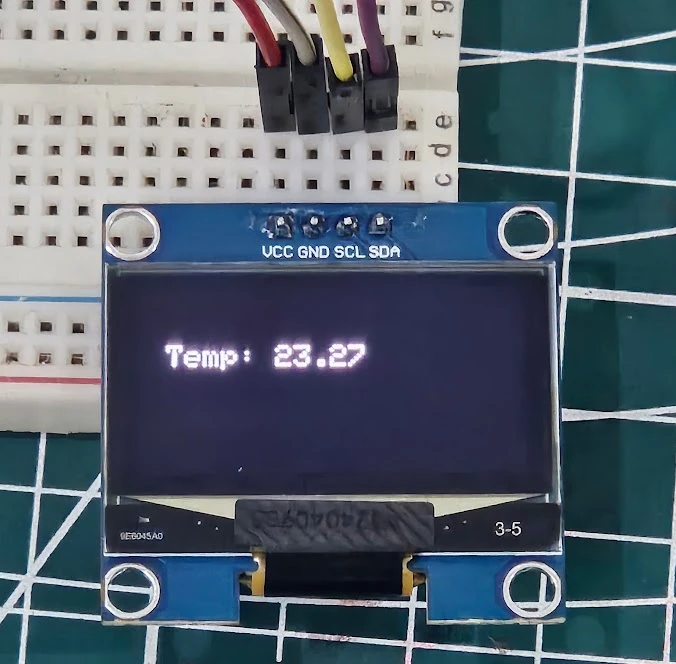
float temperature = 23.2678;

void setup() {
  display.begin(0x3C, true);
  display.clearDisplay();
  display.setTextSize(1);
  display.setTextColor(SH110X_WHITE);
  display.setCursor(10, 20);
  display.print("Temp: ");
  display.print(temperature, 2);  // prints 23.27
  display.display();
}

void loop() {
}Explanation of the Code
In the line display.print(temperature, 2);, the number 2 specifies that only two digits after the decimal point should be shown.
You can adjust this value depending on the precision you need — for example, use (temperature, 1) for one decimal place or (temperature, 3) for three.
This feature is very helpful for displaying sensor values such as temperature, voltage, or humidity, where accurate decimal representation is needed.
Note:
Avoid using too many decimal places because the OLED has limited space and smaller fonts may become hard to read.
Output
The image below shows the float number displaying on the Oled.
SH1106 Bitmap Images and Animations
The SH1106 OLED display is not limited to just text and shapes — you can also display custom images, icons, and logos by converting them into bitmap format. This feature is perfect for adding branding, startup logos, or small graphical elements to your Arduino projects.
In this section, we’ll learn how to convert an image into a compatible bitmap format, generate the C array code, and display it on the SH1106 OLED using Arduino.
Understanding Bitmaps on OLED Displays
A bitmap is a collection of binary data that represents each pixel on the screen.
- Each bit in the array corresponds to one pixel.
- A value of 1 means the pixel is turned ON (white), while 0 means it’s OFF (black).
- Since the SH1106 display is monochrome, there are no shades or colors — only black and white pixels.
You can use bitmaps to display small icons (like a Wi-Fi or battery symbol) or full-screen logos for branding your project.
Example of a simple 8×8 pixel bitmap:
const unsigned char myLogo [] PROGMEM = {
  0x00, 0x7E, 0x81, 0xA5, 0x81, 0x7E, 0x00,
  // more hex values...
};Here, each byte represents 8 pixels, and the pattern defines the shape to be displayed.
Converting Images to Bitmaps with Image2CPP
To use your own image, you need to convert it into a C byte array. You can easily do this using the Image2CPP online tool.
The image below shows how to create bitmap using an existing image.
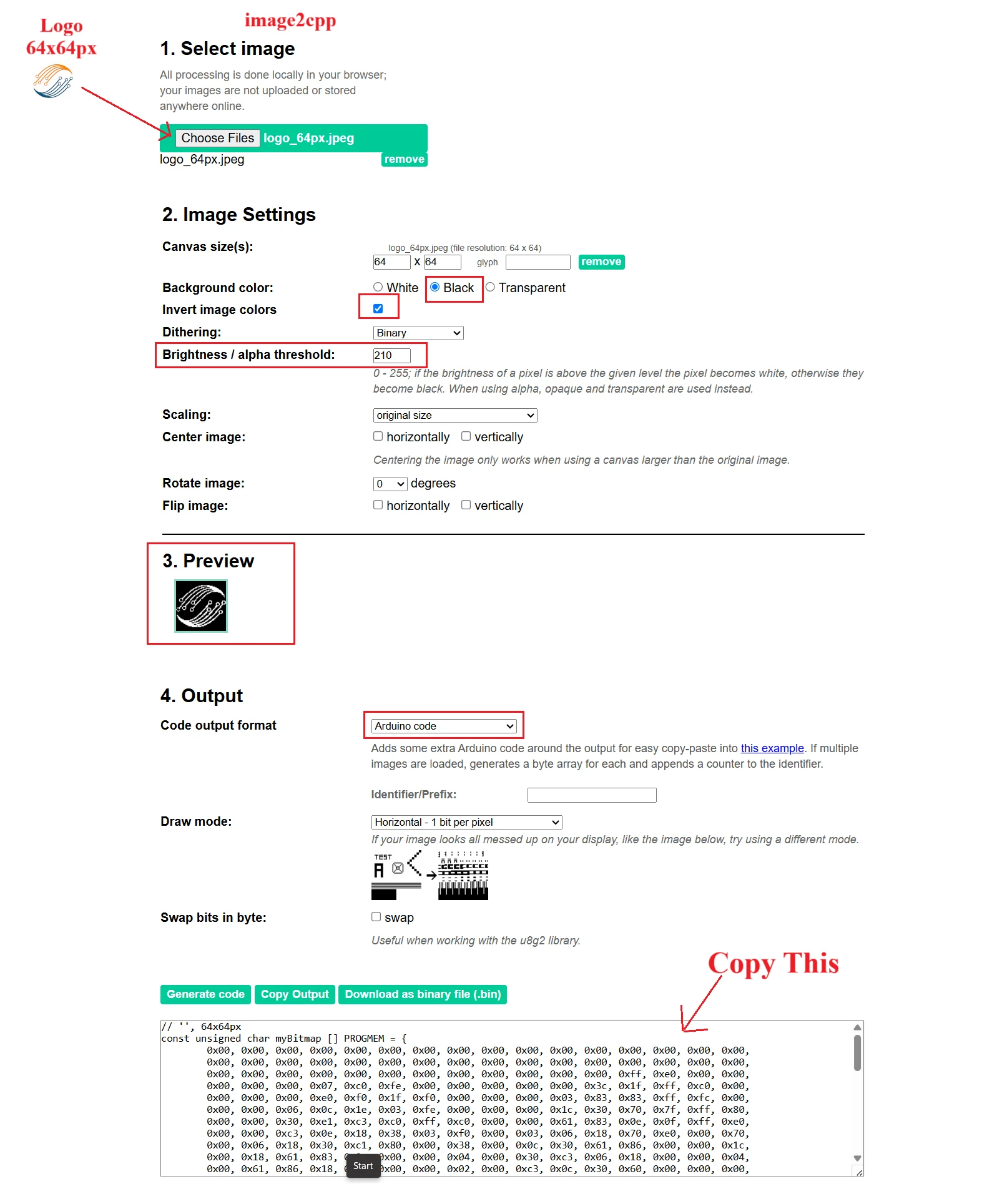
Follow these steps:
- Create a simple black-and-white image (for example, your logo).
- Upload it in Image2CPP.
- Configure the Image Settings. You can check the preview to see how the final image will look.
- Adjust the brightness/alpha threshold to generate clear image.
- Set output as Arduino Code.
- Choose Monochrome and Horizontal byte orientation.
- Click Generate Code and copy the byte array.
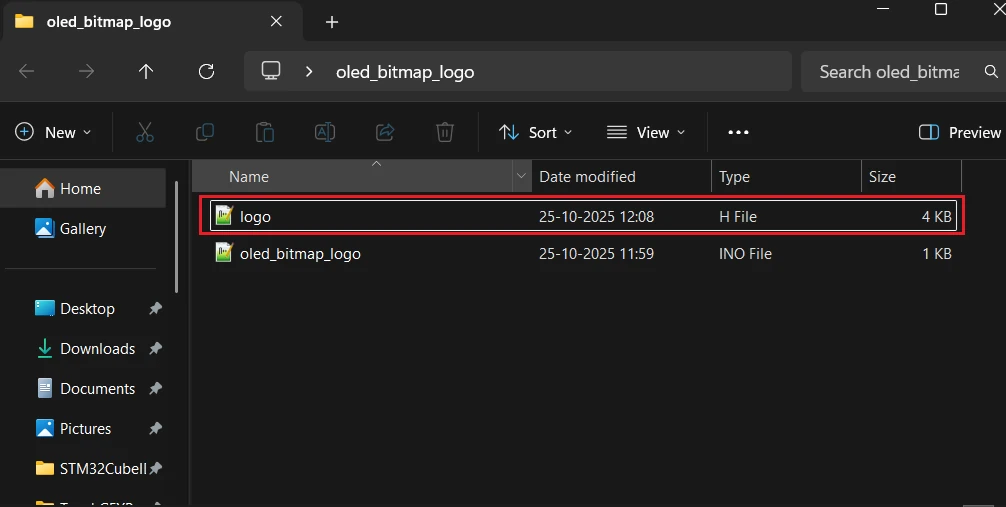
After copying the byte array, paste it in a new header file. It will keep the code clean as our image data will be in a separate file. In the image below, I have created a separate file named logo.h.
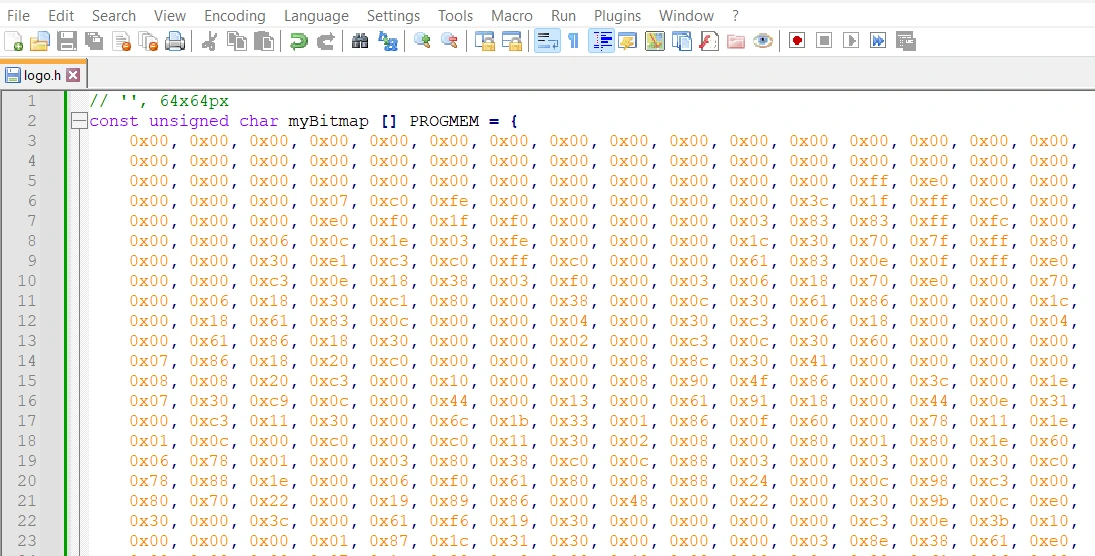
Now copy the file to the Arduino project folder, so that we can use it in the code.
Displaying a Bitmap on SH1106
To show your bitmap on the OLED, include the bitmap header file in the main file. Then use the drawBitmap() function provided by the Adafruit GFX library.
Here’s a simple example:
#include <Wire.h>
#include <Adafruit_GFX.h>
#include <Adafruit_SH110X.h>

#define SCREEN_WIDTH 128
#define SCREEN_HEIGHT 64
#define OLED_RESET -1

Adafruit_SH1106G display(SCREEN_WIDTH, SCREEN_HEIGHT, &Wire, OLED_RESET);

// Example bitmap data (replace with your own)
const unsigned char myLogo [] PROGMEM = {
  0x00, 0x7E, 0x81, 0xA5, 0x81, 0x7E, 0x00,
};

void setup() {
  display.begin(0x3C, true);
  display.clearDisplay();

  // Draw bitmap: (x, y, bitmapArray, width, height, color)
  display.drawBitmap(32, 0, myLogo, 64, 64, SH110X_WHITE);
  display.display();
}

void loop() {
}Explanation of the Code:
#include "logo.h"will include the bitmap header file.drawBitmap(x, y, array, width, height, color)is used to place the image on the screen.- You can adjust
(x, y)coordinates to move the image position. - Finally,
display.display()updates the screen to show the image.
If your image appears inverted (white background, black logo), simply invert the color setting in the online tool or change the color constant to SH110X_BLACK.
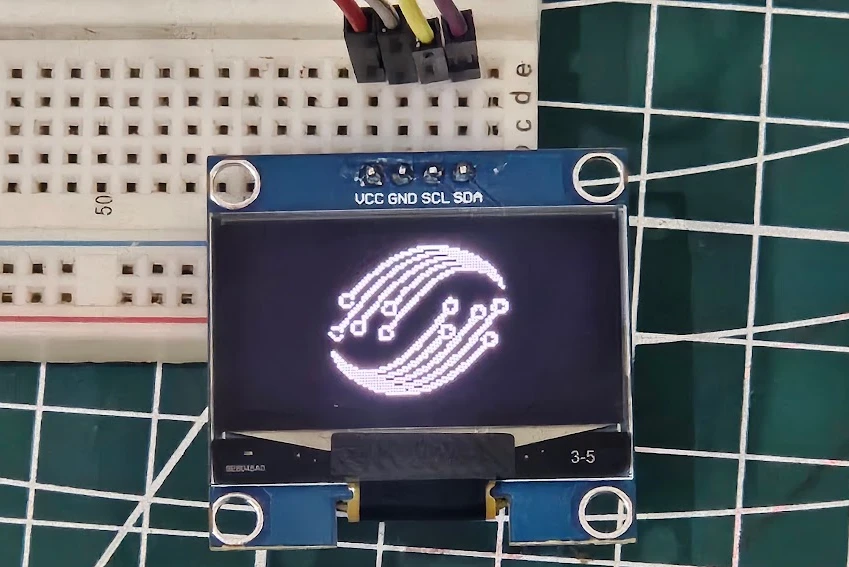
Output
The image below shows the output of the above code. You can see the ControllersTech Logo is being displayed on the oled.
With this method, you can show your brand logo, custom icons, or even simple graphics at startup or during operation.
Combining Text and Bitmap Icons
You can mix text and graphics to make your OLED display more interactive. For example, show a Wi-Fi icon beside connection status text, or a battery symbol next to voltage readings.
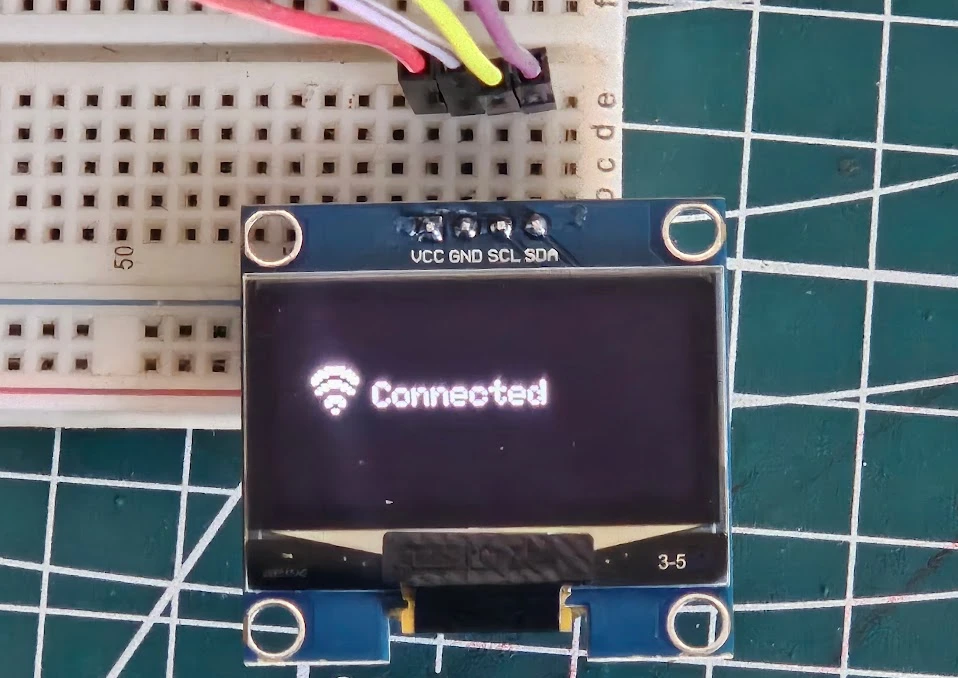
Example WiFi icon and Connected:
#include <Wire.h>
#include <Adafruit_GFX.h>
#include <Adafruit_SH110X.h>

#define SCREEN_WIDTH 128
#define SCREEN_HEIGHT 64
#define OLED_RESET -1

Adafruit_SH1106G display(SCREEN_WIDTH, SCREEN_HEIGHT, &Wire, OLED_RESET);

// 16x16 WiFi icon bitmap (simple example)
static const unsigned char PROGMEM wifi_icon[] = {
  0b00000000, 0b00000000,
  0b00000111, 0b11100000,
  0b00011111, 0b11111000,
  0b00111100, 0b00111100,
  0b01110000, 0b00001110,
  0b01100011, 0b11000110,
  0b00001111, 0b11110000,
  0b00011100, 0b00111000,
  0b00110000, 0b00001100,
  0b00000000, 0b00000000,
  0b00000011, 0b11000000,
  0b00000111, 0b11100000,
  0b00000110, 0b01100000,
  0b00000000, 0b00000000,
  0b00000001, 0b10000000,
  0b00000000, 0b00000000
};

void setup() {
  display.begin(0x3C, true);
  display.clearDisplay();

  // Draw WiFi icon at (10, 20)
  display.drawBitmap(10, 20, wifi_icon, 16, 16, SH110X_WHITE);

  // Draw text next to icon
  display.setTextSize(1);
  display.setTextColor(SH110X_WHITE);
  display.setCursor(30, 26);
  display.print("Connected");

  // Update display
  display.display();
}

void loop() {
}Explanation of the Code
- The bitmap array (
wifi_icon) defines a simple 16×16 WiFi symbol. display.drawBitmap(10, 20, wifi_icon, 16, 16, SH110X_WHITE);
→ Draws the icon at (x=10, y=20).- Then text
"Connected"is drawn right next to it using normal text functions. display.display();pushes everything to the OLED.
Output
The image below shows the output of the code on the Oled.
Next, we’ll go one step further and learn how to create animations on the SH1106 OLED — by displaying multiple bitmaps in sequence for a smooth motion effect.
Frame-Based Animation: Moving Box Example
The SH1106 OLED display doesn’t support video playback, but you can still show motion using frame-based animation. This method works by displaying different images (frames) quickly in succession.
Each frame is stored as a bitmap array in the Arduino sketch, and the code switches between these frames with short delays in between. When done correctly, this gives the appearance of smooth movement.
Here’s how it works conceptually:
- Prepare multiple bitmap frames of your image in slightly different positions.
- Display one frame on the OLED.
- Wait a short time (e.g., 100 milliseconds).
- Clear the screen and display the next frame.
- Repeat this process continuously.
Because the SH1106 OLED has a fast refresh rate, even simple frame-based motion looks fluid. You can animate text, icons, or objects moving across the screen.
Writing Code for Simple Animation
Let’s start with a very basic animation example — moving a small box across the display. This will help you understand the timing and update process.
#include <Wire.h>
#include <Adafruit_GFX.h>
#include <Adafruit_SH110X.h>

#define SCREEN_WIDTH 128
#define SCREEN_HEIGHT 64
#define OLED_RESET -1

Adafruit_SH1106G display(SCREEN_WIDTH, SCREEN_HEIGHT, &Wire, OLED_RESET);

void setup() {
  display.begin(0x3C, true);
  display.clearDisplay();
}

void loop() {
  for (int x = 0; x < 128; x += 2) { // Move the box across the screen
    display.clearDisplay();
    display.fillRect(x, 25, 20, 20, SH110X_WHITE); // Draw a 20x20 box
    display.display();
    delay(20); // Adjust for animation speed
  }
}Explanation of the Code
- The loop moves a small square horizontally from left to right by incrementing the X position.
fillRect()draws the shape at each new position.clearDisplay()clears the previous frame to prevent overlapping graphics.- The
delay(20)value controls the animation speed — smaller values create smoother motion.
This simple approach works great for sliding icons, progress bars, or moving text.
Output
The GIF below shows the animation on the bitmap.

Pac-Man Chomping Animation on SH1106
This sketch creates a simple Pac-Man animation on an SH1106 OLED display. Pac-Man moves across the screen, chomping dots one by one and then resetting to repeat the sequence.
#include <Wire.h>
#include <Adafruit_GFX.h>
#include <Adafruit_SH110X.h>

#define SCREEN_WIDTH 128
#define SCREEN_HEIGHT 64
#define OLED_RESET -1
Adafruit_SH1106G display(SCREEN_WIDTH, SCREEN_HEIGHT, &Wire, OLED_RESET);

void drawPacman(int x, int y, bool mouthOpen) {
  int r = 12;  // Even bigger radius: 24x24 Pacman
  int cx = x + r;
  int cy = y + r;
  display.fillCircle(cx, cy, r, SH110X_WHITE);
  if (mouthOpen) {
    // Black triangle for open mouth facing right (scaled up further)
    display.fillTriangle(cx, cy, cx + r, cy - 6, cx + r, cy + 6, SH110X_BLACK);
  }
}

void drawDot(int x, int y) {
  // Slightly bigger dot: 6x6 filled square for visibility with huge Pacman
  display.fillRect(x, y, 6, 6, SH110X_WHITE);
}

void setup() {
  display.begin(0x3C, true);  // Use 0x3C for most SH1106G OLEDs; adjust if needed

  // Clear the entire screen during initialization
  display.clearDisplay();
  display.display();  // Force immediate clear to black

  // Initial big dots (6x6 squares, spaced wider for 24x24 Pacman)
  int dotY = 30;  // Moved up to center vertically now that WiFi is gone
  int dotPositions[5] = {12, 35, 58, 81, 104};
  for (int i = 0; i < 5; i++) {
    drawDot(dotPositions[i], dotY);
  }

  // Update display after all initial draws
  display.display();
}

void loop() {
  // Pacman animation: moves right, eats dots (erases them), chomps mouth, resets on screen cross
  static int pacX = -24;  // Start off-screen left (bigger size)
  static bool mouthOpen = true;
  static bool eaten[5] = {false};  // Match numDots
  static unsigned long lastUpdate = 0;
  const int pacY = 18;  // Pacman top-left Y (centered vertically)
  const int dotY = 30;  // Dots centered with Pacman
  int dotPositions[5] = {12, 35, 58, 81, 104};
  const int numDots = 5;
  const int moveSpeed = 4;  // Faster to traverse screen quicker with massive size
  const int animationDelay = 120;  // ms delay (balanced for big visual heft)

  unsigned long currentTime = millis();
  if (currentTime - lastUpdate >= animationDelay) {
    // Clear old Pacman position if on screen (bigger clear area)
    if (pacX >= 0 && pacX < SCREEN_WIDTH) {
      display.fillRect(pacX, pacY, 24, 24, SH110X_BLACK);  // Clear 24x24 area
    }

    // Move Pacman
    pacX += moveSpeed;
    bool shouldReset = (pacX > SCREEN_WIDTH);

    if (shouldReset) {
      // Reset animation: reposition Pacman and restore all dots
      pacX = -24;
      for (int i = 0; i < numDots; i++) {
        eaten[i] = false;
        drawDot(dotPositions[i], dotY);
      }
    } else {
      // Check for eating dots at new position (wider range for huge Pacman)
      for (int i = 0; i < numDots; i++) {
        if (!eaten[i] && abs((pacX + 12) - (dotPositions[i] + 3)) <= 12) {  // Center-to-center <=12
          eaten[i] = true;
          display.fillRect(dotPositions[i], dotY, 6, 6, SH110X_BLACK);  // Erase dot
        }
      }
    }

    // Draw new Pacman if on screen
    if (pacX >= 0) {
      drawPacman(pacX, pacY, mouthOpen);
      mouthOpen = !mouthOpen;  // Toggle for chomping
    }

    // Update display
    display.display();
    lastUpdate = currentTime;
  }
}Explanation of the Code
- Display setup:
Initializes the SH1106 OLED using the Adafruit library at I²C address0x3C. - Pac-Man drawing (
drawPacman):
Draws a filled circle for Pac-Man and a small black triangle to simulate an open mouth that toggles each frame. - Dot drawing (
drawDot):
Creates small white squares that act as the food pellets. - Setup phase:
Clears the display and draws 5 dots across the screen at fixed positions. - Loop animation:
- Pac-Man moves right by a few pixels every frame (
moveSpeed = 4). - His mouth opens and closes alternately (
mouthOpentoggles). - When he reaches a dot, the dot is erased to look like it’s eaten.
- After crossing the screen, Pac-Man resets to the left and dots reappear.
- Pac-Man moves right by a few pixels every frame (
- Display updates:
The screen buffer is updated usingdisplay.display()after each move.
Output
The GIF below shows the output of the code. A smooth Pac-Man chomp animation — Pac-Man moves from left to right, eats the dots, then restarts for a continuous looping effect.

Multi-Frame Custom Animation with Your Own Images
Creating your own custom animations on the SSD1306 OLED display is one of the most exciting parts of using this module. You can design unique motion effects, such as moving icons, rotating logos, or sensor-based visualizations, by displaying a series of bitmap frames in quick succession.
In this section, we’ll go step by step through the process of designing, converting, and displaying your own animation frames on the OLED screen.
Converting Images to Bitmaps
To display any custom animation, you first need to convert your images into bitmap arrays that Arduino can understand. Since the SSD1306 is a monochrome display, all images must be black and white.
You can follow the process of converting image to Bitmap mentioned above. To simulate an animation, you need to convert multiple frames and save them different header files, for example, frame1.h, frame2.h, frame3.h etc.
Displaying Custom Frames in a Loop
Once you’ve converted your images, it’s time to display them in sequence to form an animation.
Here’s an example of how to loop through several bitmap frames:
#include <Wire.h>
#include <Adafruit_GFX.h>
#include <Adafruit_SH110X.h>

#define SCREEN_WIDTH 128
#define SCREEN_HEIGHT 64
#define OLED_RESET -1
Adafruit_SH1106G display(SCREEN_WIDTH, SCREEN_HEIGHT, &Wire, OLED_RESET);

#include "frame1.h"
#include "frame2.h"
#include "frame3.h"

void setup() {
  display.begin(0x3C, true);  // Use 0x3C for most SH1106G OLEDs; adjust if needed
  display.clearDisplay();
}

void loop() {
  display.clearDisplay();
  display.drawBitmap(0, 0, frame1, 64, 32, SH110X_WHITE);
  display.display();
  delay(100);

  display.clearDisplay();
  display.drawBitmap(0, 0, frame2, 64, 32, SH110X_WHITE);
  display.display();
  delay(100);

  display.clearDisplay();
  display.drawBitmap(0, 0, frame3, 64, 32, SH110X_WHITE);
  display.display();
  delay(100);
}Each frame is drawn and displayed for a short duration (100 ms here) before switching to the next. Adjusting the delay changes the animation speed — shorter delays result in smoother motion.
Tip: If your animation loops endlessly, you can use sensor inputs or button presses to trigger it at specific times (for example, when a sensor reading crosses a threshold).
Combining Multiple Frames for Motion Effect
To make your animation look more natural, use more frames with slight differences between them. For example, a rotating fan can be drawn in 4 or 6 positions to create the illusion of spinning.
You can store all your frames in an array and loop through them programmatically instead of repeating code blocks.
Example: In this example, I am using cat eye animation. I use this gif to extract the individual frames and then converted them to arrays.
#include <Wire.h>
#include <Adafruit_GFX.h>
#include <Adafruit_SH110X.h>
#include "cat_animation.h"

#define SCREEN_WIDTH 128
#define SCREEN_HEIGHT 64
#define OLED_RESET -1
Adafruit_SH1106G display(SCREEN_WIDTH, SCREEN_HEIGHT, &Wire, OLED_RESET);


void setup() {
  display.begin(0x3C, true);  // Use 0x3C for most SH1106G OLEDs; adjust if needed
  display.clearDisplay();
}

void loop() {
    for (int i = 0; i < 3; i++) {
    display.clearDisplay();
    display.drawBitmap(0, 0, cat_allArray[i], 128, 64, SH110X_WHITE);
    display.display();
    delay(80); // frame delay for blinking effect
  }
}The GIF below shows the animation on the Oled Display.

Arduino SH1106 OLED: Frequently Asked Questions
Conclusion
The SH1106 covers a lot of ground for a single-color 1.3-inch display. Once you understand that the extra four internal columns mean SSD1306 libraries won’t work reliably, and you switch to Adafruit SH110X, everything else follows naturally — the same GFX drawing functions, the same drawBitmap() approach, the same frame-based animation technique. The Pac-Man example in this tutorial is a good template for any animation you want to build: clear, draw, display, repeat, using millis() instead of delay() for non-blocking timing.
The most common mistake to avoid after this tutorial: forgetting to call display.clearDisplay() before drawing each new frame. Without it, pixels from the previous frame accumulate and the display becomes unreadable within seconds. A single line before every draw call fixes it completely.
From here, if you want a color display using the same skill set, ST7735 with Arduino adds 65K colors over SPI with the same Adafruit GFX drawing model. For a larger color touchscreen, ILI9341 with Arduino and touch takes it further. If you want to combine this display with sensor data — temperature, humidity, distance — the Arduino Sensors tutorials cover DHT11/22, BME280, SHT3x, and HC-SR04, all of which pair naturally with an OLED display output.
Download Arduino SH1106 OLED Project Files
Complete Arduino sketches for SH1106 text display, shape drawing, bitmap logo, Pac-Man animation, and multi-frame cat eye animation — includes bitmap header files and all tested code for Arduino Uno. Free to download — support the work if it helped you.
Browse More Arduino Display Tutorials

SSD1306 Arduino OLED Tutorial: I2C Wiring, Text, Bitmaps & Animations
ST7735 Arduino TFT Tutorial: SPI Wiring, Graphics, Text & SD Card Image Display
How to Interface MAX7219 7 Segment Display with Arduino | Display Text, Scrolling Message, and Time
Arduino ST7920 Tutorial (128×64 LCD): Wiring, Setup, U8g2, and Text Display Guide
Arduino ST7920 Display Graphics Guide: Shapes, Icons, Bitmaps, and UI Design

Subscribe
Login
0 Comments
Newest

