
Home ▸ Arduino ▸ Modules Interfacing ▸
Updated On: October 15, 2026
Arduino Passive Buzzer Tutorial: Wiring, tone() Function, Alarm, Siren & Music
A passive buzzer lets an Arduino produce sounds of different pitches from a single digital pin. The tone() function generates the signal, so no extra library or driver chip is needed. With the same wiring you can play a simple beep, an alarm, a siren or a short melody, and only the code changes between them.
This tutorial explains how a passive buzzer works and how it differs from an active buzzer. It then shows how to wire the 2-pin and 3-pin versions to an Arduino and how the tone() and noTone() functions behave. After that, you will build five sound examples: a beep, an emergency sweep, a police siren, the Mario theme and the Star Wars intro. All of the code runs on the Uno, Nano and Mega boards without changes.
If you want to know which Arduino pins can drive a buzzer, the Arduino UNO pinout guide lists the digital, PWM and timer pins. For more output devices to pair with the buzzer, see the WS2812 NeoPixel ring tutorial, the I2C LCD1602 tutorial and the full Arduino modules collection.
Passive Buzzer vs Active Buzzer
A passive buzzer is a small sound device that cannot make a tone on its own. It has no internal oscillator, so the Arduino must send it a square wave, and the frequency of that wave sets the pitch. This gives you full control over the pitch and the timing, which makes the part suitable for alarms, notification sounds and melodies.
How a Passive Buzzer Makes Sound
Inside the buzzer, a thin element vibrates each time the voltage switches on and off. Many small modules use a piezoelectric element, and others use a small electromagnetic coil, but both types work the same way from the point of view of the Arduino. A faster signal produces a higher pitch, and a slower signal produces a lower pitch. Changing the frequency quickly from one note to the next is what produces a melody.
Differences Between Active and Passive Buzzers
An active buzzer contains its own oscillator, so a plain HIGH level is enough to make it sound. The two types therefore suit different jobs.
| Feature | Active buzzer | Passive buzzer |
|---|---|---|
| Internal oscillator | Yes | No |
| Control signal | A steady HIGH level | A square wave from the Arduino |
| Pitch | One fixed tone | Any frequency you choose |
| Melodies and sirens | Not possible | Possible |
| Best use | A simple beep | Alarms, sirens and music |
The passive type needs one digital pin and a short sketch, and it costs very little, so it is a good choice for any project that needs more than one sound.
Arduino Passive Buzzer Wiring
The circuit needs only a few parts, and it takes a couple of minutes to build. You need an Arduino Uno or a similar board, a passive buzzer module or a bare passive buzzer, and a few jumper wires. A breadboard is optional but makes the connections easier to keep in place.
2-Pin and 3-Pin Buzzer Modules
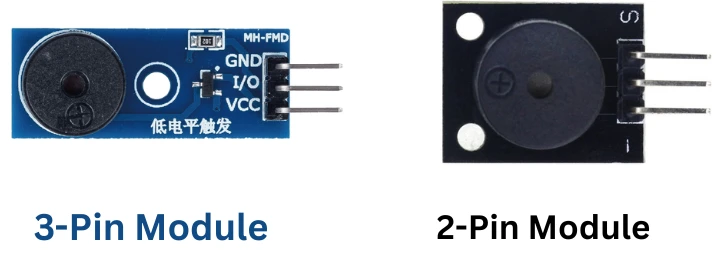
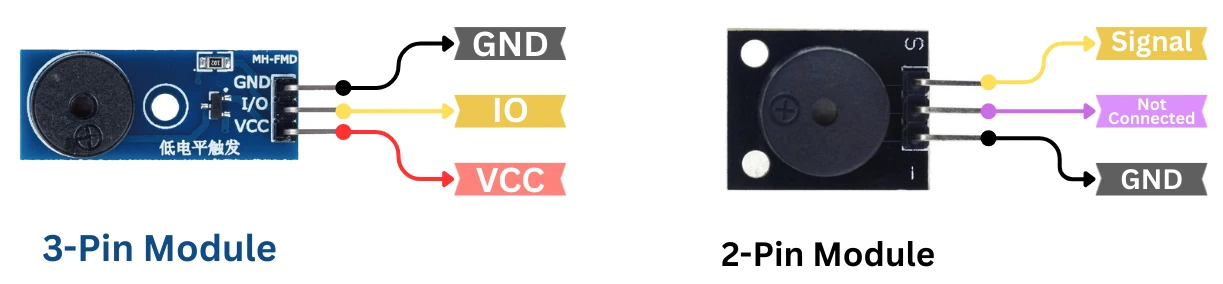
Passive buzzers come in two common forms. The bare 2-pin version has a positive pin and a negative pin. The 3-pin module has a VCC pin, a GND pin and a signal pin, which is usually labeled I/O or S.
Connecting the Buzzer to the Arduino
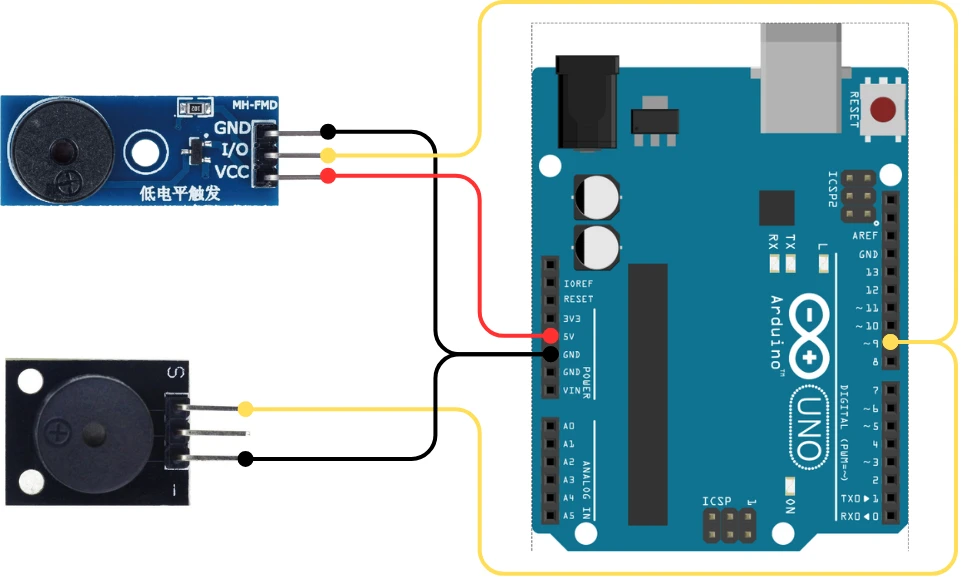
The examples in this tutorial use digital pin 9. For a 3-pin module, connect the I/O pin to pin 9, VCC to the 5V pin and GND to GND. For a 2-pin buzzer, connect the positive pin to pin 9 and the negative pin to GND.
A small buzzer draws only a few milliamps, which is well below the 20 mA that is a safe working current for an Arduino pin. A larger buzzer or an external speaker needs a transistor driver instead of a direct connection. The Arduino UNO pinout guide lists the current limits of every pin.
Arduino tone() Function
The tone() function is the simplest way to drive a passive buzzer. It generates a square wave with a 50 percent duty cycle on the pin that you choose, and it uses a hardware timer to do so. The sections below show how to start a tone, stop it and set its duration.
Play a Simple Beep with tone()
The following sketch plays a 1000 Hz tone for one second and then stays silent for one second.
int buzzer = 9;  // Buzzer connected to digital pin 9

void setup() {
  // No pin setup is needed for tone()
}

void loop() {
  tone(buzzer, 1000);   // Play a 1000 Hz tone
  delay(1000);          // Wait for 1 second
  noTone(buzzer);       // Stop the sound
  delay(1000);          // Wait for 1 second
}You can listen to the simple tone to hear what this sketch sounds like on a real buzzer.
Stop the Sound with noTone()
The noTone() function stops the square wave on a pin and makes the buzzer silent. You can call it at any time, which is useful for short beeps and timed alarms.
noTone(buzzer);tone() Parameters
The function accepts two forms.
tone(pin, frequency)starts a tone on the pin at the given frequency in hertz, and the tone continues until you callnoTone().tone(pin, frequency, duration)plays the tone for the given time in milliseconds and then stops it automatically.
The duration form returns immediately, so the sketch keeps running while the note plays. Frequencies around 500 Hz sound low, 1000 Hz gives a typical beep, and 2000 Hz and above sound sharp. The lowest frequency that tone() supports on the Uno is 31 Hz.
The tone() function uses Timer2 on the Uno, so it interferes with PWM on pins 3 and 11 while a tone is playing. Only one tone can play at a time, and a second call on a different pin has no effect until the first tone has been stopped. The Arduino PWM tutorial explains how the timers are shared between these functions.
Arduino Buzzer Sound Effects
A passive buzzer can produce many sound effects when you change the frequency and the timing in the sketch. The three examples below create an emergency sweep, a police siren and a beeping alarm. Each one uses only tone(), noTone() and delay().
Emergency Alert Sound
An emergency sound rises and falls in pitch quickly, which gives it a sense of urgency. The first loop raises the frequency from 500 Hz to 1500 Hz in steps of 50 Hz, and the second loop lowers it again.
int buzzer = 9;

void setup() {
}

void loop() {
  // Rising frequency
  for (int freq = 500; freq <= 1500; freq += 50) {
    tone(buzzer, freq);
    delay(20);
  }

  // Falling frequency
  for (int freq = 1500; freq >= 500; freq -= 50) {
    tone(buzzer, freq);
    delay(20);
  }
}You can listen to the emergency sound to hear the result.
Police Siren Sound
A police siren alternates between two tones. This sketch switches between 800 Hz and 500 Hz every half second.
int buzzer = 9;

void setup() {
}

void loop() {
  // High tone
  tone(buzzer, 800);
  delay(500);

  // Low tone
  tone(buzzer, 500);
  delay(500);
}You can listen to the police siren to compare it with your own buzzer.
Beeping Alarm
A beeping alarm switches the buzzer on and off at fixed intervals. This sketch plays a 1000 Hz tone for 300 ms and then pauses for 300 ms.
int buzzer = 9;

void setup() {
}

void loop() {
  tone(buzzer, 1000);  // Play the tone
  delay(300);          // Short beep

  noTone(buzzer);      // Stop the tone
  delay(300);          // Pause
}You can listen to the beeping alarm as well.
A sound like this works well as the output of a PIR motion sensor intruder alarm, where the sensor triggers the buzzer when it detects movement.
Arduino Buzzer Music
A passive buzzer can play simple melodies when the sketch changes the frequency from one note to the next. The two examples below play short versions of the Mario theme and the Star Wars intro. Both use a helper function that plays a note and then waits slightly longer than the note, so that the notes stay separate.
Mario Theme
This sketch plays the opening notes of the Mario melody. The helper function playTone() calls tone() with a duration and then waits 1.3 times the duration before it returns.
int buzzer = 9;

void playTone(int frequency, int duration) {
  tone(buzzer, frequency, duration);
  delay(duration * 1.3);
}

void setup() {
}

void loop() {
  playTone(660, 100);
  playTone(660, 100);
  delay(100);
  playTone(660, 100);

  delay(150);
  playTone(510, 100);
  playTone(660, 100);
  delay(150);
  playTone(770, 100);

  delay(300);
  playTone(380, 100);

  delay(500);  // Pause before the melody repeats
}You can listen to the Mario theme to check that your buzzer plays it correctly.
Star Wars Intro
This sketch plays a simplified version of the Star Wars main theme. Each call to playTone() is one note, and the comment after it shows the note name.
int buzzer = 9;

void playTone(int frequency, int duration) {
  tone(buzzer, frequency, duration);
  delay(duration * 1.3);
}

void setup() {
}

void loop() {
  playTone(440, 500);  // A
  playTone(440, 500);  // A
  playTone(440, 500);  // A

  playTone(349, 350);  // F
  playTone(523, 150);  // C
  playTone(440, 500);  // A

  playTone(349, 350);  // F
  playTone(523, 150);  // C
  playTone(440, 650);  // A (long note)

  delay(1000);         // Pause before repeating
}You can listen to the Star Wars intro as a reference. To write your own tune, look up the frequency of each note and store the notes and durations in two arrays, which keeps the sketch short.
Arduino Passive Buzzer Troubleshooting
Most buzzer problems come from the wrong buzzer type, a wiring mistake or a pin conflict. The checks below cover the most common cases.
Weak or Quiet Sound
A quiet buzzer usually has a loose connection or runs at a frequency far from its resonant point. Small buzzers are often loudest between about 2000 Hz and 4000 Hz, although the exact value depends on the part, so test several frequencies. Short jumper wires and firm contact on the breadboard also help, and a different digital pin such as 8 or 10 rules out a bad pin.
tone() Not Working
There are four common causes when tone() produces no sound.
- A pin conflict can occur because libraries such as Servo use the same timers, so try a different pin.
- The part may be an active buzzer, which ignores the frequency and only reacts to HIGH and LOW levels.
- The wiring may be reversed or a wire may be broken, and either problem can silence the buzzer.
- The buzzer itself may be damaged.
A one-line test shows quickly whether the wiring and the buzzer work.
tone(9, 1000);If this line produces no sound, the wiring or the buzzer type is the problem.
How to Tell an Active Buzzer from a Passive Buzzer
Apply 5 V directly to the buzzer through the power and ground pins. An active buzzer sounds immediately, because it has its own oscillator. A passive buzzer stays silent until the Arduino sends it a frequency. Many passive buzzer modules also show a bare circuit board on the underside, while active buzzers are usually sealed with a sticker or a black cover.
Conclusion
This tutorial showed how to wire a passive buzzer to an Arduino and how to use tone() and noTone() to create beeps, alarms, sirens and melodies. The main points are that a passive buzzer needs a frequency signal from the Arduino, that tone() uses a hardware timer and that the same wiring supports every example in this guide. You can combine the buzzer with a sensor, a display or a real-time clock to build alarms and notification devices.
Download Arduino Passive Buzzer Project Files
Complete Arduino project with simple beep, emergency alarm, police siren, beeping alarm, Mario theme, and Star Wars intro sketches. No external libraries required — uses built-in tone() and noTone() functions only. Compatible with Uno, Nano, and Mega. Free to download — support the work if it helped you.
Browse More Arduino Modules Tutorials
AT25C256 EEPROM with Arduino using I2C – Read, Write, and Store Data Easily

Arduino W25Q Flash Memory Tutorial: Read, Write, and Store Data Efficiently

DS3231 Arduino Tutorial: Real-Time Clock with LCD1602, Alarms & Temperature
DS1307 Arduino Tutorial: Interfacing RTC Module with LCD1602 I2C Display
WS2812 Arduino Tutorial: NeoPixel Ring Wiring, Effects & Animations

Subscribe
Login
0 Comments
Newest

