

Home ▸ Arduino ▸ Displays & Interfaces ▸
Updated On: May 3, 2026
I2C LCD1602 Arduino Tutorial: Wiring, Text, Numbers & Custom Characters
The LCD1602 is a 16-character, 2-line display that has been a staple of Arduino projects for years. The problem has always been the wiring — the parallel interface needs up to 11 pins. The I2C LCD1602 module solves that completely. A PCF8574 I/O expander chip on the back reduces the connection to just two wires — SDA and SCL — freeing up almost every GPIO on your Arduino.
In this tutorial you’ll learn how to wire the I2C LCD1602 to Arduino, scan for its I2C address (0x27 or 0x3F depending on your module), install the LiquidCrystal_I2C library, and write code to display strings, integers, floats, and hex values. You’ll also learn how to create scrolling text and build custom 5×8 pixel characters — smileys, arrows, icons — and display up to eight of them simultaneously using CGRAM. An interactive custom character generator tool is included in the article, and a full project download is available at the end.
A solid understanding of I2C helps here — check out the Arduino I2C Tutorial if you need a refresher before starting.
Using this LCD to display sensor data? These tutorials pair directly with the LCD1602:
- DHT11 & DHT22 Temperature & Humidity on LCD1602
- IR Sensor with Arduino — LCD1602 Digital & Analog Output
- PIR Motion Sensor with Arduino — LCD1602 Output
- BMP180 Pressure & Temperature on LCD1602
- HC-SR04 Ultrasonic Distance on LCD1602
For other display options, browse the full Arduino Display Interfacing tutorial collection.
Table Of Contents
I2C LCD1602 Overview & How It Works
What is an LCD1602 Display?
The LCD1602 (also known as 16×2 LCD) is a simple and popular display module that can show 16 characters per line on 2 lines. Each character is displayed in a 5×8 pixel matrix, making it perfect for showing text, numbers, and basic symbols.
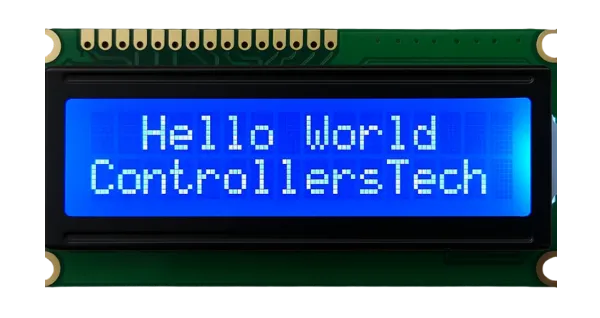
The display is based on the HD44780 controller, which is supported by many Arduino libraries. It usually operates at 5V, and you can easily adjust the screen contrast using a small potentiometer on the module.
Parallel vs I2C Interface — Why I2C Wins
By default, the LCD1602 uses a parallel interface, which requires up to 8 data pins and 3 control pins, a total of 11 pins. This can quickly eat up your Arduino’s I/O pins.
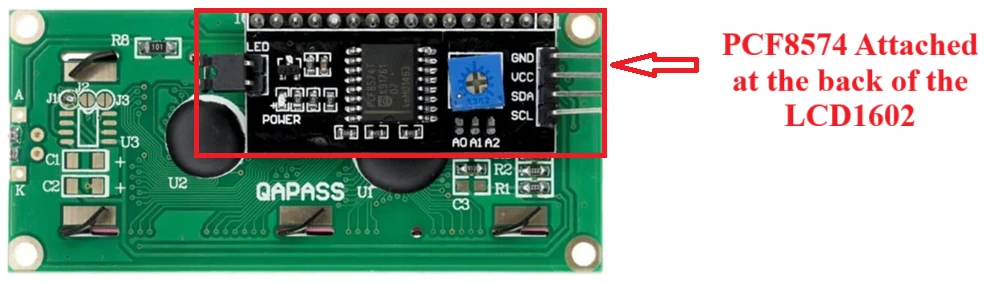
The I2C interface solves this problem by using just two pins, SDA (data) and SCL (clock), to control the entire display. The I2C adapter, usually based on the PCF8574 I/O expander chip, is soldered to the back of the LCD.
Using I2C makes your wiring much cleaner and allows you to connect multiple devices (like sensors or other displays) on the same two I2C lines. It’s a smart and space-saving choice for almost any Arduino project.
PCF8574 I/O Expander — How It Works
The PCF8574 is an I/O expander chip that communicates with your Arduino using the I2C protocol. It acts as a bridge between your Arduino and the LCD1602 display. Instead of using many digital pins for data and control, this tiny chip lets you control the LCD using only two wires, SDA and SCL.
The PCF8574 chip has 8 output pins, which are internally connected to the LCD’s data and control lines. This means your Arduino sends I2C signals to the PCF8574, which then handles the actual parallel communication with the LCD module.
On the back of your LCD module, you’ll usually find a small I2C backpack containing the PCF8574 chip, a blue potentiometer (for contrast adjustment), and a jumper for backlight control.
LCD1602 Module Variants (PCF8574 vs PCF8574A)
There are a few variants of the I2C LCD1602 modules available in the market, mainly depending on the type of PCF8574 chip and address configuration:
- PCF8574 (base chip) – Common address:
0x20 to 0x27 - PCF8574A (alternate version) – Common address:
0x38 to 0x3F - Different Backlight Control Versions – Some have a jumper for LED backlight; others use software control
- Different PCB Layouts – Potentiometer and pins may be placed differently, but functionally they’re identical
Make sure to note your module’s exact type and address before proceeding, it ensures your LCD initializes correctly in your Arduino sketch.
I2C LCD1602 Arduino Wiring & I2C Address
Required Components
To follow this tutorial, gather the following parts:
- Arduino Board (e.g., Arduino Uno, Nano, or Mega)
- I2C LCD1602 Display Module (with PCF8574 backpack)
- Jumper Wires (male-to-female or male-to-male, depending on setup)
- Breadboard (optional, for easy wiring)
- USB Cable (to connect Arduino to your computer)
Wiring Diagram — LCD1602 to Arduino (Uno / Mega / Leonardo)
Connecting an I2C LCD1602 display to an Arduino UNO is very simple because it only needs two communication wires, SDA and SCL, instead of the many pins required by a parallel LCD.
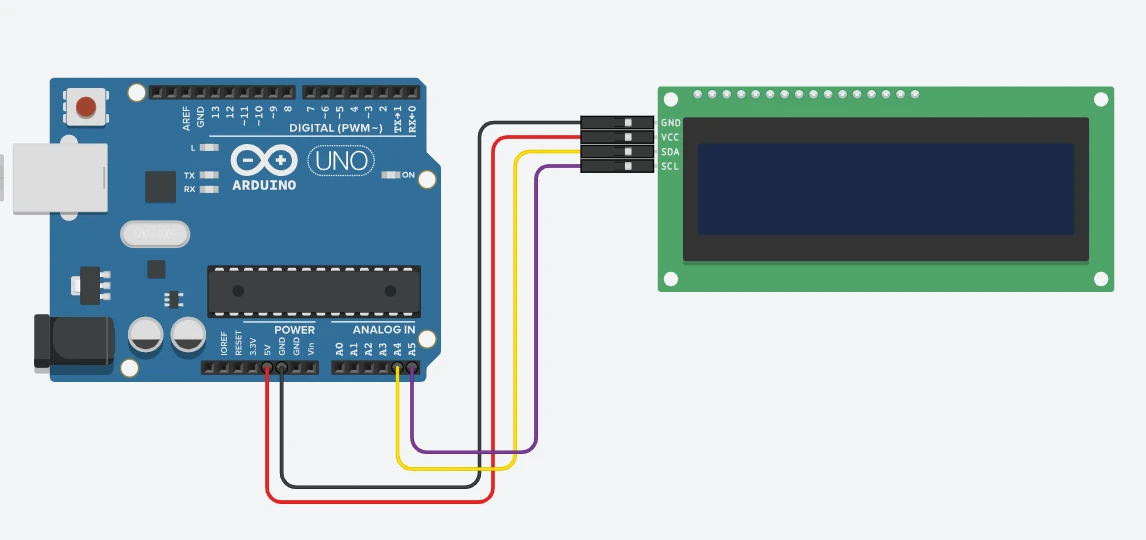
Here’s how to wire it:
| I2C LCD1602 Pin | Arduino UNO Pin | Description |
|---|---|---|
| VCC | 5V | Powers the LCD module (some versions also work with 3.3V) |
| GND | GND | Common ground connection |
| SDA | A4 | Serial Data line for I2C communication |
| SCL | A5 | Serial Clock line for I2C communication |
Note:
On Arduino Mega, the SDA and SCL pins are 20 (SDA) and 21 (SCL).
On Arduino Leonardo or Micro, use SDA = 2 and SCL = 3.
Once the connections are made, plug in your Arduino, and you’re ready to test the display using the i2c-scanner code to confirm communication.
If the LCD doesn’t light up, check the backlight jumper and ensure the contrast potentiometer is adjusted correctly. Sometimes the characters are displayed but not visible due to low contrast.
Pin Description and Power Requirements
The I2C LCD1602 module typically has a 4-pin interface. Let’s take a quick look at what each pin does:
- VCC – Supplies power to the LCD (usually 5V, but some versions support 3.3V).
- GND – Common ground connection between Arduino and LCD.
- SDA (Serial Data) – Carries the data signals between Arduino and the PCF8574 chip.
- SCL (Serial Clock) – Provides the timing signal for synchronization of data transfer.
Most I2C LCD modules operate on 5V DC and consume around 20–30 mA when the backlight is ON. The contrast can be adjusted using the blue potentiometer located on the I2C backpack.
If you wish to turn off the backlight, you can either remove the jumper on the backlight pins or control it via software, depending on your module version.
Find the I2C Address — Scanner Sketch
Each I2C device has a unique 7-bit address that identifies it on the I2C bus. For most PCF8574-based LCD modules, this address is commonly 0x27 or 0x3F, but it can vary depending on the manufacturer.
To find your LCD’s I2C address, you can run a simple I2C scanner sketch on your Arduino:
#include <Wire.h>

void setup() {
  Wire.begin();
  Serial.begin(9600);
  Serial.println("Scanning for I2C devices...");
  for (byte i = 1; i < 127; i++) {
    Wire.beginTransmission(i);
    if (Wire.endTransmission() == 0) {
      Serial.print("I2C device found at address 0x");
      Serial.println(i, HEX);
    }
  }
}

void loop() {}Upload this code to your Arduino and open the Serial Monitor. You’ll see the detected I2C address printed there.
The image below shows the result of the I2C scanner code.
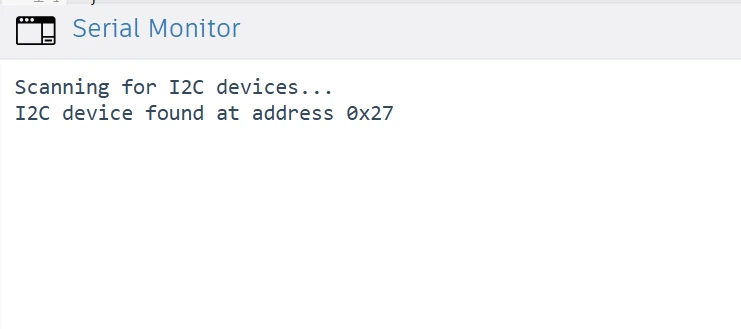
You can see the address 0x27 is detected by the scanner. We will use this address in our code when initializing the LCD.
Note:
If no address is detected, check your wiring and ensure the SDA and SCL pins are correctly connected to your Arduino.
Change I2C Address Using A0, A1, A2 Pins
The PCF8574 chip allows you to change its I2C address manually using the A0, A1, and A2 pins. These pins determine the lower three bits of the device’s address.
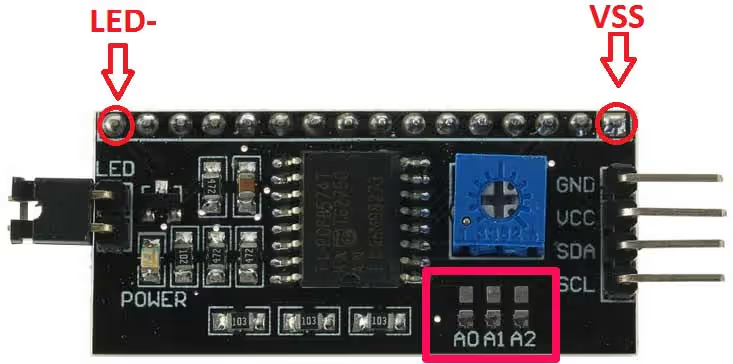
Each pin can be connected either to GND (logic 0) or VCC (logic 1) to form a unique combination. By default these pins are open, which means they are connected to VCC. The GND points are available beside each pin.
Here’s a quick reference table:
| A2 | A1 | A0 | I2C Address (PCF8574) | I2C Address (PCF8574A) |
|---|---|---|---|---|
| 0 | 0 | 0 | 0x20 | 0x38 |
| 0 | 0 | 1 | 0x21 | 0x39 |
| 0 | 1 | 0 | 0x22 | 0x3A |
| 0 | 1 | 1 | 0x23 | 0x3B |
| 1 | 0 | 0 | 0x24 | 0x3C |
| 1 | 0 | 1 | 0x25 | 0x3D |
| 1 | 1 | 0 | 0x26 | 0x3E |
| 1 | 1 | 1 | 0x27 | 0x3F |
By default, most I2C LCD modules have all three pins (A0, A1, A2) connected to VCC, giving an address of 0x27 or 0x3F.
If you need to use multiple I2C LCD modules on the same Arduino, you can change the address by cutting or bridging the solder pads for A0, A1, or A2 on the back of the module. Each unique combination gives a new address, allowing multiple displays to work together without conflicts.
Example: If your LCD currently uses address 0x27, and you connect A0 to GND, the new address will be 0x26. This way you can now control 2 different LCD just the 2 wires.
I2C LCD1602 Library Setup & Function Reference
After connecting your I2C LCD1602 display and finding its address, the next step is to program it using Arduino. With the LiquidCrystal_I2C library, you can easily display strings, numbers, and even scrolling messages on your LCD.
Install the LiquidCrystal_I2C Library
Before writing the code, install the LiquidCrystal_I2C library:
- Open Arduino IDE.
- Go to Sketch → Include Library → Manage Libraries.
- Search for “LiquidCrystal_I2C”.
- Install the version by Frank de Brabander or Marco Schwartz.
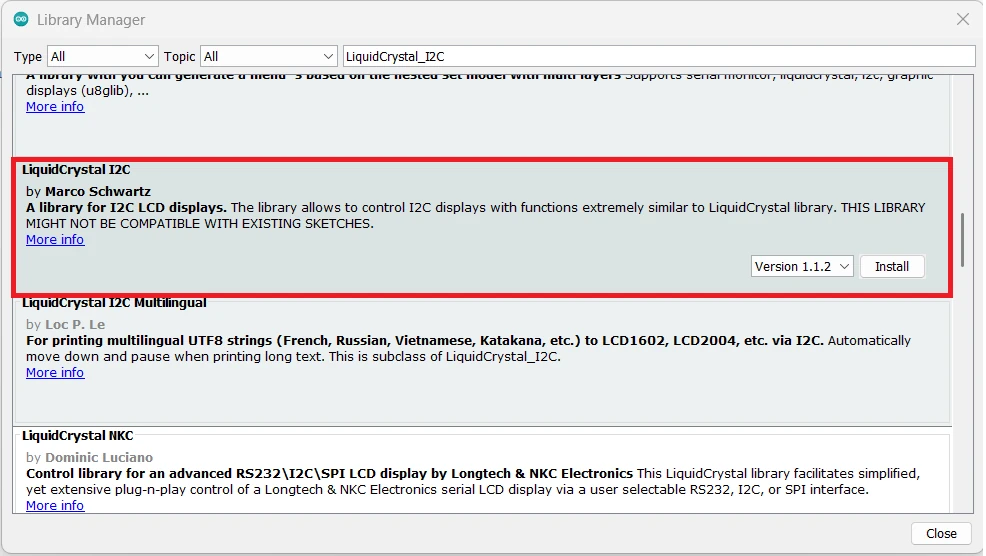
This library simplifies LCD control using easy functions like .init(), .setCursor(), .print(), and .scrollDisplayLeft().
Note:
The Wire library is included by default in Arduino IDE and handles the I2C communication.
LiquidCrystal_I2C Function Reference Table
The table below covers all the basic functions you’ll need for printing text, numbers, scrolling, and creating custom characters on an I2C LCD1602.
| Function | Syntax | Description / Usage |
|---|---|---|
lcd.init() | lcd.init(); | Initializes the LCD. Must be called in setup() before printing text. |
lcd.backlight() | lcd.backlight(); | Turns on the LCD backlight. |
lcd.noBacklight() | lcd.noBacklight(); | Turns off the LCD backlight. |
lcd.clear() | lcd.clear(); | Clears the display and resets cursor to (0,0). |
lcd.setCursor() | lcd.setCursor(col, row); | Moves the cursor to a specific column and row. |
lcd.print() | lcd.print(value); | Prints text, numbers, float, or hex at the current cursor position. |
lcd.scrollDisplayLeft() | lcd.scrollDisplayLeft(); | Scrolls the entire display one character to the left. |
lcd.scrollDisplayRight() | lcd.scrollDisplayRight(); | Scrolls the entire display one character to the right. |
lcd.createChar() | lcd.createChar(location, byte[]); | Creates a custom character (0–7) in CGRAM. |
lcd.home() | lcd.home(); | Moves the cursor to (0,0) without clearing the display. |
lcd.blink() | lcd.blink(); | Makes the cursor blink at the current position. |
lcd.noBlink() | lcd.noBlink(); | Stops the blinking cursor. |
lcd.cursor() | lcd.cursor(); | Shows the cursor at the current position. |
lcd.noCursor() | lcd.noCursor(); | Hides the cursor. |
I2C LCD1602 Arduino Code: Text, Numbers & Scrolling
Display Text Strings on LCD1602
Here’s a simple code to print text on your I2C LCD1602:
#include <Wire.h>
#include <LiquidCrystal_I2C.h>

// Replace 0x27 with your LCD's I2C address
LiquidCrystal_I2C lcd(0x27, 16, 2);

void setup() {
  lcd.init();          // Initialize the LCD
  lcd.backlight();     // Turn on the backlight
  lcd.setCursor(0, 0); // First row
  lcd.print("Hello, World!");
  lcd.setCursor(0, 1); // Second row
  lcd.print("I2C LCD1602");
}

void loop() {
  // Nothing here for now
}Here is how the code works:
#include <Wire.h>and#include <LiquidCrystal_I2C.h>→ Include libraries for I2C communication and LCD control.LiquidCrystal_I2C lcd(0x27,16,2);→ Creates an LCD object with I2C address0x27and size 16×2.lcd.init();→ Initializes the LCD.lcd.backlight();→ Turns on the backlight.lcd.setCursor(col,row);→ Moves the cursor to the specified column and row. We have 2 Rows (0 & 1) and 16 Columns (0 to 15).lcd.print("text");→ Displays text at the current cursor position.
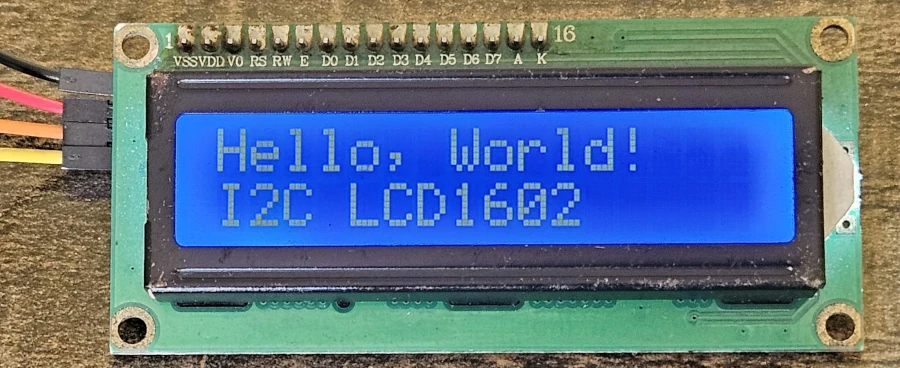
Basically, this code prints “Hello, World!” on the first line and “I2C LCD1602” on the second line. If you see a blank screen, try adjusting the contrast knob on the module.
Output
The image below shows the output of this code. You can see the “Hello, World!” is printed on the 1st row, whereas, “I2C LCD1602” is printed on the 2nd row.
Display Integer, Float & Hex Values
You can print integers, floating-point numbers, and even hexadecimal values using the same .print() function.
#include <Wire.h>
#include <LiquidCrystal_I2C.h>

LiquidCrystal_I2C lcd(0x27, 16, 2);

void setup() {
  lcd.init();
  lcd.backlight();

  int number = 1234;
  float voltage = 5.123;

  lcd.setCursor(0, 0);  // First row
  lcd.print("Int: ");
  lcd.print(number);

  lcd.setCursor(0, 1);  // Second row
  lcd.print("Float: ");
  lcd.print(voltage, 2); // 2 decimal places

  delay(3000);
  lcd.clear();

  lcd.setCursor(0, 0);
  lcd.print("Hex: 0x");
  lcd.print(number, HEX); // Display number in hexadecimal
}

void loop() {}
Note:
You can control how many decimal places to show by changing the second argument in lcd.print() (e.g., lcd.print(value, 3)).
Output
The GIF below shows the output of this code. You can see the number, float and hex, everything is printing just fine.

Scrolling Text on LCD1602
If your message is longer than 16 characters, you can make it scroll across the display. This is great for showing long strings or smooth text animations.
Here’s an example:
#include <Wire.h>
#include <LiquidCrystal_I2C.h>

LiquidCrystal_I2C lcd(0x27, 16, 2);

void setup() {
  lcd.init();
  lcd.backlight();

  lcd.setCursor(0, 0);
  lcd.print("Scrolling Message Demo");
  delay(1000);
}

void loop() {
  // Scroll text to the left
  for (int i = 0; i < 20; i++) {
    lcd.scrollDisplayLeft();
    delay(300);
  }

  delay(1000);

  // Scroll text back to the right
  for (int i = 0; i < 20; i++) {
    lcd.scrollDisplayRight();
    delay(300);
  }

  delay(1000);
}Explanation:
lcd.scrollDisplayLeft()moves the text one space to the left.lcd.scrollDisplayRight()moves it to the right.- Adjust the delay value to control scrolling speed.
Output
The GIF below shows the lcd1602 display scrolling in both directions.

Custom Characters on I2C LCD1602
How CGRAM Custom Characters Work
The LCD1602 allows you to create up to 8 custom characters (numbered 0–7). These are stored in the CGRAM (Character Generator RAM).
- Each character is a 5×8 pixel matrix.
- You define a character by creating an array of 8 bytes, where each byte represents a row of pixels.
1→ Pixel ON0→ Pixel OFF
- Once defined, you can display your custom character using
lcd.write(location).
How it works in short:
- Define the pattern in an 8-byte array.
- Use
lcd.createChar()to store it in CGRAM. - Display it using
lcd.write().
Note:
Custom characters are perfect for smileys, arrows, battery icons, or any small symbols you want to show on your LCD.
Single Custom Character Example — Smiley Face
Here’s an example showing how to create a smiley face on an I2C LCD1602:
#include <Wire.h>
#include <LiquidCrystal_I2C.h>

LiquidCrystal_I2C lcd(0x27, 16, 2);

// Define a custom character (smiley face)
byte smiley[8] = {
  0b00000,
  0b01010,
  0b01010,
  0b00000,
  0b10001,
  0b01110,
  0b00000,
  0b00000
};

void setup() {
  lcd.init();
  lcd.backlight();

  // Create the custom character at location 0
  lcd.createChar(0, smiley);

  // Display the custom character
  lcd.setCursor(0, 0);
  lcd.print("Have a nice day ");
  lcd.setCursor(7, 1);  // Go to 6th column in 2nd row
  lcd.write(byte(0)); // Display the smiley at the end
}

void loop() {
  // Nothing here
}Explanation:
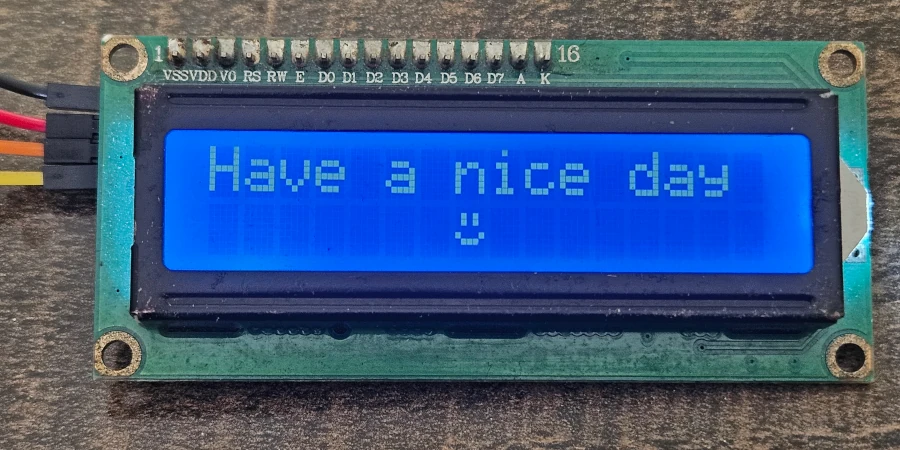
byte smiley[8]→ Defines the 5×8 pixel pattern of the custom character.lcd.createChar(0, smiley);→ Stores the character in CGRAM slot 0.lcd.write(byte(0));→ Displays the custom character on the screen.
You can define up to 8 custom characters (locations 0–7) and reuse them in your project for small icons or symbols.
Output
The image below shows the result on the LCD1602 Display. You can see the custom character (smiley) is printed on the 2nd Row.
Multiple Custom Characters Example
Here is an example to create and display multiple custom characters at the same time.
#include <Wire.h>
#include <LiquidCrystal_I2C.h>

// I2C address and 16x2 LCD
LiquidCrystal_I2C lcd(0x27, 16, 2);

// Define 5 custom characters (5x8 pixels each)
byte char1[8] = {0x00,0x0A,0x0A,0x00,0x11,0x0E,0x00,0x00}; // Smiley
byte char2[8] = {0x04,0x0E,0x15,0x04,0x04,0x04,0x04,0x00}; // Arrow up
byte char3[8] = {0x04,0x04,0x04,0x04,0x15,0x0E,0x04,0x00}; // Arrow down
byte char4[8] = {0x00,0x0A,0x0A,0x0A,0x11,0x0E,0x00,0x00}; // Another smiley
byte char5[8] = {0x00,0x04,0x0E,0x1F,0x0E,0x04,0x00,0x00}; // Heart

void setup() {
  lcd.init();
  lcd.backlight();

  // Create custom characters at positions 0-4
  lcd.createChar(0, char1);
  lcd.createChar(1, char2);
  lcd.createChar(2, char3);
  lcd.createChar(3, char4);
  lcd.createChar(4, char5);

  lcd.setCursor(0, 0);
  lcd.print("Have a nice day ");
  // Display custom characters
  lcd.setCursor(6,1);
  lcd.write(byte(0));
  lcd.write(byte(1));
  lcd.write(byte(2));
  lcd.write(byte(3));
  lcd.write(byte(4));
}

void loop() {
  // Nothing here; characters are static
}Explanation:
- Each
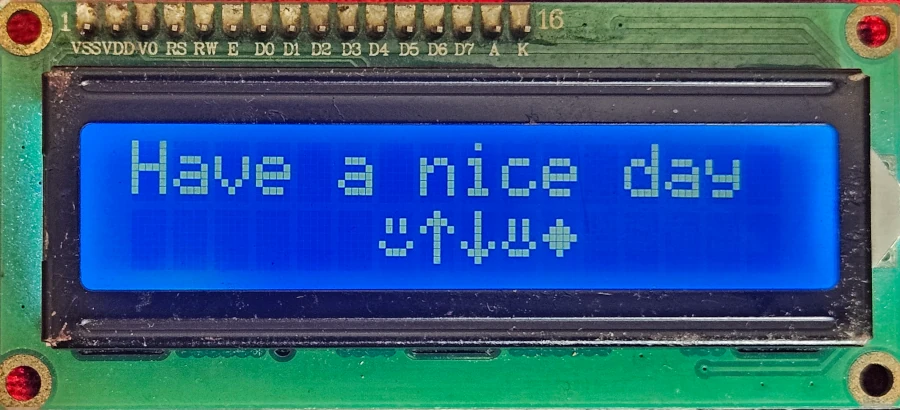
byte charX[8]defines a 5×8 pixel custom character. lcd.createChar(location, byteArray)stores the character in CGRAM location 0–7.lcd.write(byte(location))prints the custom character at the cursor.- In this example, 5 custom icons are displayed on the second row, while the first row shows the string.
Output
The image below shows the output of this code. You can see the first row displays the string, while the custom characters are printed on the second row.
LCD1602 5×8 Custom Character Generator Tool
You can generate the custom characters using the tool below. Click on the squares to toggle pixels ON (black) or OFF (white). After finishing your design, click “Generate Code” to get the Arduino byte array.
How to Use
Draw your character on the 5×8 grid below. Each row represents 5 pixels. Once done, click “Generate Code” to get the code, which you can directly use with lcd.createChar() in Arduino.
Generated Arduino Code (Hex):
Troubleshooting I2C LCD1602 Issues
Blank Screen or No Display
If your LCD displays nothing or garbled/random characters, it’s usually caused by one of the following:
- Incorrect wiring – Make sure SDA, SCL, VCC, and GND are correctly connected.
- Power issues – Ensure your LCD module gets proper 5V (or 3.3V if supported).
- Contrast not set – Some modules need contrast adjustment using the onboard potentiometer.
- I2C address mismatch – If the address in your code does not match the module’s address, the LCD won’t display correctly.
Tip: Run an I2C scanner sketch to verify the module address.
Adjusting Contrast Using Potentiometer
Most I2C LCD modules have a small potentiometer (usually blue) on the back:
- Turn it slowly while the LCD is powered.
- Adjust until the text becomes clearly visible.
- If the text is very faint or not visible at all, the contrast needs adjustment.
Tip: Always adjust contrast after wiring and powering the LCD, never while the Arduino is off.
Incorrect I2C Address Issue
If the LCD does not respond or shows random characters:
- Check the I2C address set in your code, e.g.,
0x27. - Different modules may have addresses like
0x3F,0x27, or others. - Use the simple I2C scanner sketch to find your LCD’s address.
Once you identify the address, update your LiquidCrystal_I2C lcd(0xXX,16,2) line with the correct value.
I2C LCD1602 Arduino — Frequently Asked Questions
Conclusion
The I2C LCD1602 is one of the most practical displays you can add to an Arduino project. Two wires, one library, and you have a 32-character display capable of text, numbers, scrolling messages, and up to eight fully custom pixel icons — all without touching a single additional GPIO.
In this tutorial you covered the full workflow: understanding how the PCF8574 bridge chip works, wiring the display, scanning and changing its I2C address, installing the LiquidCrystal_I2C library, and writing code for every display mode — strings, integers, floats, hex values, scrolling text, and multi-character CGRAM icons. The interactive pixel tool at the end of the Custom Characters section lets you design and export byte arrays without manually calculating binary rows.
The LCD1602 works as a standalone display or as a live output panel for almost any sensor. Pair it with the DHT22 for a temperature/humidity monitor, the HC-SR04 for a distance meter, or the BMP180 for a barometric station. If you need more screen real estate, the SSD1306 OLED or SH1106 are natural next steps. Download the full project above and explore the Arduino Display tutorials collection for more.
Download I2C LCD1602 Arduino Project Files
Complete Arduino project with I2C scanner sketch, text and number display examples, scrolling message code, single and multi-character CGRAM custom character sketches. Uses LiquidCrystal_I2C library — compatible with Uno, Nano, and Mega. Free to download — support the work if it helped you.
Browse More Arduino Display Tutorials
ST7735 Arduino TFT Tutorial: SPI Wiring, Graphics, Text & SD Card Image Display
Arduino SH1106 OLED Tutorial: I2C Wiring, Text, Bitmaps & Animations
How to Interface MAX7219 7 Segment Display with Arduino | Display Text, Scrolling Message, and Time
Arduino ST7920 Tutorial (128×64 LCD): Wiring, Setup, U8g2, and Text Display Guide
Arduino ST7920 Display Graphics Guide: Shapes, Icons, Bitmaps, and UI Design

Subscribe
Login
0 Comments
Newest

