
Home ▸ Arduino ▸ Displays & Interfaces ▸
Updated On: October 16, 2026
SSD1306 Arduino OLED Tutorial: I2C Wiring, Text, Bitmaps & Animations
The SSD1306 is a 0.96-inch monochrome OLED display with a resolution of 128 by 64 pixels, and it connects to an Arduino with only two signal wires. It draws very little power, stays readable in the dark and is supported by well-maintained libraries. These qualities make it one of the most common displays for sensor readouts, small menus and simple graphics.
This tutorial shows how to wire the SSD1306 to an Arduino, find its I2C address and install the Adafruit libraries. After the setup, you will print text, integers and floating-point numbers, draw bitmaps and build frame-based animations. All examples were written for the Arduino Uno and also run on the Nano and the Mega.
The display uses the I2C bus, so the Arduino I2C tutorial is a useful background read. The Arduino UNO pinout guide shows where the I2C pins sit on the board. If you plan to show sensor data on the screen, the Arduino sensor tutorials cover temperature, motion and distance sensors that pair well with this display.
Browse the full Arduino Display Interfacing tutorial collection for more.
Table of contents
SSD1306 OLED Display Specifications
The SSD1306 is the name of the driver chip that controls a small OLED (organic light-emitting diode) panel. Each pixel on the panel produces its own light, so the display needs no backlight. This gives deep black levels, high contrast and a viewing angle of nearly 180 degrees. The driver supports I2C and SPI, and this tutorial uses the I2C version because it needs only two data lines.

| Specification | Detail |
|---|---|
| Display size | 0.96 inch, measured diagonally |
| Resolution | 128 × 64 pixels |
| Driver IC | SSD1306 |
| Interface | I2C (some modules also offer SPI) |
| Operating voltage | 3.3 V to 5 V |
| Color | Monochrome, available in white, blue or yellow |
| Viewing angle | Nearly 180 degrees |
Why Use the SSD1306 with Arduino
The I2C version needs only four wires, so it leaves most of the Arduino pins free for other parts. The panel is bright, small and light, which suits battery-powered projects and small enclosures. The Adafruit SSD1306 and Adafruit GFX libraries handle the low-level work, so a few lines of code are enough to print text, show sensor values or draw an animation.
SSD1306 Arduino Wiring
The circuit needs an Arduino board with I2C support, an I2C version of the 0.96-inch SSD1306 display with the four pins GND, VCC, SDA and SCL, and a few jumper wires.
Connecting the SSD1306 to an Arduino Uno
The display uses SDA for data and SCL for the clock, and it also needs power and ground. On the Uno and the Nano, SDA is on pin A4 and SCL is on pin A5.

| OLED pin | Arduino Uno and Nano pin | Description |
|---|---|---|
| VCC | 5V (or 3.3V on some modules) | Power supply for the display |
| GND | GND | Common ground |
| SDA | A4 | I2C data line |
| SCL | A5 | I2C clock line |
On the Arduino Mega, SDA is on pin 20 and SCL is on pin 21. Newer boards such as the Leonardo have separate SDA and SCL pins that are labeled on the board. The Arduino UNO pinout guide shows the I2C pins in more detail. Because A4 and A5 are used for I2C, they are no longer available as analog inputs while the display is connected.
SSD1306 I2C Address
Most SSD1306 modules respond at the I2C address 0x3C, and some use 0x3D. Several modules also print a different value on the back of the board, so it is safer to scan the bus than to trust the label. The following sketch checks every address from 1 to 126 and prints the ones that answer.
#include <Wire.h>

void setup() {
  Wire.begin();
  Serial.begin(9600);
  Serial.println("Scanning for I2C devices...");
  for (byte i = 1; i < 127; i++) {
    Wire.beginTransmission(i);
    if (Wire.endTransmission() == 0) {
      Serial.print("I2C device found at address 0x");
      Serial.println(i, HEX);
    }
  }
}

void loop() {}Upload the sketch, open the Serial Monitor at 9600 baud and note the address that appears. The examples in this tutorial use 0x3C.
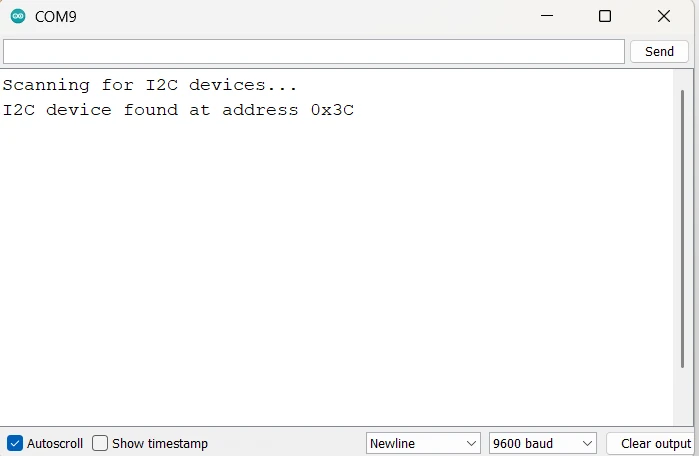
The Arduino I2C tutorial explains how this scanner works and how to handle two devices with the same address.
SSD1306 Arduino Library Setup
Two libraries from Adafruit make the display easy to use. The Adafruit SSD1306 library communicates with the display, and the Adafruit GFX library provides the drawing functions for text, shapes and bitmaps.
Install the Adafruit SSD1306 and GFX Libraries
- Open the Arduino IDE and go to Sketch, then Include Library, then Manage Libraries.
- Type “SSD1306” in the search box and install Adafruit SSD1306.
- Search for “Adafruit GFX” and install Adafruit GFX Library. The IDE may offer to install it together with the SSD1306 library, and you can accept that offer.
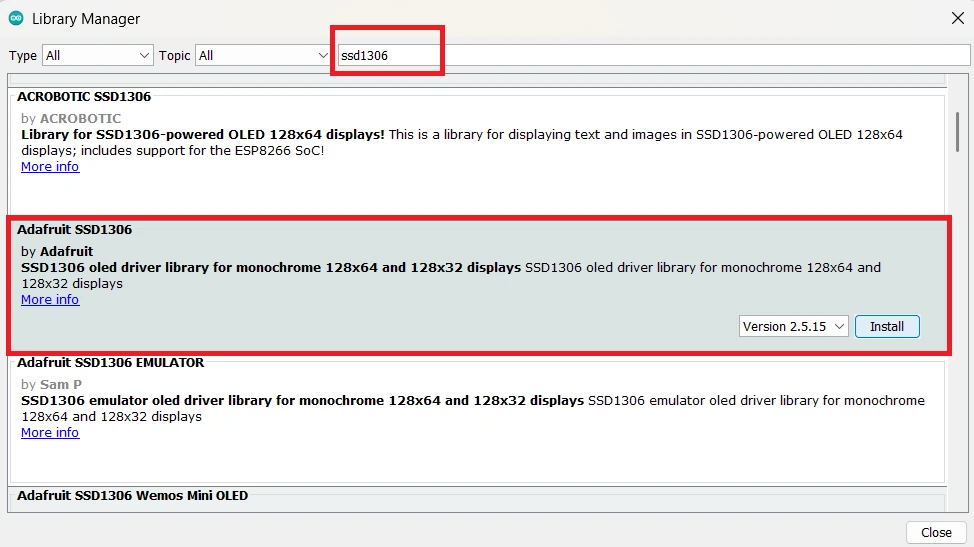
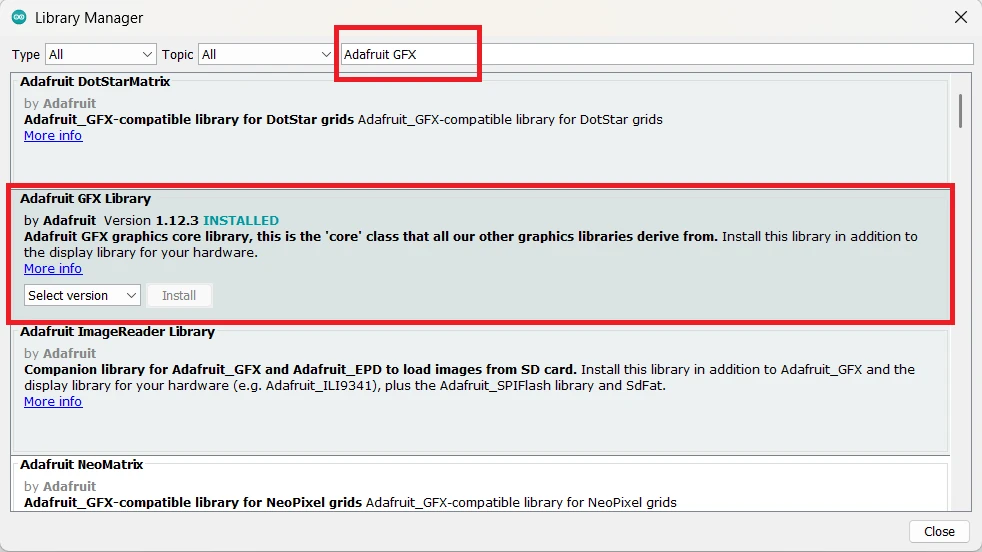
Install the latest version of both libraries, because older versions can cause compile errors on newer boards.
Run the Built-in Example Sketch
The library includes a ready-made sketch that is a quick way to test the wiring.
- Go to File, then Examples, then Adafruit SSD1306, then
ssd1306_128x64_i2c. - Find the line
#define SCREEN_ADDRESS 0x3Cand change it to0x3Dif your scanner found that address. - Select the board and the port, and click Upload.

The Adafruit logo appears first, followed by a series of shapes, scrolling text and small animations. This confirms that the Arduino and the display communicate correctly.
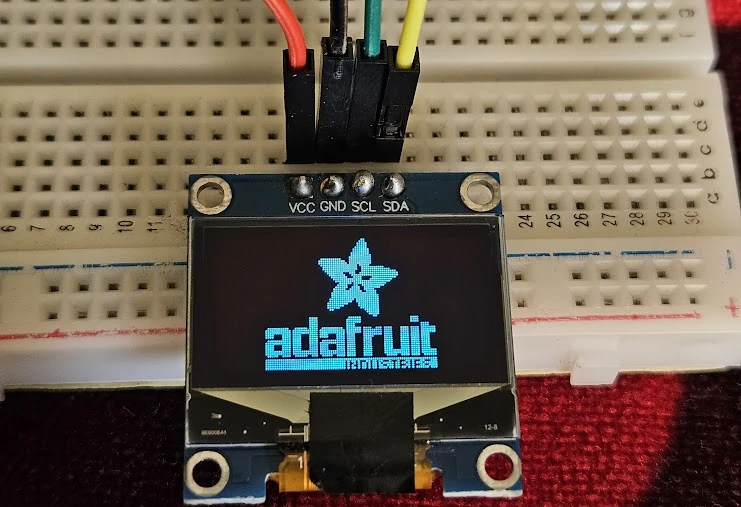
The example sketch uses a screen buffer of 1024 bytes for the 128 by 64 display, which is half of the 2 KB of SRAM on the Uno. If a sketch resets or behaves strangely after you add more code, the lack of free memory is a likely cause.
SSD1306 Arduino Text and Numbers
The Adafruit GFX library prints to the display in the same way that Serial.print() prints to the Serial Monitor. The text is first written to a buffer in the memory of the Arduino, and a call to display.display() then sends the whole buffer to the screen.
Display Text on the SSD1306
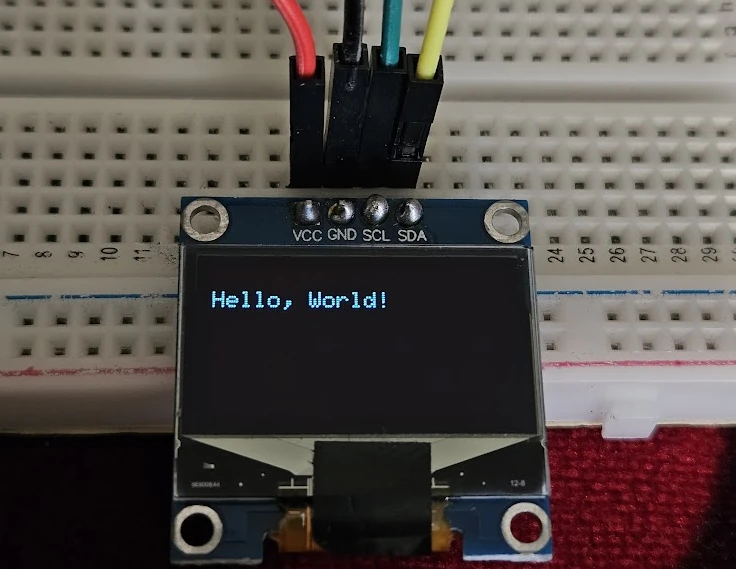
This sketch initializes the display and prints a short message. The check on display.begin() stops the sketch with a message when the display does not answer, which makes wiring and address errors easy to spot.
#include <Wire.h>
#include <Adafruit_GFX.h>
#include <Adafruit_SSD1306.h>

#define SCREEN_WIDTH 128
#define SCREEN_HEIGHT 64

Adafruit_SSD1306 display(SCREEN_WIDTH, SCREEN_HEIGHT, &Wire, -1);

void setup() {
  Serial.begin(9600);

  if (!display.begin(SSD1306_SWITCHCAPVCC, 0x3C)) {
    Serial.println("SSD1306 not found. Check the wiring and the address.");
    for (;;);
  }

  display.clearDisplay();
  display.setTextSize(1);
  display.setTextColor(SSD1306_WHITE);
  display.setCursor(0, 10);
  display.print("Hello, World!");
  display.display();
}

void loop() {
}The functions in this sketch have the following roles.
display.clearDisplay()erases the buffer.display.setTextSize(1)selects the smallest font size.display.setTextColor(SSD1306_WHITE)draws white pixels on the black background.display.setCursor(0, 10)sets the starting position of the text in pixels.display.print()writes the text into the buffer.display.display()sends the buffer to the screen.
The screen changes only when display.display() is called, which gives you control over when it refreshes and prevents flicker.
Change the Text Size and Position
The setTextSize() function takes a whole number, where 1 is the smallest size and 2 doubles the width and height of every character. The setCursor(x, y) function sets the horizontal and vertical start position in pixels.
display.clearDisplay();
display.setTextSize(2);     // Larger text
display.setCursor(20, 20);  // Move the text to a new position
display.print("Arduino");
display.display();
At size 1 the screen fits 21 characters per line and 8 lines, and at size 2 it fits 10 characters per line and 4 lines.
Text Wrapping and Inverted Text
The library wraps text to the next line when it reaches the right edge. You can turn this off with display.setTextWrap(false); when you want to control the layout yourself. To draw highlighted text, pass a second color for the background, which gives black text on a white block.
display.setTextColor(SSD1306_BLACK, SSD1306_WHITE);Inverted text is useful for headings, selected menu items and warnings.
Display Integer Values
Integers are printed with the same print() function. This sketch shows a counter that increases once per second.
#include <Wire.h>
#include <Adafruit_GFX.h>
#include <Adafruit_SSD1306.h>

#define SCREEN_WIDTH 128
#define SCREEN_HEIGHT 64

Adafruit_SSD1306 display(SCREEN_WIDTH, SCREEN_HEIGHT, &Wire, -1);

int counter = 0;

void setup() {
  display.begin(SSD1306_SWITCHCAPVCC, 0x3C);
  display.setTextSize(2);
  display.setTextColor(SSD1306_WHITE);
}

void loop() {
  display.clearDisplay();
  display.setCursor(10, 20);
  display.print("Count: ");
  display.print(counter);
  display.display();
  counter++;
  delay(1000);
}The call to display.clearDisplay() at the start of each pass removes the previous value. Without it, the new digits are drawn over the old ones and the text becomes unreadable.

Display Floating-Point Values
For a floating-point number, the second argument of print() sets the number of digits after the decimal point.
float temperature = 25.6789;

display.clearDisplay();
display.setTextSize(2);
display.setCursor(10, 20);
display.print("Temp: ");
display.print(temperature, 2);  // Prints 25.68
display.display();Use print(temperature, 1) for one decimal place and print(temperature, 3) for three. Two decimals are enough for most sensor values, and fewer digits stay readable at a larger text size.
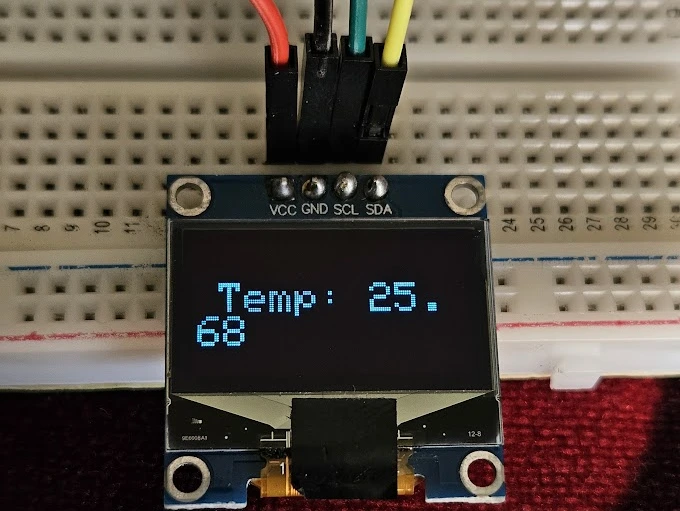
This approach works with any sensor that returns a number. The DS18B20 temperature sensor tutorial already combines the sensor with an OLED, and the DHT11 and DHT22 tutorial, the BME280 tutorial and the MPU6050 tutorial provide values that you can print the same way. For analog sensors, the Arduino ADC tutorial shows how to convert a reading to a voltage first. A clock display is another popular use, and the DS3231 real-time clock tutorial provides the time.
SSD1306 Arduino Bitmaps
Bitmaps let you show logos, icons and other custom graphics. The display is monochrome, so every pixel is either on or off, and a bitmap is simply a list of bytes in which each bit represents one pixel.
How Bitmaps Work on the OLED
A bit with the value 1 turns a pixel on, and a bit with the value 0 turns it off. Each byte describes eight pixels in a row, so an 8 by 8 icon needs eight bytes.
const unsigned char myBitmap[] PROGMEM = {
  0x3C, 0x42, 0xA9, 0x85, 0xA9, 0x91, 0x42, 0x3C
};The PROGMEM keyword keeps the data in flash memory instead of SRAM, which is important on the Uno because SRAM is limited. A full-screen 128 by 64 bitmap uses 1024 bytes of flash, and a 64 by 64 logo uses 512 bytes.
Convert an Image to a Bitmap Array
The free Image2CPP online tool converts an image to a C array.
- Prepare a black-and-white image, such as a logo.
- Upload the image to Image2CPP.
- Set the canvas size to the size you want on the display, and check the preview.
- Adjust the brightness threshold until the image looks clear.
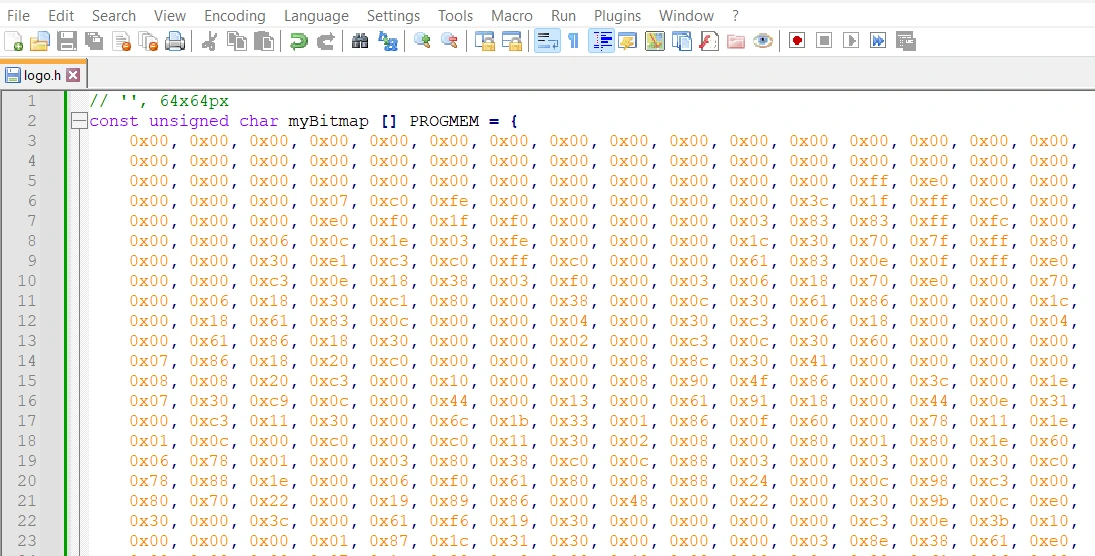
- Select Arduino code as the output format and choose the horizontal, 1 bit per pixel drawing mode.
- Click Generate Code and copy the array.
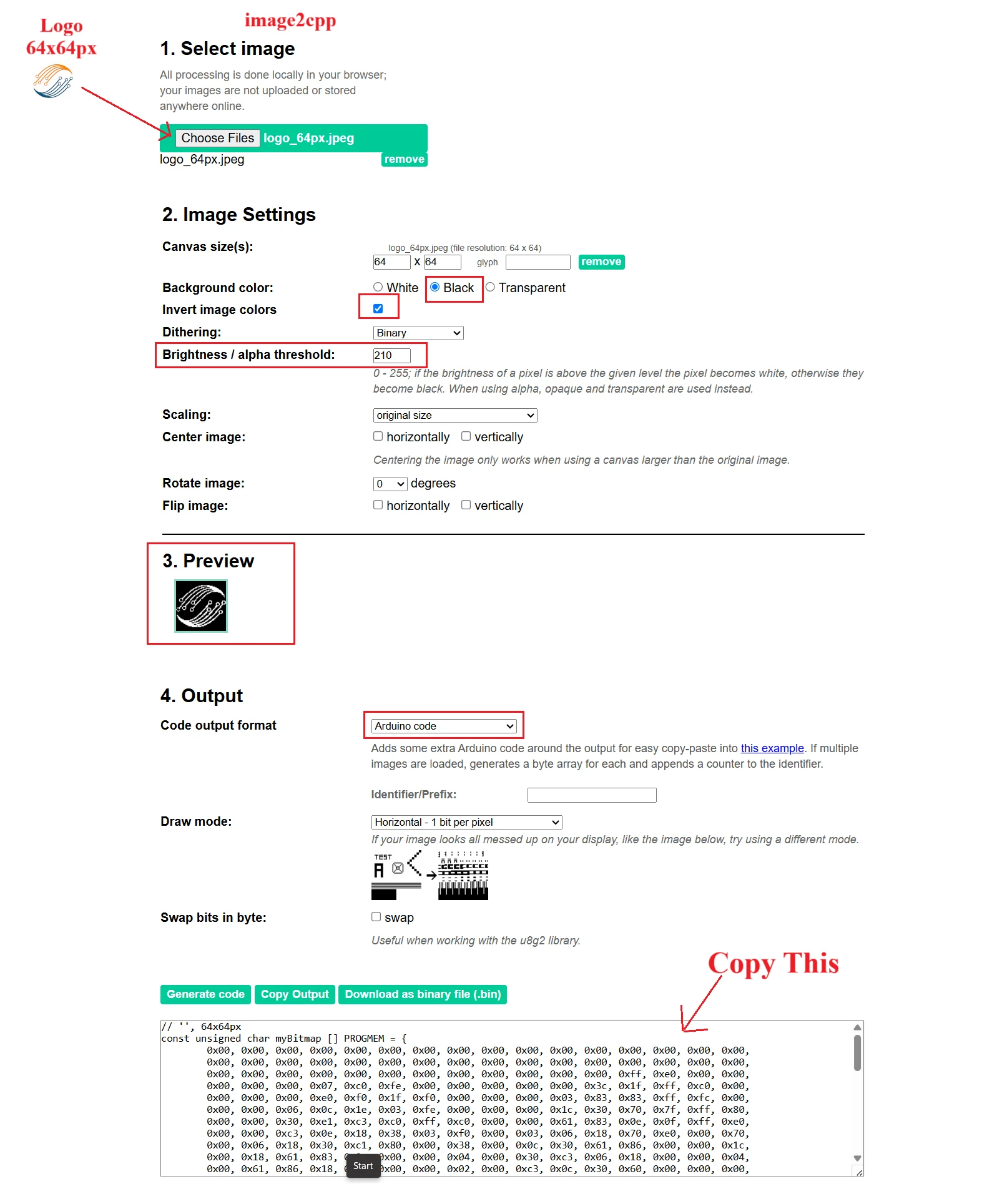
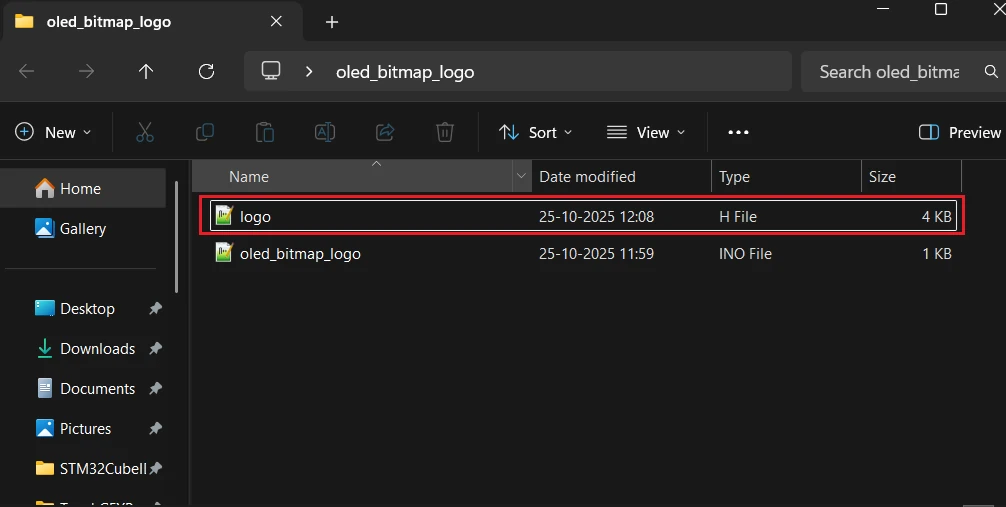
Paste the array into a new header file, such as logo.h, which keeps the main sketch short. Then copy the file to the folder of your sketch.
Display a Bitmap with drawBitmap()
Include the header file and call drawBitmap() with the position, the array, the width, the height and the color.
#include <Wire.h>
#include <Adafruit_GFX.h>
#include <Adafruit_SSD1306.h>
#include "logo.h"

#define SCREEN_WIDTH 128
#define SCREEN_HEIGHT 64

Adafruit_SSD1306 display(SCREEN_WIDTH, SCREEN_HEIGHT, &Wire, -1);

void setup() {
  display.begin(SSD1306_SWITCHCAPVCC, 0x3C);
  display.clearDisplay();
  display.drawBitmap(32, 0, myBitmap, 64, 64, SSD1306_WHITE);
  display.display();
}

void loop() {
}The image is drawn with its top-left corner at x = 32 and y = 0, and the values 64 and 64 are its width and height. Change the position to move the image. The array name and the size must match the values that Image2CPP generated.
Combine Text and Bitmaps
A bitmap and text can share the screen, for example a Wi-Fi icon next to a status message.
display.drawBitmap(0, 0, wifiIcon, 16, 16, SSD1306_WHITE);
display.setCursor(20, 5);
display.setTextSize(1);
display.print("Connected");
display.display();Small icons of 16 by 16 or 32 by 32 pixels draw quickly and use very little flash. Always call display.clearDisplay() before you draw a new image, and keep the bitmap data in PROGMEM.
SSD1306 Arduino Animations
An animation on the OLED is a series of frames that are drawn one after another, like a flipbook. When the frames change quickly enough, the eye sees continuous motion. Each frame follows the same four steps.
- Clear the display buffer with
display.clearDisplay(). - Draw the graphics for the new frame.
- Send the frame to the screen with
display.display(). - Wait for a short time before the next frame.
display.clearDisplay();
display.drawCircle(x, y, 3, SSD1306_WHITE);
display.display();
delay(30);A delay between 20 ms and 50 ms usually gives smooth motion. A shorter delay makes the animation faster, and the time that the I2C transfer needs also limits the speed. Each full-screen update sends 1024 bytes, so the frame rate is limited by the speed of the bus. You can raise the bus speed to 400 kHz by calling Wire.setClock(400000); after display.begin(), which most SSD1306 modules support.
Bouncing Ball Animation
This sketch moves a small filled circle across the screen and reverses its direction when it reaches an edge.
#include <Wire.h>
#include <Adafruit_GFX.h>
#include <Adafruit_SSD1306.h>

#define SCREEN_WIDTH 128
#define SCREEN_HEIGHT 64

Adafruit_SSD1306 display(SCREEN_WIDTH, SCREEN_HEIGHT, &Wire, -1);

int x = 10, y = 10;
int xSpeed = 2, ySpeed = 2;

void setup() {
  display.begin(SSD1306_SWITCHCAPVCC, 0x3C);
  display.clearDisplay();
}

void loop() {
  display.clearDisplay();

  // Draw the ball
  display.fillCircle(x, y, 3, SSD1306_WHITE);

  // Update the position
  x += xSpeed;
  y += ySpeed;

  // Bounce from the edges
  if (x <= 3 || x >= SCREEN_WIDTH - 3) xSpeed = -xSpeed;
  if (y <= 3 || y >= SCREEN_HEIGHT - 3) ySpeed = -ySpeed;

  display.display();
  delay(20);
}The position changes by two pixels in every pass of the loop. When the ball touches an edge, the matching speed value changes its sign, and the ball moves back in the opposite direction.

The same logic can move several objects, a logo or a progress indicator.
Custom Multi-Frame Bitmap Animations
For a hand-drawn animation, create each frame as a black-and-white image and convert it to an array with the same Image2CPP steps that were described in the bitmap section. Save each frame in its own header file, for example frame1.h, frame2.h and frame3.h, and draw the frames in sequence.
#include <Wire.h>
#include <Adafruit_GFX.h>
#include <Adafruit_SSD1306.h>

#define SCREEN_WIDTH 128
#define SCREEN_HEIGHT 64

Adafruit_SSD1306 display(SCREEN_WIDTH, SCREEN_HEIGHT, &Wire, -1);

#include "frame1.h"
#include "frame2.h"
#include "frame3.h"

void setup() {
  display.begin(SSD1306_SWITCHCAPVCC, 0x3C);
  display.clearDisplay();
}

void loop() {
  display.clearDisplay();
  display.drawBitmap(0, 0, frame1, 64, 32, SSD1306_WHITE);
  display.display();
  delay(100);

  display.clearDisplay();
  display.drawBitmap(0, 0, frame2, 64, 32, SSD1306_WHITE);
  display.display();
  delay(100);

  display.clearDisplay();
  display.drawBitmap(0, 0, frame3, 64, 32, SSD1306_WHITE);
  display.display();
  delay(100);
}Each frame stays on the screen for 100 ms, and a longer delay gives a slower animation.
Store Frames in an Array
An animation with many frames is easier to manage when the frames are stored in an array and drawn in a loop. The following example plays a three-frame blinking cat eye. The frames were taken from a free animated image on Pixabay and converted to arrays with Image2CPP, which can also generate the array of frame pointers named cat_allArray in a single header file.
#include <Wire.h>
#include <Adafruit_GFX.h>
#include <Adafruit_SSD1306.h>
#include "cat_animation.h"

#define SCREEN_WIDTH 128
#define SCREEN_HEIGHT 64

Adafruit_SSD1306 display(SCREEN_WIDTH, SCREEN_HEIGHT, &Wire, -1);

void setup() {
  display.begin(SSD1306_SWITCHCAPVCC, 0x3C);
  display.clearDisplay();
}

void loop() {
  for (int i = 0; i < 3; i++) {
    display.clearDisplay();
    display.drawBitmap(0, 0, cat_allArray[i], 128, 64, SSD1306_WHITE);
    display.display();
    delay(80);  // Frame delay for the blinking effect
  }
}
Conclusion
This tutorial showed how to wire the SSD1306 OLED to an Arduino, find its I2C address, install the Adafruit libraries and display text, numbers, bitmaps and animations. The main points are the single call to display.display() that updates the screen, the 1024-byte buffer that limits the free memory on the Uno and the use of PROGMEM for image data. You can now combine the display with a sensor, a clock or a buzzer to build a small standalone device.
Download Project Here
Download the CubeMX project files and HAL source code — all tested on real hardware.
If you find this useful, you can support us with a Donation as well.
Browse More Arduino Display Tutorials
ST7735 Arduino TFT Tutorial: SPI Wiring, Graphics, Text & SD Card Image Display
Arduino SH1106 OLED Tutorial: I2C Wiring, Text, Bitmaps & Animations
How to Interface MAX7219 7 Segment Display with Arduino | Display Text, Scrolling Message, and Time
Arduino ST7920 Tutorial (128×64 LCD): Wiring, Setup, U8g2, and Text Display Guide
Arduino ST7920 Display Graphics Guide: Shapes, Icons, Bitmaps, and UI Design

Subscribe
Login
0 Comments
Newest

