
Home ▸ ESP32 ▸ FreeRTOS Tutorials ▸
Updated On: April 26, 2026
ESP32 FreeRTOS Task Control: vTaskSuspend, vTaskResume & vTaskDelete
Task control is one of the most powerful features in FreeRTOS. It gives you the ability to pause, restart, or completely remove tasks at runtime. This makes your ESP32 project more flexible and efficient. When you know how to control tasks correctly, you avoid wasted CPU time, reduce memory usage, and keep your system stable.
In this tutorial, you’ll learn:
- How
vTaskSuspend()andvTaskResume()pause and restart tasks — with a real LED + button example - How
vTaskDelete()removes tasks and frees stack memory automatically - How to detect when a task has been deleted using
eTaskGetState() - When to use suspend/resume vs delete vs task notifications — and when to avoid suspension entirely
- Best practices to prevent crashes, memory leaks, and invalid handle bugs
This is Part 6 of the ESP32 FreeRTOS Series using ESP-IDF. You can check the other parts as well, here are the links:
- Part 1 — Intro to FreeRTOS: Tasks, Scheduler & xTaskCreate
- Part 2 — Understanding the FreeRTOS Scheduler
- Part 3 — Task Priority & Stack Management
- Part 4 — Inter-Task Communication: Queues, Semaphores & Event Groups
- Part 5 — Software Timers & Task Notifications
- Part 6 — Task Control: Suspend, Resume & Delete ← you are here
- Part 7 — Real-Time Multitasking Project (ADC, UART, LED)
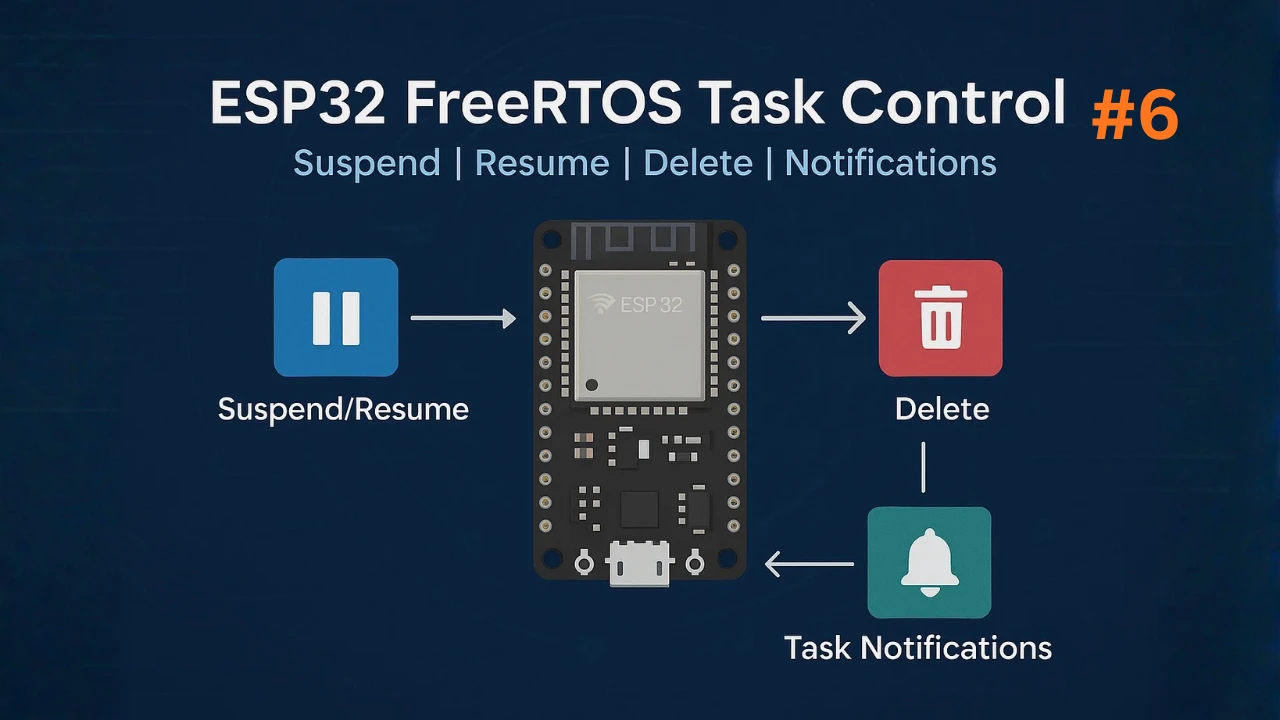
Table Of Contents
- Task Control in FreeRTOS: What It Is & When You Need It
- Suspend & Resume: vTaskSuspend() and vTaskResume()
- Deleting Tasks with vTaskDelete()
- vTaskSuspend vs vTaskDelete vs Task Notifications: When to Use Which
- Download ESP32 FreeRTOS Task Control Project Files
- FreeRTOS Task Control: Frequently Asked Questions
Task Control in FreeRTOS: What It Is & When You Need It
Task control refers to the ability to pause, resume, or remove tasks at runtime. FreeRTOS gives you simple APIs to do this, and ESP-IDF adds extra reliability through its dual-core scheduler. With proper task control, your ESP32 project becomes more predictable and efficient. You decide which tasks should run, which should wait, and which should stop forever. This is useful in real applications where tasks do not always need to run continuously.
ESP32 projects often involve many tasks running at the same time. Some tasks gather sensor data. Others manage Wi-Fi, handle user input, or control hardware. Not all tasks must run continuously. Some may need to wait until an external event happens. Others may need to stop after completing their job.
Task control helps you:
- Save CPU time by pausing tasks that don’t need to run.
- Reduce power consumption, which is important if you use batteries.
- Free memory by deleting tasks that finish their work.
- Improve responsiveness by resuming tasks only when needed.
With proper task control, your ESP32 behaves more intelligently. Tasks run only when the system actually needs them.
The Three Task Control APIs at a Glance
FreeRTOS exposes three main functions for task control:
vTaskSuspend(): pause a taskvTaskResume(): restart a paused taskvTaskDelete(): permanently remove a task
These APIs help you shape the runtime behavior of your system without restarting the ESP32.
How Task States Affect Task Control
To use task control correctly, you must know how FreeRTOS handles task states. In the previous tutorial on the task scheduler, you saw how a task can be in different states: Running, Ready, Blocked, and Suspended.
Task control mainly switches tasks between:
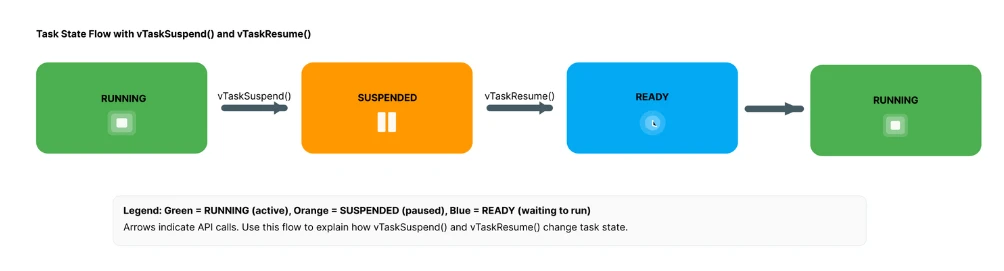
- Ready to Suspended (when you call vTaskSuspend)
- Suspended to Ready (when you call vTaskResume)
- Any State to Deleted (when you call vTaskDelete)
A suspended task does not consume CPU time. It is not considered during scheduling. The scheduler simply ignores it until you resume it. Deleted tasks are removed entirely, and their stack memory is freed.
By understanding task states, you can predict how your system behaves when you suspend or delete tasks. This avoids bugs or scheduler surprises.
When Suspending or Deleting Tasks Makes Sense
Not every situation needs suspending or deleting tasks. But in many cases, using them leads to cleaner and lighter code.
You should suspend a task when:
- It needs to wait for a long time.
- It runs only after an external trigger.
- You want precise manual control over when it runs again.
- You don’t want the scheduler to wake it accidentally.
You should delete a task when:
- The task completes a one-time job.
- You want to recover its stack memory.
- The task will never run again.
- You want to prevent unnecessary CPU use.
Examples include:
- A Wi-Fi setup task that runs only during startup.
- A sensor calibration task that runs once.
- A background task that must pause until the user presses a button.
Suspend & Resume: vTaskSuspend() and vTaskResume()
Suspending and resuming tasks allows you to control when a task should pause and when it should continue running. This is useful for saving power, preventing unnecessary processing, and managing system behavior based on real-time events.
On the ESP32, task suspension works the same way on both cores, and the FreeRTOS kernel ensures safe context switching.
How vTaskSuspend() Works
vTaskSuspend() changes a task’s state from Ready or Running to Suspended. A suspended task consumes no CPU time. It does not compete with other tasks. It simply waits until you call vTaskResume() for the same task handle.
Key points:
- Suspension happens immediately.
- The scheduler removes the task from all ready lists.
- The task will not run again unless resumed manually.
- You can suspend any task, including the currently running one.
Suspending the current task is common in workflows where a task waits for a specific event and you want full manual control, instead of using delays or blocking calls.
How vTaskResume() Works (and vTaskResumeFromISR)
vTaskResume() or vTaskResumeFromISR() are the function that wakes a suspended task and returns it to the scheduler. When you call this function, FreeRTOS changes the task’s state from Suspended to Ready, which means the task is now allowed to run again during the next scheduling cycle.
The important thing to understand is that the task does not start running immediately the moment you resume it. FreeRTOS first checks its priority. If the resumed task has a higher priority than the currently running task, the scheduler performs a context switch and the resumed task takes over. If the resumed task has equal or lower priority, it simply waits in the Ready state until its turn arrives.
Once the task starts running again, it continues from the exact line where it was suspended. Nothing is re-initialized, and no data is lost. This makes vTaskResume() a safe and predictable way to re-activate tasks that were intentionally paused.
Suspending a Task by Handle vs Using NULL
You can suspend a specific task using its handle:
vTaskSuspend(sensorTaskHandle);But you can also suspend the currently running task by passing NULL:
vTaskSuspend(NULL); // suspend the current taskWhen to use a handle:
- When one task wants to suspend another task.
- When you store task handles globally and manage them externally.
- When you need clarity about which task is being paused.
When to use NULL:
- When a task needs to suspend itself.
- When you don’t want to expose its handle globally.
Both forms work the same, but using a handle makes your app easier to read and debug, especially in larger ESP32 projects.
Suspend/Resume Example: Pause a Task from Another Task
Here is a simple ESP-IDF example that shows how to pause an LED task when the system does not need it to run.
#include <stdio.h>
#include <stdbool.h>
#include "freertos/FreeRTOS.h"
#include "freertos/task.h"
#include "driver/gpio.h"

#define LED_GPIO     2    // On-board LED for most ESP32 DevKit boards
#define BUTTON_GPIO  0    // BOOT button on DevKit, pulled up by default

TaskHandle_t ledTaskHandle = NULL;

void ledTask(void *pvParameters)
{
    int blinkCount = 0;

    while (1)
    {
        // Toggle LED
        gpio_set_level(LED_GPIO, 1);
        printf("LED ON\n");
        vTaskDelay(pdMS_TO_TICKS(300));

        gpio_set_level(LED_GPIO, 0);
        printf("LED OFF\n");
        vTaskDelay(pdMS_TO_TICKS(300));

        blinkCount++;

        // After 5 blinks, suspend the task
        if (blinkCount == 5)
        {
            printf("Suspending LED Task...\n");
            vTaskSuspend(NULL);  // Suspend itself

            // Reset counter after resume
            blinkCount = 0;
        }
    }
}

void controllerTask(void *pvParameters)
{
    while (1)
    {
        // Button is active LOW
        if (gpio_get_level(BUTTON_GPIO) == 0)
        {
            printf("Button Pressed: Resuming LED Task\n");
            vTaskResume(ledTaskHandle);

            // Debounce delay
            vTaskDelay(pdMS_TO_TICKS(500));
        }

        vTaskDelay(pdMS_TO_TICKS(50));
    }
}

void app_main(void)
{
    // Configure LED pin
    gpio_reset_pin(LED_GPIO);
    gpio_set_direction(LED_GPIO, GPIO_MODE_OUTPUT);

    // Configure button pin
    gpio_reset_pin(BUTTON_GPIO);
    gpio_set_direction(BUTTON_GPIO, GPIO_MODE_INPUT);
    gpio_pullup_en(BUTTON_GPIO);      // Button is active-low
    gpio_pulldown_dis(BUTTON_GPIO);

    // Create tasks
    xTaskCreate(ledTask, "LED_Task", 2048, NULL, 5, &ledTaskHandle);
    xTaskCreate(controllerTask, "Controller_Task", 2048, NULL, 4, NULL);
}Code Explanation
LED Task: Blinks LED and Suspends Itself
The LED task toggles the on-board LED on GPIO 2. It blinks five times, then suspends itself.
Important points:
- The LED blinks normally for a few seconds.
- After 5 blinks, the task prints a message.
vTaskSuspend(NULL)suspends the current task.- The LED stops blinking completely.
Controller Task: Waits for Button Press and Resumes LED Task
The controller task monitors the BOOT button on GPIO 0. This button is pulled up internally, so it reads LOW when pressed.
When the user presses the button:
- A message is printed to the console.
vTaskResume(ledTaskHandle)wakes the LED task.- LED starts blinking again.
Suspend/Resume Result
The gif below shows the output of the Task suspension.

As you can see above, the LED connected to GPIO2 blinks 5 times and then stops. This is when the LED Task goes into suspension.
When the button is pressed, the LED Task resumes and the LED blinks again for the 5 times.
When You Should Use Suspend/Resume
Use task suspension when you want to pause a task completely without deleting it. This is helpful when the task is not needed for a period of time but will be required again later. Suspending avoids unnecessary CPU usage and keeps the system efficient.
Use task resuming when an event or condition makes the task relevant again. The task wakes up and continues exactly where it stopped, making this approach clean and predictable.
Suspend/Resume works best when the task does not need new data or signals while it is paused. If the task must receive messages or values during downtime, task notifications or queues are more suitable.
Deleting Tasks with vTaskDelete()
FreeRTOS also lets you completely remove a task when its job is finished. This is useful when you create temporary tasks, run one-time operations, or want to free memory during runtime. The function vTaskDelete() handles this safely by stopping the task and releasing its allocated resources.
How vTaskDelete() Works and Memory Cleanup
vTaskDelete() removes a task from the scheduler permanently. Once deleted, the task:
- Stops executing immediately
- Is removed from all Ready/Blocked/Suspended lists
- Frees its stack memory and task control block (TCB)
A deleted task cannot be resumed. If you need it again, you must create it again with xTaskCreate().
FreeRTOS automatically cleans up:
- The task’s stack memory
- Its Task Control Block (TCB)
- Any scheduler references
- The task’s presence from Ready, Blocked or Suspended lists
The image below shows a simple Before/After view of how FreeRTOS memory is cleaned up when a task is deleted.
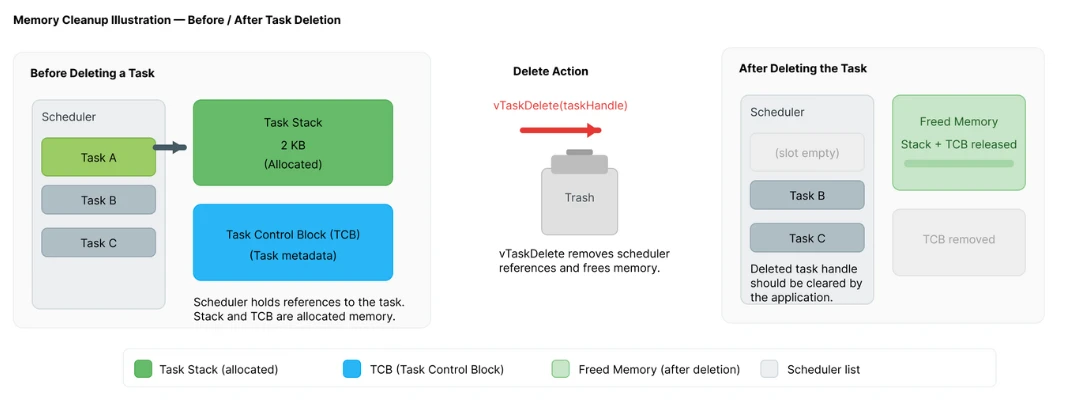
On the left side (“Before Deleting a Task”), you can see the Task Control Block (TCB) and the Task Stack, both allocated in RAM, along with a pointer showing the task still linked inside the scheduler’s task list.
On the right side (“After Deleting the Task”), these memory blocks are replaced by a “Freed Memory” area, the task is removed from the scheduler list, and a trash-bin icon highlights that the task’s resources have been completely cleaned up.
Therefore, after deletion, the memory becomes available for new tasks or other system use.
However:
- If the task allocated dynamic memory, you must free that separately.
- A deleted task handle becomes invalid and should not be used.
This makes task deletion a safe, predictable, and memory-efficient way to run one-time operations.
Self-Deleting Tasks vs Deleting Another Task
FreeRTOS allows two deletion methods:
1. Self-deleting a task
A task deletes itself by calling:
vTaskDelete(NULL);This is useful when the task’s work is complete and it no longer needs to exist. After this call, FreeRTOS cleans up the memory and switches to another task.
2. Deleting another task by handle
One task can delete another using:
vTaskDelete(taskHandle);This requires a valid TaskHandle_t. It is commonly used when a controller task needs full control.
Delete Example and Result
Below is a simple ESP-IDF example where a Worker Task runs a job, prints progress, finishes, and then deletes itself. A Monitor Task checks the worker and reports when it is gone.
#include <stdio.h>
#include "freertos/FreeRTOS.h"
#include "freertos/task.h"

TaskHandle_t workerTaskHandle = NULL;

void workerTask(void *pvParameters)
{
    for (int i = 1; i <= 5; i++)
    {
        printf("Worker Task: Step %d/5\n", i);
        vTaskDelay(pdMS_TO_TICKS(500));
    }

    printf("Worker Task: Work complete. Deleting myself...\n");
    vTaskDelete(NULL);  // Self-delete
}

void monitorTask(void *pvParameters)
{
    while (1)
    {
        if (workerTaskHandle != NULL)
        {
            eTaskState state = eTaskGetState(workerTaskHandle);

            if (state == eDeleted)
            {
                printf("Monitor Task: Worker Task has been deleted.\n");
                workerTaskHandle = NULL; // Avoid using a dead handle
            }
        }

        vTaskDelay(pdMS_TO_TICKS(300));
    }
}

void app_main(void)
{
    xTaskCreate(workerTask, "WorkerTask", 2048, NULL, 5, &workerTaskHandle);
    xTaskCreate(monitorTask, "MonitorTask", 2048, NULL, 4, NULL);
}
Code Explanation
Worker Task
- Performs 5 steps of work (just printed for demonstration).
- Waits 500 ms between steps.
- When finished, it deletes itself using
vTaskDelete(NULL).
This demonstrates how temporary tasks can clean up after finishing their job.
Monitor Task
- Runs in the background.
- Checks the worker task state using
eTaskGetState(). - When it detects the worker is deleted, it prints a message and clears the handle.
This prevents accidental use of a deleted task handle.
app_main()
- Creates the worker task with a handle.
- Creates a monitor task that observes the worker’s lifecycle.
This pattern is useful whenever you need a task to execute once and then remove itself.
Result
The image below shows the output of the Task Deletion on the Espressif-IDE serial terminal.
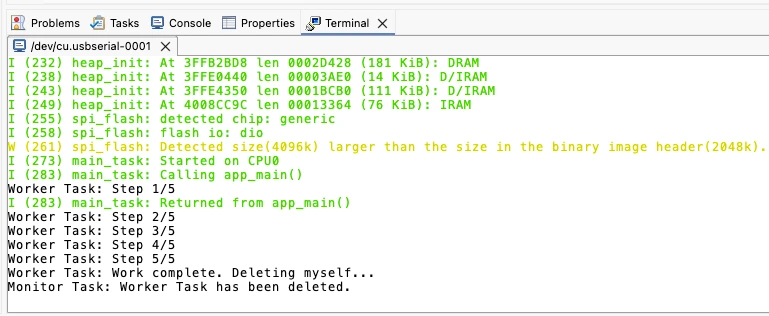
As you can see above, the Worker task completes its work and then deletes itself. The monitor task keep checking the the state of the worker task in the background. Once it found that the task has been deleted, it prints the message on the console.
vTaskSuspend vs vTaskDelete vs Task Notifications: When to Use Which
FreeRTOS gives you multiple ways to control how tasks behave at runtime. But choosing the right method matters. Each option, suspend, resume, delete, or notify has a different impact on responsiveness, memory usage, and system safety. This section helps you understand when to use which method so your ESP32 application stays efficient and predictable.
How Task Notifications Compare
Task notifications are often the lightest and fastest way to signal events between tasks. They use no heap memory, have very low overhead, and can optionally unblock a waiting task instantly.
Compared to suspend/resume:
- Notifications are better for frequent events such as new sensor data, button presses, or periodic actions.
- They avoid the risk of accidentally leaving a task suspended forever.
- They allow the task to stay in the Blocked state instead of Suspended, which is safer because the scheduler still tracks it normally.
Use task notifications when your intention is signal → wake up → continue, not stop the task entirely.
When Deleting a Task Is Safer Than Suspending It
Deleting a task is the right choice when:
- The task’s job is truly finished.
- You need to free memory, such as the task’s stack and TCB.
- You want to avoid long-term suspended tasks hogging RAM.
- A task should not be accidentally resumed later.
Deleting is safer when the task:
- Is temporary
- Runs only once (e.g., a firmware update task)
- Performs a one-time calibration
- Handles short-lived features (e.g., Wi-Fi provisioning task)
Suspending a task keeps its memory allocated, which can become a problem on the ESP32 if you suspend many tasks for long periods. In these situations, deleting the task avoids memory leaks and improves system health.
When You Should Avoid Suspending Tasks Entirely
You should not suspend tasks when:
- The task controls hardware that must stay responsive (motors, communication interfaces, sensors)
- Other tasks depend on its output
- The suspended task may never get resumed due to logic bugs
- You are debugging timing issues, since suspended tasks hide delays
- You want deterministic scheduling, since suspended tasks disrupt normal task flow
A suspended task is invisible to the scheduler. If it’s suspended at the wrong time, the system may freeze or behave unpredictably.
Instead of suspension:
- Use vTaskDelay() for shorter pauses
- Use task notifications for controlled waiting
- Block on a queue, semaphore, or event group
- Delete the task if it is done permanently
Suspension should be used sparingly and intentionally.

Download ESP32 FreeRTOS Task Control Project Files
Complete ESP-IDF project with vTaskSuspend() and vTaskResume() demo (pause/resume from another task), self-delete with vTaskDelete(), and a comparison example showing suspend vs notification-based control — support the work if it helped you.
FreeRTOS Task Control: Frequently Asked Questions
Conclusion
Task control gives you runtime flexibility that xTaskCreate() alone cannot. Suspend and resume let you pause non-critical work without losing the task's state — the task picks up exactly where it left off when resumed. Delete permanently removes a task and frees its stack — use it for tasks that complete a one-time job and should not run again.
The most common mistake is suspending a task that holds a mutex. The mutex remains locked, any task waiting to acquire it blocks indefinitely, and the system deadlocks silently. Never suspend a task between a mutex take and give.
In Part 7 we put everything together in a real multitasking project: an ADC sensor task, a communication task, and an LED task — all running concurrently using queues, notifications, and timers.
Browse More ESP32 FreeRTOS Tutorials
FreeRTOS ESP32 Scheduler: Task States & Context Switching
ESP32 FreeRTOS Task Priority & Stack Size: Full Guide
ESP32 FreeRTOS Queues, Semaphores, Mutexes & Event Groups
ESP32 FreeRTOS Software Timers & Task Notifications

ESP32 FreeRTOS Multitasking Project: ADC, UART & LED Tasks

Subscribe
Login
0 Comments
Newest