
Home ▸ STM32 Tutorials ▸ USB Tutorials ▸
Updated On: August 8, 2026
STM32 USB Host HID: Interface a Keyboard and Mouse with STM32
This is Part 9 of the STM32 USB series. In Part 8, we configured the STM32 as a USB host and connected a FAT32 flash drive to read and write files using FatFs. This time, we stay in host mode but switch to the HID class to interface a keyboard and a mouse.
We will read keypress data from a wired keyboard, convert it to ASCII, and print it on the serial monitor. Then we will do the same for a wired mouse — reading the X/Y movement and button states. After that, we will also cover wireless keyboards and mice, and handle a quirk in how their USB receiver exposes multiple interfaces.
I am using the Nucleo L496 board for this series. If you are using a different board, the core steps remain the same, but make sure to check your schematic for the USB power pin and UART pins.
You can follow the other parts of this series here:
- Part 1: STM32 USB CDC: Virtual COM Port
- Part 2: STM32 USB HID Gamepad
- Part 3: STM32 USB HID Mouse and Keyboard
- Part 4: STM32 USB MSC SD Card as External Drive
- Part 5: STM32 USB MSC with W25Q NOR Flash
- Part 6: STM32 USB Composite Device (CDC+HID)
- Part 7: STM32 USB HID Mouse and Keyboard Combined
- Par 8: STM32 USB Host MSC: Read & Write USB Flash Drive
- Part10: STM32 USB Host Audio Class
- Part11: STM32 USB DFU Bootloader
STM32 USB Host HID: Keyboard and Mouse — Video Tutorial
This video walks through the complete setup of the STM32 as a USB HID host. We configure the Nucleo L496 in CubeMX, read keypress data from a wired keyboard, read X/Y movement and button states from a wired mouse, fix the byte offset issue in usbh_hid_mouse.c, and handle wireless receivers by printing interface information and adjusting the USBH_FindInterface() parameter.
How STM32 USB Host HID Works
The HID (Human Interface Device) class covers devices like keyboards, mice, gamepads, and similar input peripherals. When the STM32 acts as a USB host, it enumerates the connected HID device, identifies whether it is a keyboard or mouse, and then continuously receives reports from the device through an interrupt endpoint.
The STM32 HAL USB Host HID library supports both keyboard and mouse out of the box. For the keyboard, it provides a function to convert raw HID keycodes directly to ASCII characters. For the mouse, it gives you access to the X/Y movement values and button states. All of this data arrives through a callback function that fires every time the HID device sends a new report.
USB Host States
The USB host middleware calls USBH_UserProcess() in usb_host.c to notify the application about state changes. We handle three states:
- HOST_USER_CONNECTION : fires when a device is physically plugged in.
- HOST_USER_CLASS_ACTIVE : fires when the host has successfully enumerated the device and it is ready.
- HOST_USER_DISCONNECTION : fires when the device is unplugged.
You do not need to reset the board between plug and unplug events. The USB host handles re-enumeration automatically.
The HID Event Callback
Every time the HID device sends a new report, the library calls USBH_HID_EventCallback(). This is where we write the actual code to read keyboard or mouse data. We check the device type inside this callback and process the data accordingly.
The keyboard sends a keycode for each key press, not the ASCII character directly. The function USBH_HID_GetASCIICode() handles the conversion. When a key is released, the device sends an empty report, so we also need to filter out null characters to avoid printing blank entries.
The mouse sends relative movement data, not an absolute cursor position. This means the X and Y values represent the change since the last report. The raw values are unsigned (0–255), so we apply a simple conversion to get signed movement:
if (xVal > 127) xVal -= 255;
if (yVal > 127) yVal -= 255;This gives us positive and negative values for movement in either direction.
STM32 USB Host CubeMX Setup
We need to configure the USB peripheral, UART for serial logging, and a GPIO pin to enable USB power.
USB Host Configuration
Go to Connectivity section and enable USB OTG FS in host-only mode. Pins PA11 and PA12 will be assigned as the USB D+ and D- pins. Enable VBUS sensing as well and the pin PA9 will be assigned as the VBUS Pin.
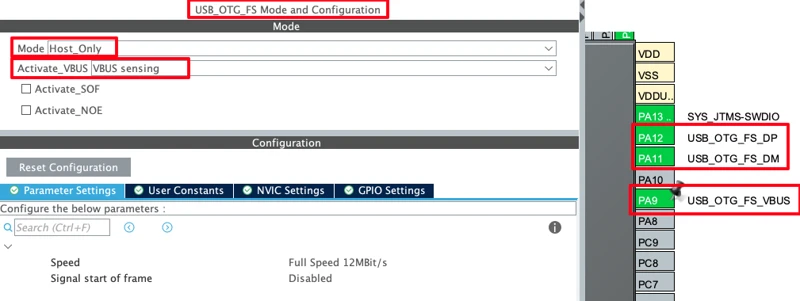
The VBUS sensing on PA9 tells the STM32 to monitor the VBUS line and manage power automatically. If the connected device has no self-power, the STM32 enables the supply. If the USB device do has its own power supply, STM32 will not supply any power to it.
Next, go to Middleware -> USB Host and enable the Human Interface Class. Leave parameters at default configuration.
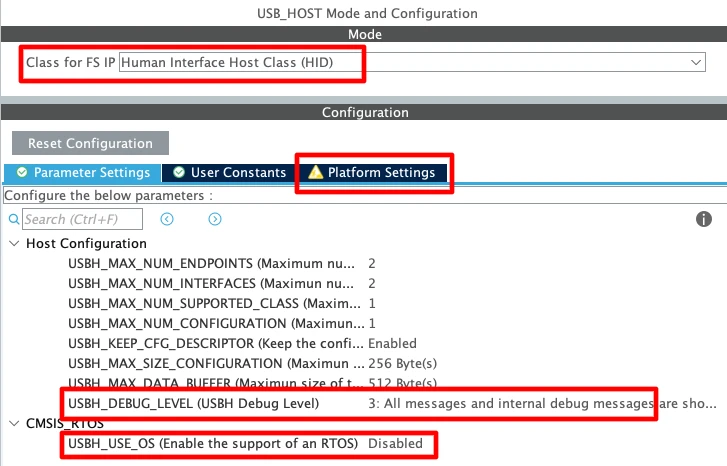
Note that the USBH_USE_OS is disabled as we are not using FreeRTOS. If you want to view the USB processing logs, set the USBH_DEBUG_LEVEL to 3. This will print the USB logs on the serial console, which will help us identify issues.
Also note that there is a warning showing in the Platform Settings. This is because the USB host middleware wants us to assign the VBUS pin in the platform settings for manual VBUS control. Since PA9 is already used for VBUS sensing, we cannot also assign it here in the Platform Settings. Hence we can ignore this warning. The sensing is already handling what the manual setting would otherwise do.
UART Configuration for Serial Logging
Now we will configure the LPUART1 for serial logging. I am choosing LPUART1 because on this Nucleo L496 board, the ST-Link Virtual Com Port pins are connected to LPUART1. This is shown in the image below.
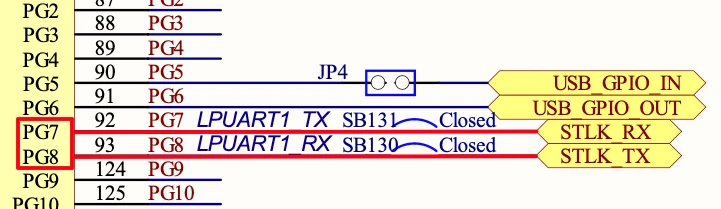
Go to Connectivity -> LPUART1 and enable it in the asynchronous mode. We also need to reassign the UART pins to PG7 (TX) and PG8 (RX), as according to the schematics, this is where the STLK_RX and STLK_TX pins are connected to.
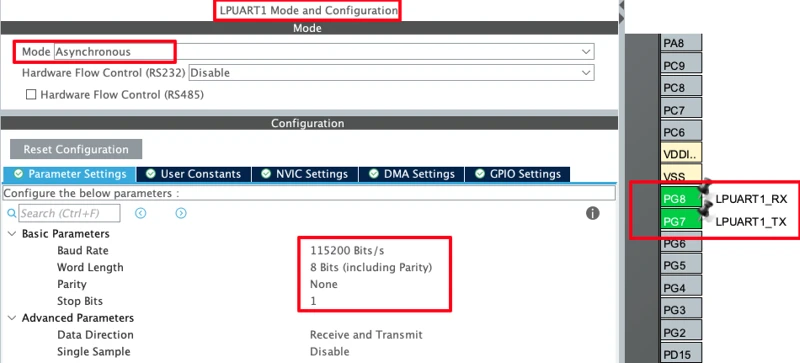
Also make sure the UART configured to baud rate of 115200, 8 bits, no parity and 1 stop bit.
USB PowerSwitchOn Pin
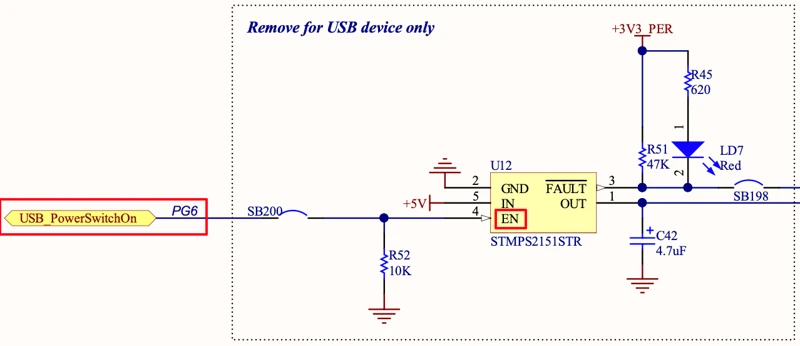
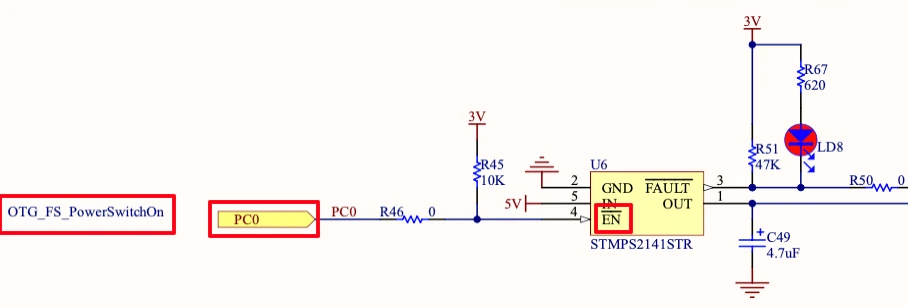
The power switch IC is responsible for providing the power supply to the USB device. On Nulceo L496, the Power IC can be controlled by the pin PG6. Since PG6 is connected to the Enable pin (EN) of the power IC, we need to pull the PG6 High in order to activate the power supply to the USB device. If we do not do this, the USB host will not be enabled, and the connected USB device will not receive power or be detected.
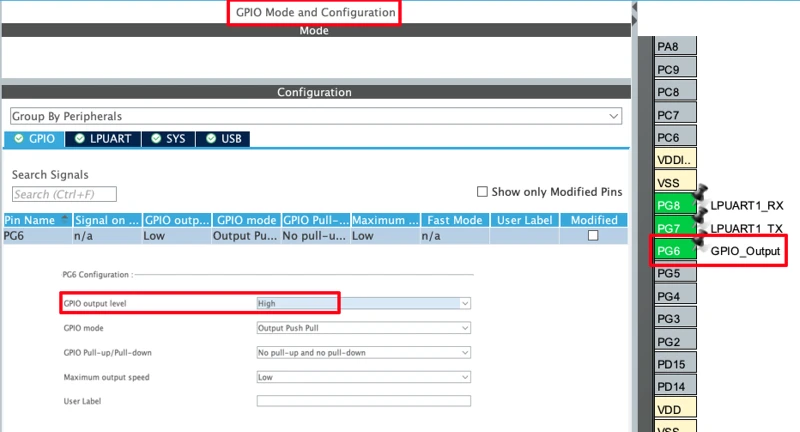
Configure PG6 as a GPIO output pin. In the GPIO settings for PG6, set the default output level to High.
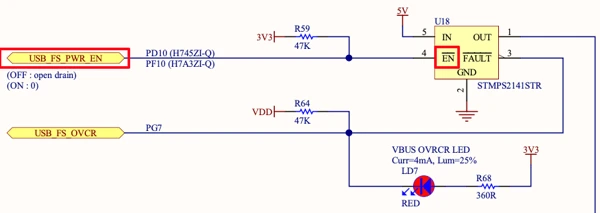
On some Development boards like STM32F407 Discovery or Nucleo H755ZI, the PowerSwitchOn pin is connected to the Enable Pin (), which is Active Low. So in these boards, after configuring the pin as output, it must be pulled Low to activate the Power Supply.
Clock Configuration
I am going to use the internal HSI as the clock source and configure the PLL to reach 80 MHz.
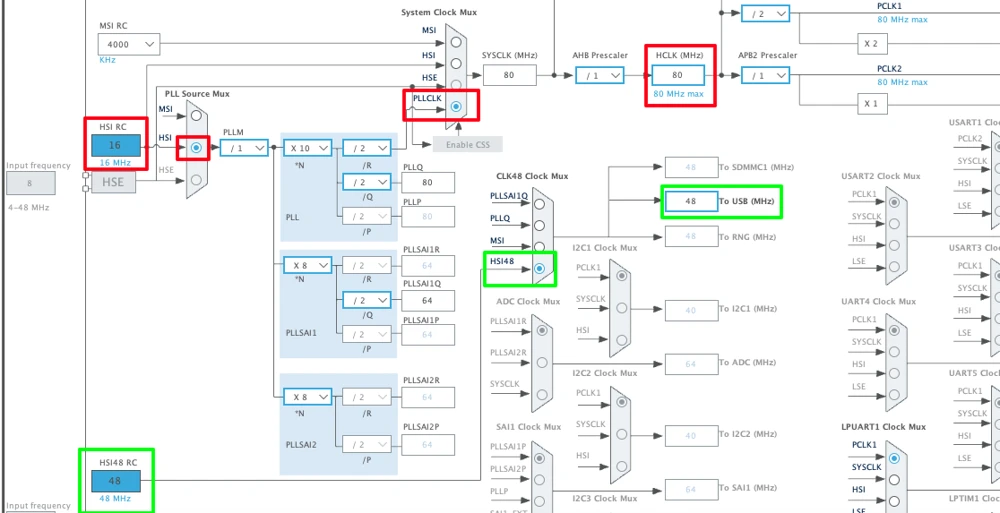
Under the clock tree, the USB peripheral requires exactly 48 MHz. On this board, we can use the dedicated HSI48 oscillator (48 MHz internal oscillator) specifically for USB.
STM32 USB HID Host: Code and Results
printf Routing via UART
Add this function in main.c to redirect all printf output through LPUART1:
int _write(int fd, unsigned char *buf, int len) {
if (fd == 1 || fd == 2) {
HAL_UART_Transmit(&hlpuart1, buf, len, 999);
}
return len;
}Since LPUART1 is wired to the ST-Link virtual COM port, you can view all logs directly through the ST-Link USB cable without needing any external USB-to-UART adapter.
Testing Device Detection
Before reading any HID data, we should first confirm that the USB host is detecting devices correctly. Add log messages inside USBH_UserProcess() in usb_host.c:
static void USBH_UserProcess(USBH_HandleTypeDef *phost, uint8_t id)
{
switch(id)
{
case HOST_USER_SELECT_CONFIGURATION:
break;
case HOST_USER_DISCONNECTION:
Appli_state = APPLICATION_DISCONNECT;
printf("Device Disconnected\r\n");
break;
case HOST_USER_CLASS_ACTIVE:
Appli_state = APPLICATION_READY;
printf("Device Ready\r\n");
break;
case HOST_USER_CONNECTION:
Appli_state = APPLICATION_START;
printf("Device Connected\r\n");
break;
default:
break;
}
}Flash this and plug in a keyboard. You should see “Device Connected” followed by “Device Ready” in the serial monitor. Unplug it and you will see “Device Disconnected”.
Output
The GIF below shows the serial monitor with device connection and disconnection logs.

Reading Keyboard Data
Include usbh_hid.h at the top of main.c:
#include "usbh_hid.h"Now define USBH_HID_EventCallback() in main.c. This callback is called every time the HID device sends a report:
void USBH_HID_EventCallback(USBH_HandleTypeDef *phost)
{
if (USBH_HID_GetDeviceType(phost) == HID_KEYBOARD)
{
uint8_t key;
HID_KEYBD_Info_TypeDef *keyboard_info;
keyboard_info = USBH_HID_GetKeybdInfo(phost);
key = USBH_HID_GetASCIICode(keyboard_info);
if (key != '\0') printf("Key: %c\r\n", key);
}
}Inside the callback, we will simply read the data sent by the Keyboard and print it on the serial console.
A few things to note here:
USBH_HID_GetDeviceType()checks whether the connected device is a keyboard or mouse.USBH_HID_GetKeybdInfo()fetches the raw HID report from the keyboard.USBH_HID_GetASCIICode()converts the keycode to an ASCII character.- We skip printing when
key == '\0'because the keyboard sends an empty report on key release. Without this check, you would see two entries for every single keypress.
Output
The GIF below shows the keyboard keypresses printing correctly on the serial monitor.

Reading Mouse Data
In order to read the mouse data, we will add a second condition inside the same callback.
if (USBH_HID_GetDeviceType(phost) == HID_MOUSE)
{
HID_MOUSE_Info_TypeDef *mouse_info;
mouse_info = USBH_HID_GetMouseInfo(phost);
int xVal = mouse_info->x;
int yVal = mouse_info->y;
int b0 = mouse_info->buttons[0];
int b1 = mouse_info->buttons[1];
int b2 = mouse_info->buttons[2];
if (xVal > 127) xVal -= 255;
if (yVal > 127) yVal -= 255;
printf("x: %d, y: %d, b0: %d, b1: %d, b2: %d\r\n", xVal, yVal, b0, b1, b2);
}The raw X and Y values from the mouse are unsigned bytes (0–255). We apply the signed conversion so that movement in one direction shows as positive and the other direction as negative. The three button values (b0, b1, b2) correspond to left click, right click, and middle click.
Fixing Mouse Byte Offsets
After testing, I noticed the mouse data was incorrect. The X values were printing under Y, and button clicks were showing under X. This is a byte offset issue.
To investigate, I printed the raw buffer to see where each value actually sits:
uint8_t *buf = phost->device.Data;
for(int i = 0; i < 8; i++)
{
printf("%02X ", buf[i]);
}
printf("\r\n");The output showed that byte 0 was always 0x01 — this is a Report ID that this particular mouse prepends to every report. Because of this, all the actual data shifts one byte to the right compared to what the library expects.
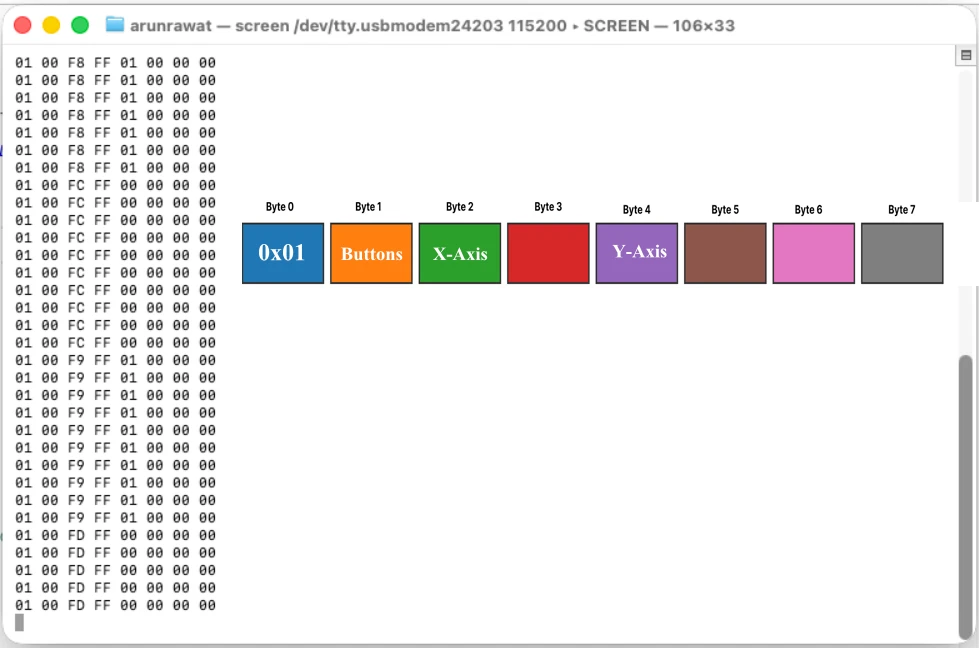
We need to fix the byte offsets inside usbh_hid_mouse.c, located inside Middleware -> ST -> STM32_USB_Host_Library -> Class -> HID -> Src. Open that file and find the property structures — prop_b1, prop_b2, prop_b3, prop_x, and prop_y. Each one has a data pointer pointing to a byte offset in mouse_report_data. Update them like this:
/* Button 1 — shifted to byte 1 */
static const HID_Report_ItemTypedef prop_b1 =
{
mouse_report_data + 1, /* data */
...
};
/* Button 2 — shifted to byte 1 */
static const HID_Report_ItemTypedef prop_b2 =
{
mouse_report_data + 1, /* data */
...
};
/* Button 3 — shifted to byte 1 */
static const HID_Report_ItemTypedef prop_b3 =
{
mouse_report_data + 1, /* data */
...
};
/* X axis — shifted to byte 2 */
static const HID_Report_ItemTypedef prop_x =
{
mouse_report_data + 2U, /* data */
...
};
/* Y axis — shifted to byte 4 (or byte 3 depending on the mouse) */
static const HID_Report_ItemTypedef prop_y =
{
mouse_report_data + 4U, /* data */
...
};
Note:
The exact byte position of Y data can differ between mice. For my wired mouse, Y was at byte 4. For my wireless mouse, Y was at byte 3. Always print the raw buffer first and confirm the actual layout before adjusting the offsets.
Output
The GIF below shows the mouse movement and button data printing correctly on the serial monitor — X and Y movement with positive/negative values, and all three button states.

Full Code — main.c
Here is the complete code from main.c combining the keyboard and mouse handling, printf routing, and the main loop:
#include "main.h"
#include "usb_host.h"
#include "usbh_hid.h"
UART_HandleTypeDef hlpuart1;
int _write(int fd, unsigned char *buf, int len) {
  if (fd == 1 || fd == 2) {
    HAL_UART_Transmit(&hlpuart1, buf, len, 999);
  }
  return len;
}
void USBH_HID_EventCallback(USBH_HandleTypeDef *phost)
{
if (USBH_HID_GetDeviceType(phost) == HID_KEYBOARD)
{
uint8_t key;
HID_KEYBD_Info_TypeDef *keyboard_info;
keyboard_info = USBH_HID_GetKeybdInfo(phost);
key = USBH_HID_GetASCIICode(keyboard_info);
if (key != '\0') printf("Key: %c\r\n", key);
}
if (USBH_HID_GetDeviceType(phost) == HID_MOUSE)
{
HID_MOUSE_Info_TypeDef *mouse_info;
mouse_info = USBH_HID_GetMouseInfo(phost);
int xVal = mouse_info->x;
int yVal = mouse_info->y;
int b0 = mouse_info->buttons[0];
int b1 = mouse_info->buttons[1];
int b2 = mouse_info->buttons[2];
if (xVal > 127) xVal -= 255;
if (yVal > 127) yVal -= 255;
printf("x: %d, y: %d, b0: %d, b1: %d, b2: %d\r\n", xVal, yVal, b0, b1, b2);
// uint8_t *buf = phost->device.Data;
// for(int i = 0; i < 8; i++)
// {
// printf("%02X ", buf[i]);
// }
// printf("\r\n");
// }
}
int main(void)
{
HAL_Init();
SystemClock_Config();
MX_GPIO_Init();
MX_LPUART1_UART_Init();
MX_USB_HOST_Init();
while (1)
{
MX_USB_HOST_Process();
}
}STM32 HID Host with Wireless Devices
Wireless keyboards and mice use a USB receiver (dongle) that exposes multiple interfaces, one for the keyboard, one for the mouse, and there could be more for other purposes as well. The STM32 USB HID host can only use one interface at a time, so we need to understand how interface selection works and how to control it.
Printing Interface Information
To see what interfaces a USB device exposes, we can add a utility function in usb_host.c that prints each interface’s class, subclass, protocol, and endpoints. Call this inside HOST_USER_CLASS_ACTIVE:
void USB_PrintInterfaces(USBH_HandleTypeDef *phost)
{
USBH_CfgDescTypeDef *cfg = &phost->device.CfgDesc;
printf("\r\n.... USB DEVICE INFO ....\r\n");
printf("Interfaces: %d\r\n", cfg->bNumInterfaces);
for(uint8_t i = 0; i < cfg->bNumInterfaces; i++)
{
USBH_InterfaceDescTypeDef *itf = &cfg->Itf_Desc[i];
printf("\r\nIF%d\r\n", i);
printf(" Class : 0x%02X\r\n", itf->bInterfaceClass);
printf(" SubClass : 0x%02X\r\n", itf->bInterfaceSubClass);
printf(" Protocol : 0x%02X\r\n", itf->bInterfaceProtocol);
printf(" Endpoints: %d\r\n", itf->bNumEndpoints);
for(uint8_t ep = 0; ep < itf->bNumEndpoints; ep++)
{
printf(" EP: 0x%02X\r\n", itf->Ep_Desc[ep].bEndpointAddress);
}
}
}The protocol values tell us the interface type:
0x01— Keyboard0x02— Mouse
The image below shows the information printed when I connected the receiver of the Wireless Mouse.
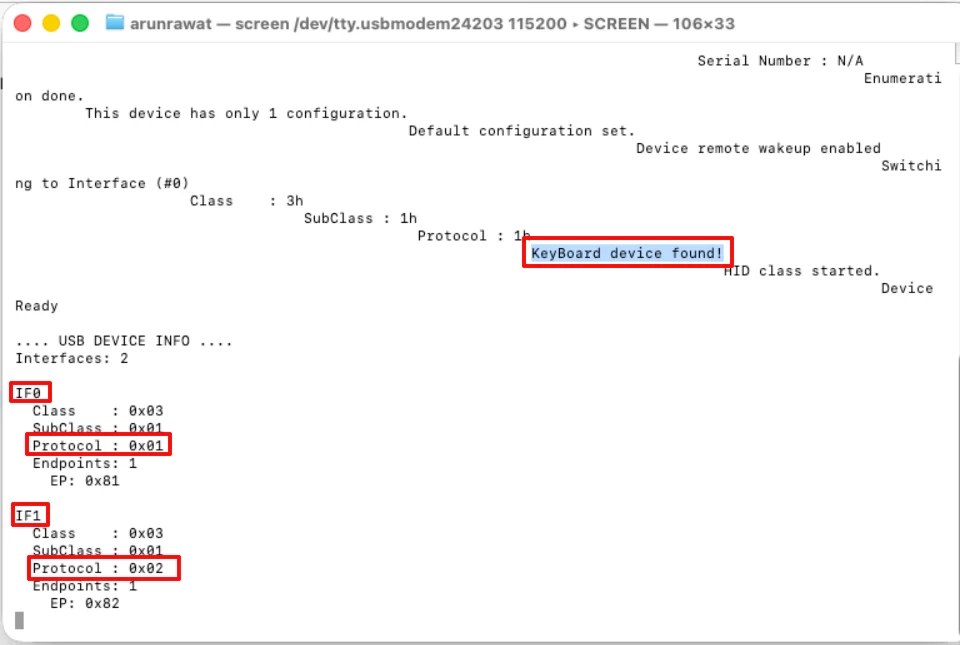
You can see above, despite being a mouse, the device is detected as a keyboard. This is because the Wireless receiver supports 2 interfaces, IF0 (0x01 – Keyboard) and IF1 (IF1 – Mouse). Since the IF0 (Keyboard) is detected first, the same is selected by the STM32 HID Host. Hence the STM32 is recognising it as a keyboard.
Selecting a Specific Interface
By default, the HID host selects the first available interface. This is controlled in USBH_HID_InterfaceInit() inside usbh_hid.c. The function is as follows:
interface = USBH_FindInterface(phost, phost->pActiveClass->ClassCode, HID_BOOT_CODE, 0xFFU);The last parameter 0xFF means “find any interface, no protocol filter.” Because of this, if the keyboard interface appears first in the descriptor, the device will always detect as a keyboard — even if you connect a wireless mouse receiver.
To force selection of the mouse interface, change 0xFF to 0x02:
interface = USBH_FindInterface(phost, phost->pActiveClass->ClassCode, HID_BOOT_CODE, 0x02U);To revert back to selecting the first available interface (keyboard in most cases), set it back to 0xFF.
Note:
The STM32 HAL USB Host library does not support using multiple interfaces simultaneously. Whichever interface gets selected first is the only one that will be active. Implementing dual-interface support would require significant modifications to the USB host library and is outside the scope of this tutorial.
Wireless Mouse — Interface and Byte Layout
When I connected my wireless mouse receiver, it was detected as a keyboard because the keyboard interface (protocol 0x01) appeared first. I changed the last parameter of USBH_FindInterface() to 0x02 to force mouse interface selection.
interface = USBH_FindInterface(phost, phost->pActiveClass->ClassCode, HID_BOOT_CODE, 0x02U);The rest of the code will remain the same that we covered in wired mouse case. Inside the USBH_HID_EventCallback() function, we are already reading and printing the mouse data to the serial console.
void USBH_HID_EventCallback(USBH_HandleTypeDef *phost)
{
if (USBH_HID_GetDeviceType(phost) == HID_MOUSE)
{
HID_MOUSE_Info_TypeDef *mouse_info;
mouse_info = USBH_HID_GetMouseInfo(phost);
int xVal = mouse_info->x;
int yVal = mouse_info->y;
int b0 = mouse_info->buttons[0];
int b1 = mouse_info->buttons[1];
int b2 = mouse_info->buttons[2];
if (xVal > 127) xVal -= 255;
if (yVal > 127) yVal -= 255;
printf("x: %d, y: %d, b0: %d, b1: %d, b2: %d\r\n", xVal, yVal, b0, b1, b2);
}
}Output
The GIF below shows the mouse movement and button data printing on the serial monitor.

Interface Wireless Keyboard
When I connected the receiver of the Logitech Wireless keyboard, the Keyboard interface appeared as the first interface. The image below shows it.
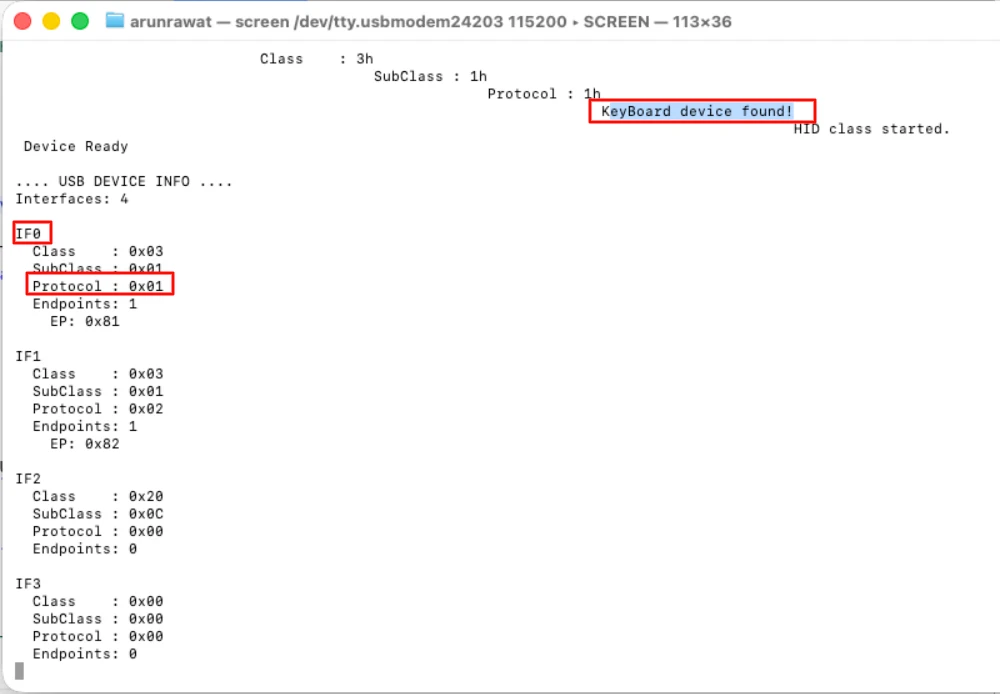
So even if I leave the USBH_FindInterface() parameter default to 0xFF, the keyboard will be detected just fine. Therefore I reverted the USBH_FindInterface() parameter back to 0xFF.
interface = USBH_FindInterface(phost, phost->pActiveClass->ClassCode, HID_BOOT_CODE, 0xFFU);The rest of the code will remain the same that we covered in wired Keyboard case. Inside the USBH_HID_EventCallback() function, we are reading the HID data from the keyboard, converting it to the ASCII format and printing the converted data to the serial console.
void USBH_HID_EventCallback(USBH_HandleTypeDef *phost)
{
  if (USBH_HID_GetDeviceType(phost) == HID_KEYBOARD)
  {
    uint8_t key;
    HID_KEYBD_Info_TypeDef *keyboard_info;
    keyboard_info = USBH_HID_GetKeybdInfo(phost);
    key = USBH_HID_GetASCIICode(keyboard_info);
    if (key != '\0') printf("Key: %c\r\n", key);
  }
}Output
The GIF below shows the keyboard data printing on the serial console.

STM32 USB Host HID — FAQs
Conclusion
In this tutorial, we used the STM32 USB Host HID class to interface a wired keyboard, a wired mouse, and wireless versions of both. For the keyboard, we used USBH_HID_GetASCIICode() to convert raw keycodes into readable characters. For the mouse, we read X/Y movement and button states, and applied a signed conversion to interpret directional movement correctly.
We also saw how byte offsets inside usbh_hid_mouse.c need to match the actual HID report layout of the specific device you are using, and how printing the raw buffer is the quickest way to figure that out. For wireless devices, the interface selection in USBH_FindInterface() controls which interface gets used, and changing the protocol filter parameter is all it takes to switch between keyboard and mouse.
Download STM32 USB Host HID Keyboard and Mouse Project
Open source CubeMX project files and HAL source code, tested on real hardware. Free to use — support the work if it helped you.
Browse More STM32 USB Tutorials
STM32 USB Composite Class: CDC + HID Gamepad on One USB Port
STM32 USB HID Device: Combine Mouse and Keyboard on One Port
STM32 USB Host MSC: Read & Write USB Flash Drive with FatFs and FreeRTOS
STM32 USB Host Audio Class: Play WAV Files from SD Card
STM32 USB DFU Bootloader: Flash Firmware Over USB Without ST-Link

Subscribe
Login
0 Comments
Newest

