
Published: December 2, 2025
Last Updated: February 5, 2026
Last Updated: February 5, 2026
Interfacing Passive Buzzer with Arduino (Full Guide with Alarm & Tone Codes)
Interfacing a passive buzzer with Arduino is one of the easiest and most fun tasks for beginners. A passive buzzer can create many types of sounds, tones and alarms. It adds life to your projects. You can use it in DIY alarms, notification systems, sensors, and even small music projects.
In this tutorial, you will learn everything about the passive buzzer module. You will see how it works, how it is different from an active buzzer, and how to connect it to an Arduino. You will also get many ready-to-use codes. These include alarm sound, emergency sound, siren sound, and two popular music tones.
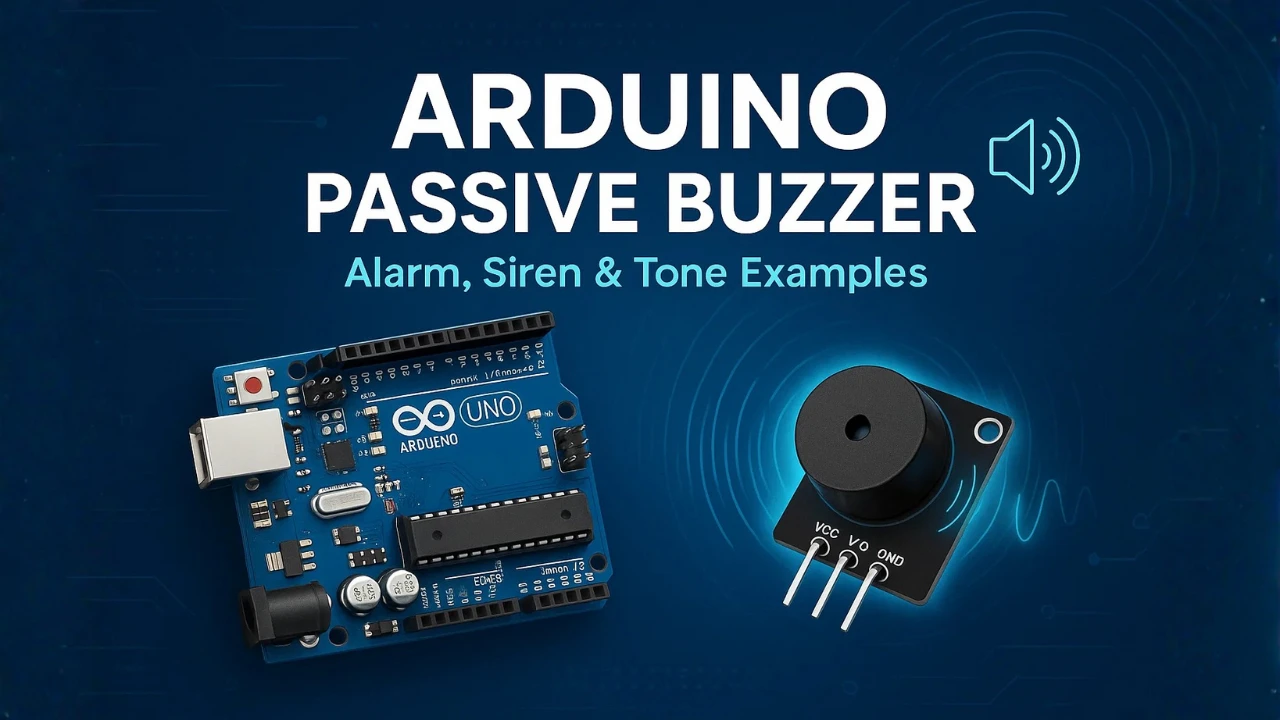
What is a Passive Buzzer?
A passive buzzer is a small sound-making device that needs an external signal to produce tones. It cannot create sound on its own. You must send a square wave from the Arduino to generate beeps, alarms, or music. Because of this, a passive buzzer gives you full control over frequency and timing. This makes it perfect for projects that need custom sounds.
How a Passive Buzzer Works
A passive buzzer has a tiny piezoelectric element inside it. When you feed it a fast ON–OFF electrical pulse, the piezo vibrates. These vibrations create sound waves.
A passive buzzer does not have a built-in oscillator. So it depends completely on the microcontroller. By changing the frequency of the signal, you can create low-pitch or high-pitch tones. You can even play melodies by changing frequencies quickly.
Difference Between Active and Passive Buzzer
Active Buzzer:
- Has a built-in oscillator
- Produces sound with just a HIGH signal
- Always produces the same tone
- Cannot play music or different frequencies
- Used when you need a simple beep
Passive Buzzer:
- No internal oscillator
- Needs a frequency signal from Arduino
- Can create many tones
- Can play alarms, sirens, and music
- More flexible for DIY projects
Why Use a Passive Buzzer in Arduino Projects?
Passive buzzers are ideal when you need:
- Custom tones or melodies
- Alarm systems with changing pitch
- Notification sounds
- Emergency sirens
- Fun hobby projects that involve music
They are cheap, easy to use, and work with just one digital pin. Because you control the frequency, the passive buzzer becomes a very versatile sound module for any Arduino DIY project.
Components Needed for Arduino Passive Buzzer Tutorial
To work with a passive buzzer, you only need a few basic components. These parts are easy to find and perfect for beginners. The setup is simple and takes only a couple of minutes. Before we move to the coding section, let’s first gather the required hardware.
Hardware List
You will need the following components:
- Arduino Uno (or any Arduino board)
- Passive Buzzer Module or a raw passive piezo buzzer
- Male-to-Female Jumper Wires
- Breadboard (optional but useful)
These few items are enough to build alarms, tones, and small music projects.
Circuit Diagram
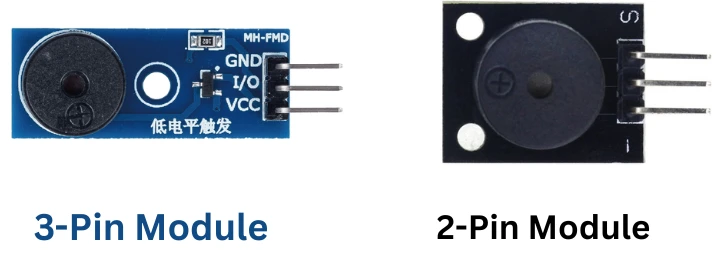
The circuit is very easy. The passive buzzer has two/three pins. The pinouts for both types of modules is shown below.
Arduino Pin Connections
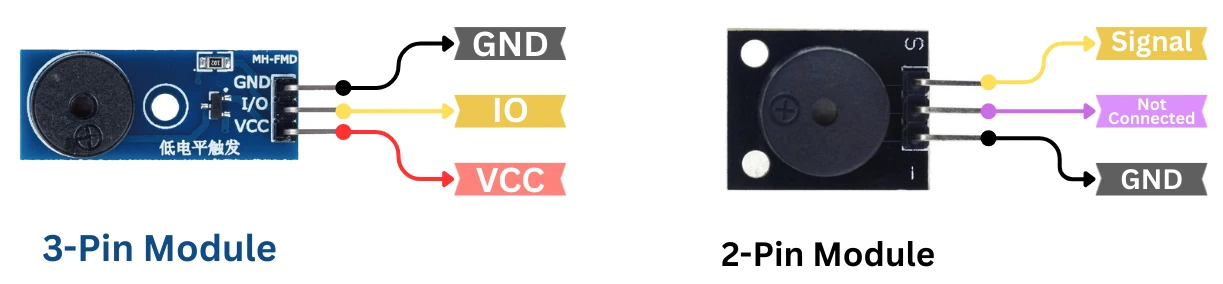
Connecting buzzer to an Arduino is very simple. The image below shows the connection for both 3-pin module and 2-pin module.
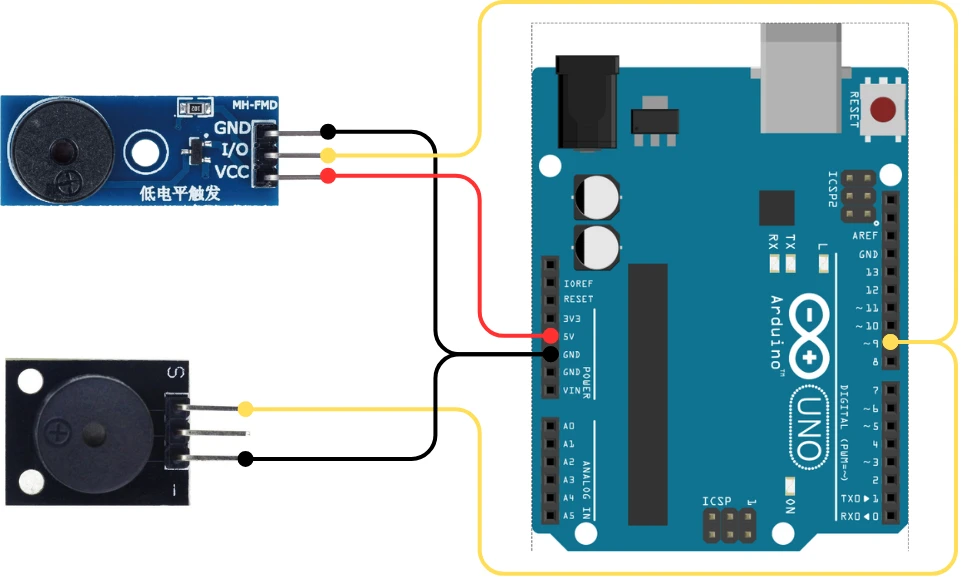
In case of 3-pin module, the VCC must be connected to 5V. Whereas in case of 2-pin module, only the ground and signal pins are enough.
Basic Arduino Code to Control a Passive Buzzer
Now that your passive buzzer is connected, let’s start with some basic Arduino codes. Arduino makes it very easy to generate tones using built-in functions. In this section, you will learn how to play a simple tone, how to stop it, and how the tone() function actually works. These basics will help you understand the advanced sounds later in this tutorial.
Simple Tone Code Using tone() Function
The tone() function is the easiest way to play sound on a passive buzzer. It sends a square wave to the buzzer at a frequency you set.
Here is a simple example:
int buzzer = 9;  // Buzzer connected to digital pin 9

void setup() {
  // Nothing to set up
}

void loop() {
  tone(buzzer, 1000);   // Play a 1000 Hz tone
  delay(1000);           // Wait for 1 second
  noTone(buzzer);        // Stop sound
  delay(1000);           // Wait for 1 second
}This code plays a clear beep every second. You can check the audio below to see how it sounds.
Stop the Buzzer Using noTone()
To stop the buzzer, Arduino provides a simple function called noTone(). It turns off the square wave signal and makes the buzzer silent.
Example:
noTone(buzzer);You can call this function at any time to stop the sound. It’s useful when you want short beeps or timed alarms.
Explanation of tone() Parameters
The tone() function has two main parameters:
- tone(pin, frequency)
- pin -> the Arduino pin connected to the buzzer
- frequency -> the pitch of the sound in Hertz (Hz)
- tone(pin, frequency, duration)
- duration -> time in milliseconds
- After the duration ends, the tone stops automatically
Examples of frequency:
- 500 Hz -> low-pitched sound
- 1000 Hz -> normal beep
- 2000+ Hz -> sharp, high-pitched tone
Create Different Sounds with Passive Buzzer
With a passive buzzer, you can create many sound effects by simply changing the frequency and timing. In this section, we will build three useful and popular sounds: an emergency alert, a police siren, and a beeping alarm. These examples use simple code, short delays, and the tone() function to keep things easy and beginner-friendly.
Emergency Sound
An emergency sound has a fast rising and falling pitch. This creates a sense of urgency.
Here is the code:
int buzzer = 9;

void setup() {
}

void loop() {
  // Rising frequency
  for (int freq = 500; freq <= 1500; freq += 50) {
    tone(buzzer, freq);
    delay(20);
  }

  // Falling frequency
  for (int freq = 1500; freq >= 500; freq -= 50) {
    tone(buzzer, freq);
    delay(20);
  }
}Explanation
The loop increases and decreases the frequency to create an emergency-style sweep. Fast changes in pitch make the sound intense and attention-grabbing.
Output
The audio below is the output of this code. You can press the play button to hear the sound generated by the buzzer.
Police Siren Sound
A police siren has two alternating tones. This back-and-forth pitch gives the classic siren effect.
int buzzer = 9;

void setup() {
}

void loop() {
  // High tone
  tone(buzzer, 800);
  delay(500);

  // Low tone
  tone(buzzer, 500);
  delay(500);
}Explanation
Two tones play repeatedly. The shift between high and low frequencies produces the well-known police siren sound.
Output
The audio below is the output of this code. You can press the play button to hear the sound generated by the buzzer.
Beeping Alarm
A beeping alarm is simple. It turns the buzzer ON and OFF at fixed intervals.
int buzzer = 9;

void setup() {
}

void loop() {
  tone(buzzer, 1000);  // Play tone
  delay(300);          // Short beep

  noTone(buzzer);      // Stop tone
  delay(300);          // Pause
}Explanation
The buzzer plays a medium-pitch tone for a short time, then stops, then repeats. This pattern creates a clean and clear alarm beep.
Output
The audio below is the output of this code. You can press the play button to hear the sound generated by the buzzer.
Play Popular Tones on Passive Buzzer
A passive buzzer can also play simple music. By changing the frequency quickly, you can create melodies. In this section, we will play two very popular tones: the Mario theme (short version) and the Star Wars intro tone. These are simplified versions, so they work smoothly on any Arduino board.
Mario Theme Tone
Here is a short and fun version of the Mario melody:
int buzzer = 9;

void playTone(int frequency, int duration) {
  tone(buzzer, frequency, duration);
  delay(duration * 1.3);
}

void setup() {
}

void loop() {
  playTone(660, 100);
  playTone(660, 100);
  delay(100);
  playTone(660, 100);

  delay(150);
  playTone(510, 100);
  playTone(660, 100);
  delay(150);
  playTone(770, 100);

  delay(300);
  playTone(380, 100);

  delay(500); // Wait and loop
}Explanation
This code uses a helper function to play each note with a small delay. The frequency values match the musical notes from the Mario theme, giving a recognizable tune.
Output
The audio below is the output of this code. You can press the play button to hear the sound generated by the buzzer.
Star Wars Theme Tone
This is a simplified intro from the classic Star Wars theme:
int buzzer = 9;

void playTone(int frequency, int duration) {
  tone(buzzer, frequency, duration);
  delay(duration * 1.3);
}

void setup() {
}

void loop() {
  playTone(440, 500);  // A
  playTone(440, 500);  // A
  playTone(440, 500);  // A

  playTone(349, 350);  // F
  playTone(523, 150);  // C
  playTone(440, 500);  // A

  playTone(349, 350);  // F
  playTone(523, 150);  // C
  playTone(440, 650);  // A (long note)

  delay(1000);         // Pause before repeating
}Explanation
Each tone represents a musical note. The timing and pitch create the famous Star Wars intro. The small delays help separate the notes and make the melody smooth.
Output
The audio below is the output of this code. You can press the play button to hear the sound generated by the buzzer.
Troubleshooting Passive Buzzer with Arduino
Sometimes the buzzer may not sound as expected. It can be too weak, too noisy, or may not work at all. Most issues are simple and can be fixed quickly. This section covers the most common problems beginners face when using a passive buzzer with Arduino.
Buzzer Makes Weak Sound
A weak or low sound usually means:
- The buzzer is a passive buzzer, but you are not sending the correct frequency.
- Your tone frequency is too low.
- The buzzer is connected through loose jumper wires.
- The Arduino pin may not be making proper contact.
Quick fixes:
- Increase frequency to around 800–1500 Hz for a louder sound.
- Check positive and negative pins.
- Use shorter jumper wires to reduce signal loss.
- Try another digital pin, like D8 or D10.
tone() Not Working
If the tone() function does nothing, check the following:
- Pin conflict
Some pins may be used by other libraries (Servo, PWM timers, etc.). Try another pin. - Wrong buzzer type
tone() works only with passive buzzers. Active buzzers will just beep the same tone. - Hardware issue
A burnt piezo element or broken wire causes silent output. - Incorrect wiring
Even swapping + and – can stop sound.
Quick test code:
tone(9, 1000);If you hear nothing, it means wiring or buzzer type is the issue.
Passive vs Active Buzzer Confusion
Many beginners mix these two modules. The wrong buzzer will behave differently.
Passive Buzzer:
- Needs tone()
- Can play melodies
- Can change pitch
- MUST get a frequency signal
Active Buzzer:
- Has built-in sound circuit
- Makes a single fixed beep
- tone() will NOT work
- Only needs HIGH and LOW
How to check quickly:
- If the buzzer makes the same sound on 5V directly, it is active.
- If it stays silent until Arduino sends a frequency, it is passive.
Conclusion
Working with a passive buzzer is simple, fun, and perfect for beginners. With just one digital pin, you can create alarms, beeps, sirens, and even small musical tones. Because the passive buzzer depends on frequency signals, you get full control over the sound. This flexibility makes it more useful than an active buzzer in many Arduino projects.
In this tutorial, you learned how the passive buzzer works, how it differs from an active buzzer, and how to connect it to an Arduino. You also explored simple tone examples, emergency sounds, sirens, and two popular melodies. These building blocks are enough to help you create your own sound effects for any DIY electronics project.
Browse More Arduino Display Tutorials

Interfacing SHT3X Temperature and Humidity Sensors with Arduino using I2C

MPU6050 Arduino I2C Tutorial: Pinout, Wiring, Calibration, Raw Data, and Code Examples
Interface SHT21 Temperature and Humidity Sensor with Arduino | Display on Serial Monitor and I2C LCD

Interfacing BMP180 Sensor with Arduino: Measure Temperature, Pressure Altitude with LCD1602 I2C

Arduino PIR Motion Sensor Tutorial: Wiring, Modes, Sensitivity & Full Codes
IR Sensor Arduino Tutorial: Interfacing, Calibration, Detection Modes, Codes & LCD1602 Display
How to Interface GP2Y0A41SK0F Distance Sensor with Arduino (Serial Monitor + I2C LCD Display)
Arduino Buzzer Project Download
Arduino Buzzer FAQs
Subscribe
Login
0 Comments
Newest

